How to time-block across multiple calendars on Mac
Published on 8/16/2026

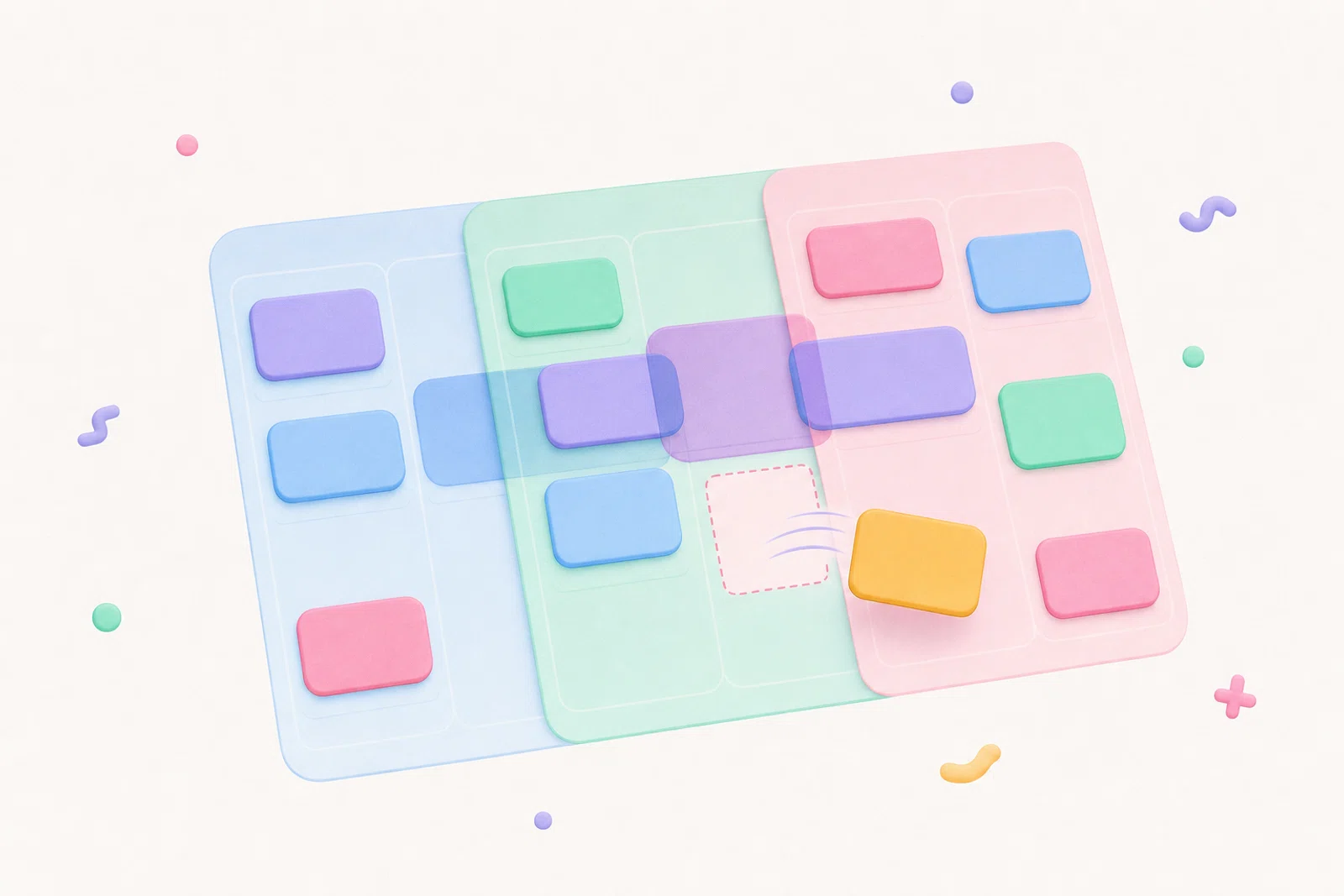
If you need to time-block across multiple calendars on Mac, the safest workflow is to plan in one timeline that shows every committed event before you add new blocks. That means your work Google Calendar, personal Outlook Calendar, Apple Calendar events, and any other selected calendars should appear beside your planned focus time before you decide where the next hour goes.
Chunk is built for that exact job. It sits in the macOS menu bar, shows multiple Google, Outlook, and Apple calendars in one day timeline, and lets you create, move, resize, and edit time blocks without opening a full calendar app. When editing is allowed for a connected calendar, changes you make in Chunk can sync back to the source calendar.
This guide is not about importing one calendar into another or fixing account settings. It is about building a reliable daily planning routine when your real commitments live in more than one place.
Why does time blocking break when your calendars are split?
Time blocking works best when your plan and your constraints live in the same view. Split calendars break that link. You may have client calls in Google Calendar, personal appointments in Outlook, family events in Apple Calendar, and provider calendars for classes, healthcare, or shared resources. If you plan focus blocks while looking at only one of them, you are guessing.
The common workaround is calendar hopping: check work, check personal, check another account, then return to your planner. The problem is not only the extra clicking. Each switch makes it easier to miss a short event, forget a travel buffer, or block deep work over a meeting that sits in another account.
A better Mac workflow starts with a single planning surface. You do not need every calendar to become your main calendar. You need every relevant event visible at planning time, then a fast way to place your own blocks around them.
What should one reliable multi-calendar timeline show?
Your planning timeline should answer three questions before you add anything new: what is already fixed, what can move, and where is there real open space? Fixed events are meetings, appointments, school runs, calls, and provider bookings. Flexible work is the focus time you want to protect but can move if the day changes.
Chunk separates those jobs cleanly. Synced Google, Outlook, and Apple Calendar events appear on the same vertical day view as your own Chunk blocks. You can add several Google accounts and several Outlook accounts side by side, while Apple Calendar connects through the Mac system calendar. Each connected account has its own calendar selection, so you can show the calendars that matter without turning the timeline into noise.
Once everything is visible, time blocking becomes a placement decision instead of detective work. If your morning already contains a stand-up, a dentist appointment, and a school calendar event, you can see the gap that is actually usable and block it with a realistic duration.
If you are still deciding what a Mac-first planner should include, the broader guide to the best calendar app for time blocking on Mac covers the buying criteria in more detail.
How do you connect multiple calendars without making a mess?
Start by deciding which calendars need to influence your daily plan. You do not have to show every shared calendar, holiday feed, or archived project. The goal is enough context to avoid double-booking, not a wall of events you ignore.
In Chunk, the calendar settings use an account manager built around connected accounts and their calendar lists. You can add multiple Google accounts, multiple Outlook accounts, and the Mac’s Apple Calendar connection. For each account, choose which calendars appear in the day view. That lets you keep a work account, a personal account, and provider calendars visible without merging them into one provider.
Use editing permissions deliberately. Chunk lets you allow editing per connected account, and there is a global confirm-before-edits preference if you want an extra checkpoint before changes are pushed back. If a calendar is only there for context, keep it visible but read-only. If it is where your actual work blocks should live, allow editing so moves and resizes can sync back.
For a more provider-specific setup, you can pair this workflow with Google Calendar time blocking or time blocking Outlook Calendar on Mac.
How should you plan your day once every calendar is visible?
Open the day timeline first, before your task list or inbox pulls you into details. Look for the immovable anchors: meetings, appointments, calls, travel, pickups, and hard deadlines. These events define the shape of the day.
Next, place your most important focus block in the best available gap. In Chunk, you can drag on empty space to create a block, drag the block body to move it, or resize the top and bottom edges when the duration is wrong. This is the moment where a menu-bar planner helps: you can open Chunk with the global shortcut, adjust the day, and return to your work without a full app switch.
Then add smaller blocks around the anchors. Admin, email, errands, review time, and shallow work should fit into the remaining spaces rather than stealing the cleanest stretch. If you already use a daily plan, the key change is that the plan now respects every connected calendar instead of just the one you remembered to check.
If you want the menu-bar version of this routine, read how to plan your day from the Mac menu bar.
When should a block sync back to Google, Outlook, or Apple Calendar?
Not every block needs to become an external calendar event. Some blocks are private planning scaffolding: read notes, draft proposal, sort files, reset desk. Keeping those as local Chunk blocks can be enough if they are only for you.
Other blocks should live on a calendar other apps can see. If a focus block affects availability, if you want it visible on your work calendar, or if another device depends on that calendar feed, put it on the right external calendar. Chunk’s block actions let you swap an event onto an external Google, Outlook, or Apple calendar when that account is connected and editing is allowed.
The useful rule is simple: local blocks are for personal execution, synced calendar events are for shared availability or provider continuity. That keeps your calendar clean while still making sure important protected time shows up where it needs to.
For the broader sync concept behind this, see two-way calendar sync for Mac time blocking.
How do you avoid accidental edits across accounts?
Multi-calendar planning is useful because everything is visible. It can also be risky if you treat every event as equally editable. A client calendar, shared family calendar, or provider booking may be important context but not something you want to move from your planner.
Chunk gives you two safeguards. First, editing can be allowed per account, so a calendar can appear in the day view without becoming an easy drag target for writes. Second, a global lock toggle freezes external events as read-only when you want to plan around them without changing them. That is useful during a quick morning review when you are arranging your own blocks, not rearranging meetings.
Use a simple policy: edit the calendars you own, view the calendars you depend on. If you do need to move an external event, do it intentionally, with the right account selected and the right calendar as the destination.
What if your day changes after you have planned it?
A multi-calendar plan needs to stay editable because the day will move. A meeting overruns, a provider booking shifts, or a personal appointment appears at short notice. The planning system fails if adjusting the day feels harder than ignoring it.
In Chunk, external calendar events render on the same timeline as your blocks, and editable events can be moved or resized from the timeline. Your own blocks are just as flexible. You can slide a focus block later, shorten an admin block, or resize a writing session without rebuilding the whole day from scratch.
This is where the menu bar matters. If the panel is one shortcut away and can float above fullscreen apps, replanning becomes a small correction rather than a context switch. The plan stays close enough to maintain, which is what makes it useful after the first interruption.
If fullscreen work is part of your day, a Mac time blocker that works in fullscreen explains why that detail changes the habit.
What is the simplest daily routine for multiple calendars?
Use a short routine you can repeat without thinking. First, open your combined timeline and scan the fixed events across every visible calendar. Second, choose the one outcome that most needs protected time today. Third, create a block for that outcome in the best open gap. Fourth, add smaller blocks for admin and recovery around the fixed events.
After that, check whether any protected block should be synced back to a calendar. If the block affects availability, put it on the relevant Google, Outlook, or Apple calendar. If it is only a private execution cue, leave it as a local block. Finally, use the lock toggle when you only want to adjust your own plan.
Chunk fits this routine because it keeps the job small: open the menu-bar panel, see the calendars, place the blocks, and get back to work. You can try it with the 7-day trial, then keep it with a one-time lifetime licence if it becomes the planning layer your Mac was missing.
Related articles
How to choose a calendar app for time blocking on Mac
How to choose a calendar app for time blocking on Mac
Best time blocking app with recurring tasks for Mac
Best time blocking app with recurring tasks for Mac