Best calendar app for Mac in 2026, compared for time blocking
Published on 6/1/2026

.webp)
The best calendar app for Mac in 2026 depends on what you want your calendar to hold. If it only has to hold meetings, the one already installed on your Mac is hard to argue with. If you want it to hold your work as well, so the day has a shape before it starts, the shortlist gets a lot shorter.
This guide compares the six Mac calendar apps people actually shortlist: Fantastical, BusyCal, Apple Calendar, Notion Calendar, Morgen, and Google Calendar in the browser. Each one gets a verdict, and every price and platform below comes from the vendor's own page rather than a roundup nobody has updated since 2024.
The angle is time blocking. Any of these will store an event, so the interesting question is what happens when you want to plan the gaps between events, then move that plan at 3pm when the day changes shape.
How each Mac calendar app was judged
Four things separate a calendar you tolerate from one you plan in. None of them are about how the month view looks.
What it costs, and how. A subscription, a one-time licence, or nothing at all.
Where it runs. Native Mac app, browser tab, or both.
Whether sync goes both ways. Read-only sync turns the app into a copy of your calendar rather than a way to change it.
How expensive it is to change your mind. Creating and moving a block should cost a drag, not a dialog.
That last one is where most calendar apps quietly fail, and it is the whole game if you plan by blocking time. If the method is new to you, start with what is time blocking, then come back and judge these six on how cheaply they let you redo a day.
The six best calendar apps for Mac in 2026
Fantastical
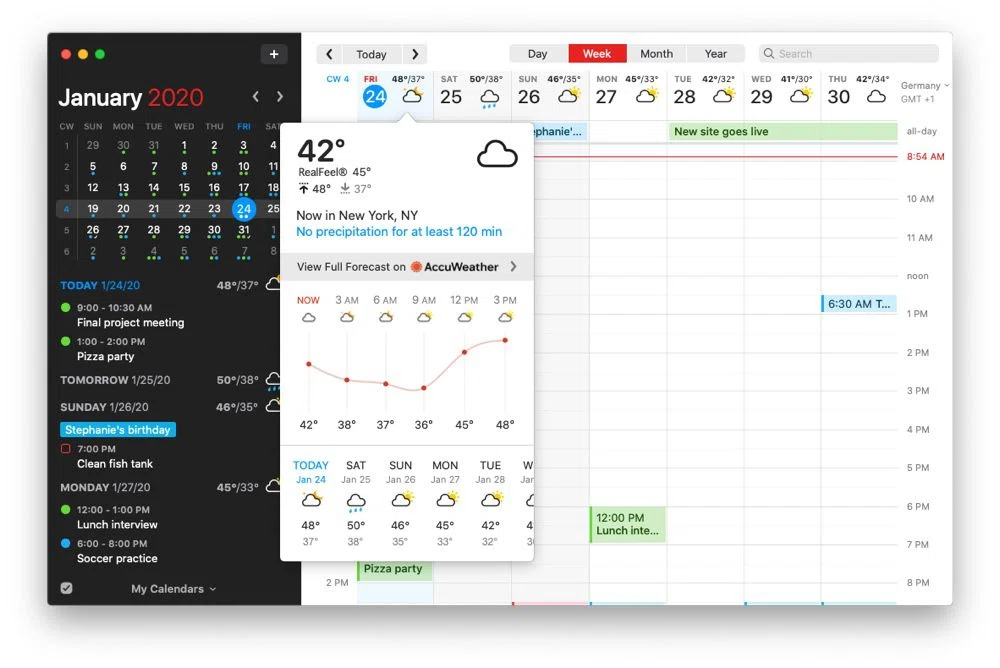
Fantastical is the app most people mean when they say a Mac deserves a nicer calendar than the default. Its signature is natural language text parsing: type the event out as a sentence and it works out the date, the time and the invitees. Flexibits lists it for Mac, iPhone, iPad, Apple Watch, Apple Vision Pro and Windows, so one subscription covers every device you own.
There is a free tier, and Flexibits Premium is $6.99 a month or $56.99 a year, with a family plan at $10.49 a month or $89.99 a year and a 14-day trial. Verdict: the best all-round calendar client on the Mac, and the right pick if your day is mostly other people's meetings. It's still an event app, though. A block of focus time is an event with nobody invited, and Fantastical treats it that way.
BusyCal
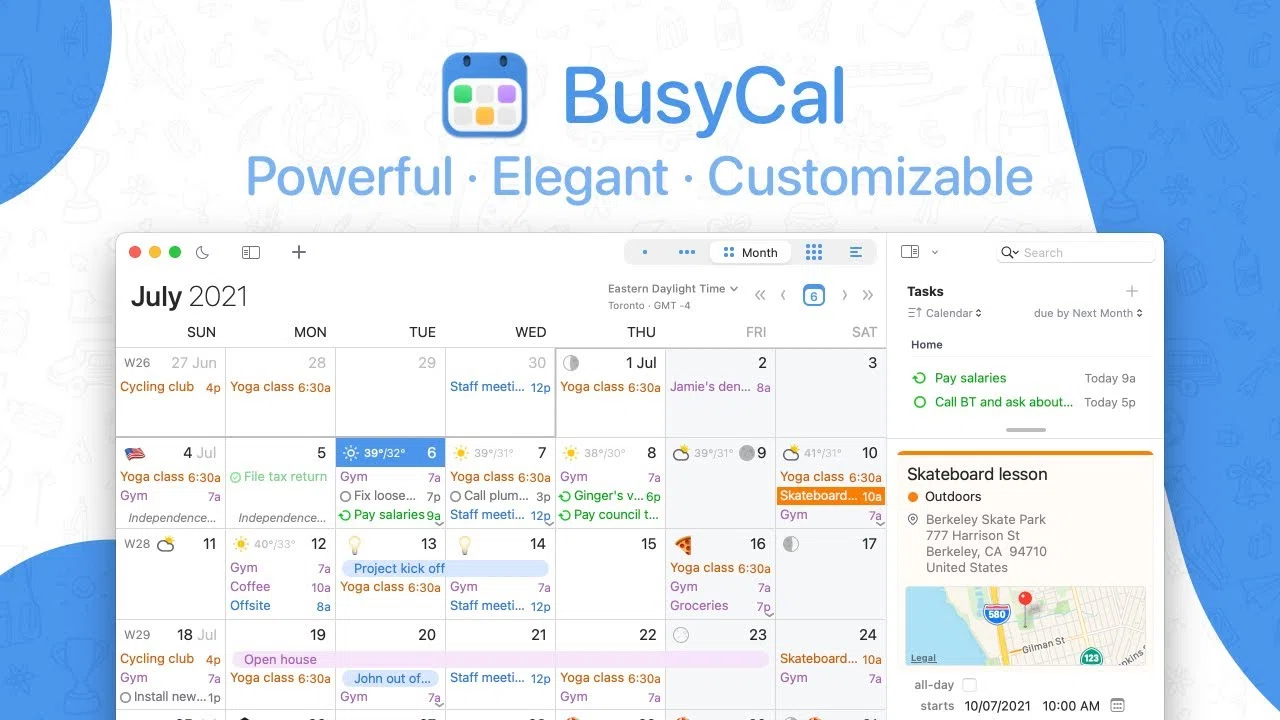
BusyCal is the answer for anyone whose objection to Fantastical is the subscription. It is $49.99 from BusyMac as a one-time purchase that includes 18 months of updates, after which you keep the last version you are entitled to. There is a 14-day trial, it needs macOS 12.0 or later, and the iOS app is a separate $9.99.
BusyMac's own feature list is unusually planning-minded: day, week, month, year planner and list views, tasks that sit on their due dates and carry forward until you finish them, automatic travel time, natural language input, and a menu bar extension with a mini-calendar heat map of how busy you are. Verdict: the pick if a recurring charge is the dealbreaker, and the closest of these six to a calendar that plans work rather than recording it. If subscriptions are the sticking point generally, the same logic applies across time blocking apps without a subscription.
Apple Calendar
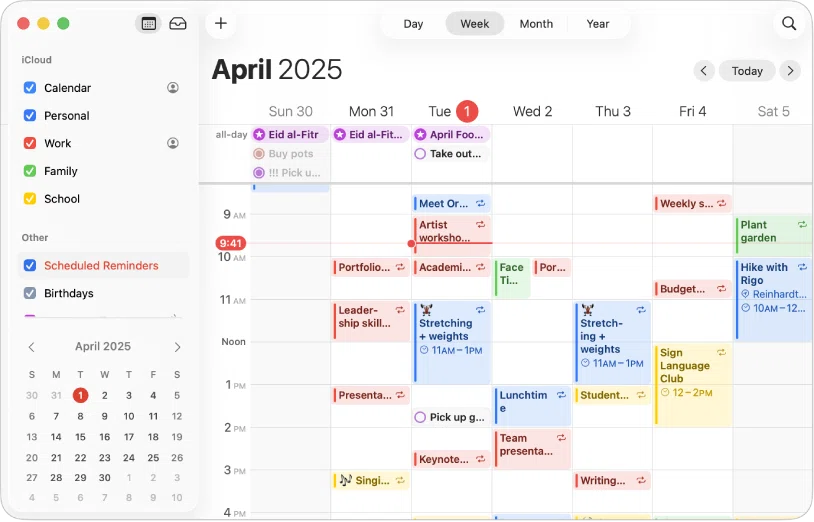
Apple Calendar is already on your Mac, costs nothing, and handles accounts from iCloud and Google side by side. It subscribes to shared calendars, syncs across your Apple devices without setup, and will never surprise you with a pricing email.
Verdict: the correct default, and the one to beat rather than the one to dismiss. Nothing stops you time blocking in it, either. You can drag out an hour and call it writing. What it won't do is make the second or third revision of that hour any faster than the first, which is exactly when most plans get abandoned. Time blocking in Apple Calendar covers how far you can push it before that starts to bite.
Notion Calendar
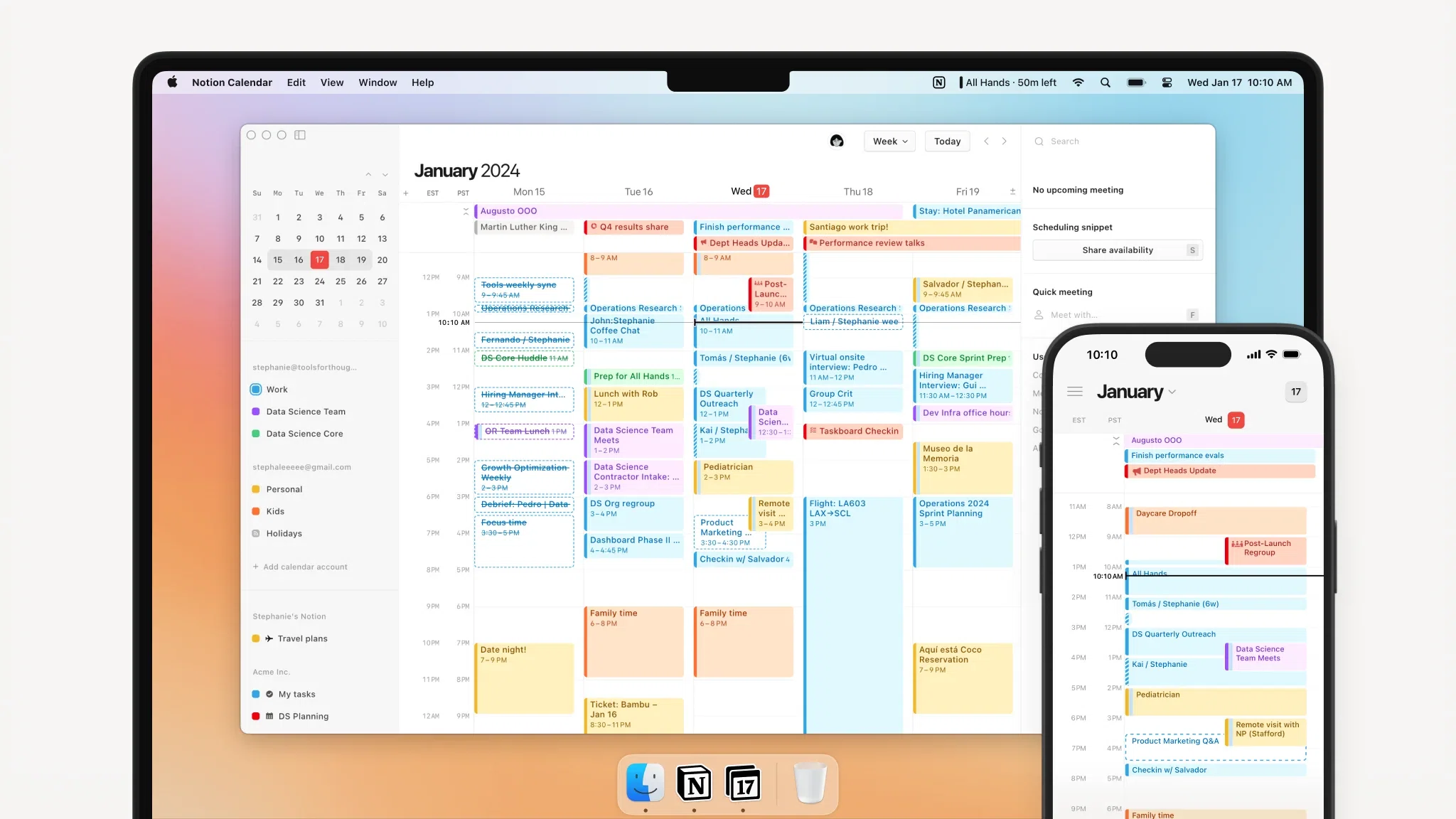
Notion Calendar is free, runs on Mac, Windows, iOS, Android and the web, and connects to Google Calendar accounts, Outlook calendars and iCloud-synced Apple calendars. Its real trick is showing Notion database items next to your events, so a project deadline stops living in a different tab from the day it is due.
Verdict: an easy yes if your work already lives in Notion, and a fairly ordinary calendar if it doesn't. For time blocking specifically, the gap is that the task side only works as well as your Notion setup does, and Notion notes that pulling Google Calendar events back into a database is not supported yet.
Morgen
Morgen is the most ambitious app here and the only genuinely cross-platform one, running on Mac, Windows, Linux, iOS, Android and the web. The pitch is an AI planner that does the time blocking for you, on top of unlimited calendar and task integrations, calendar automations and booking pages.
It's also the most expensive. Pro is $30 a month billed monthly, or $15 a month billed yearly, with team seats at $25 and $10. The 14-day trial gives full access and asks for no card, and there is a 30-day money-back guarantee. Verdict: worth it if you want the calendar to propose the plan rather than hold it, and if you need the same app on a Linux box. For one person on one Mac, $180 a year is a lot of calendar.
Google Calendar (web)
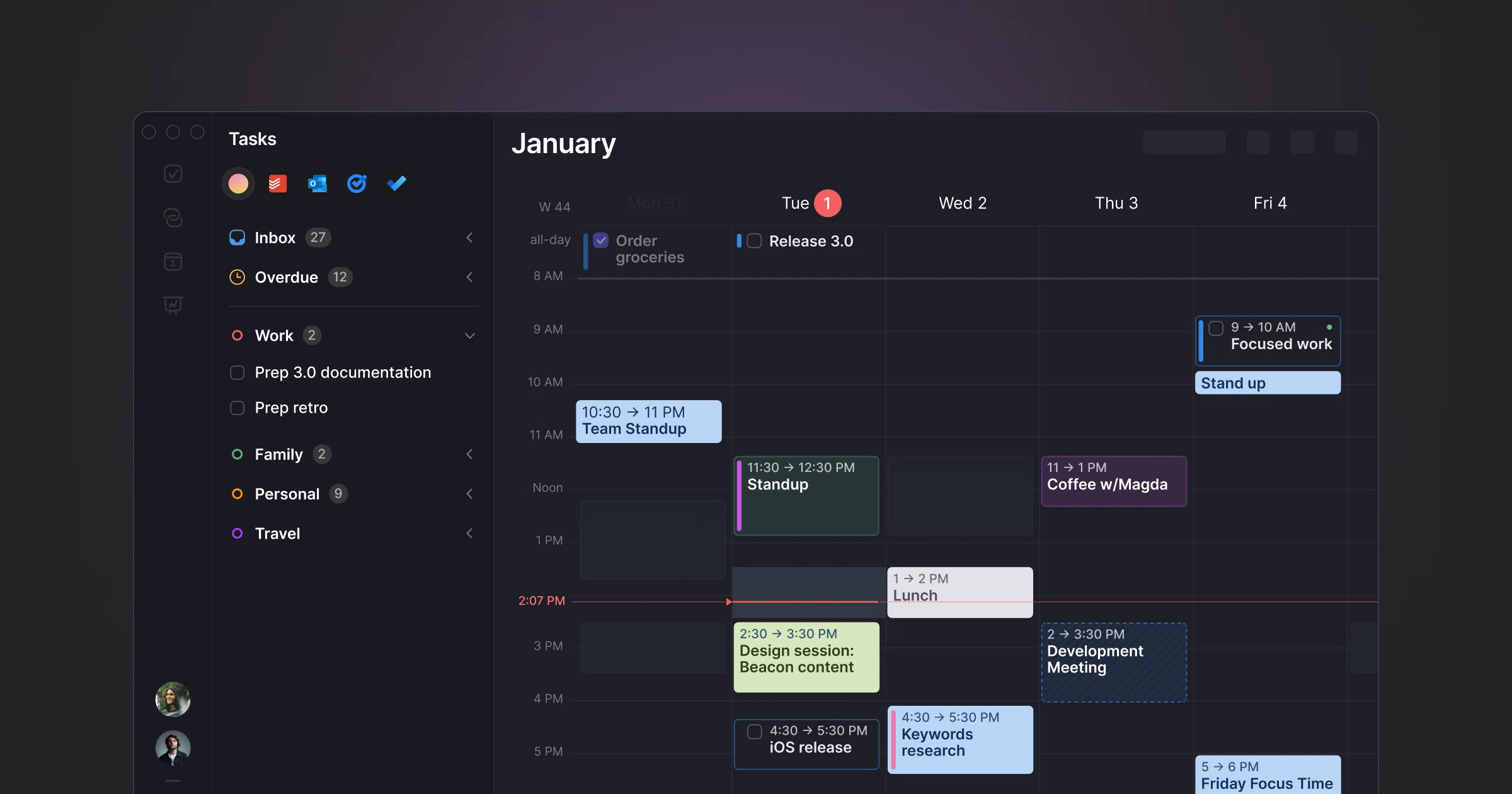
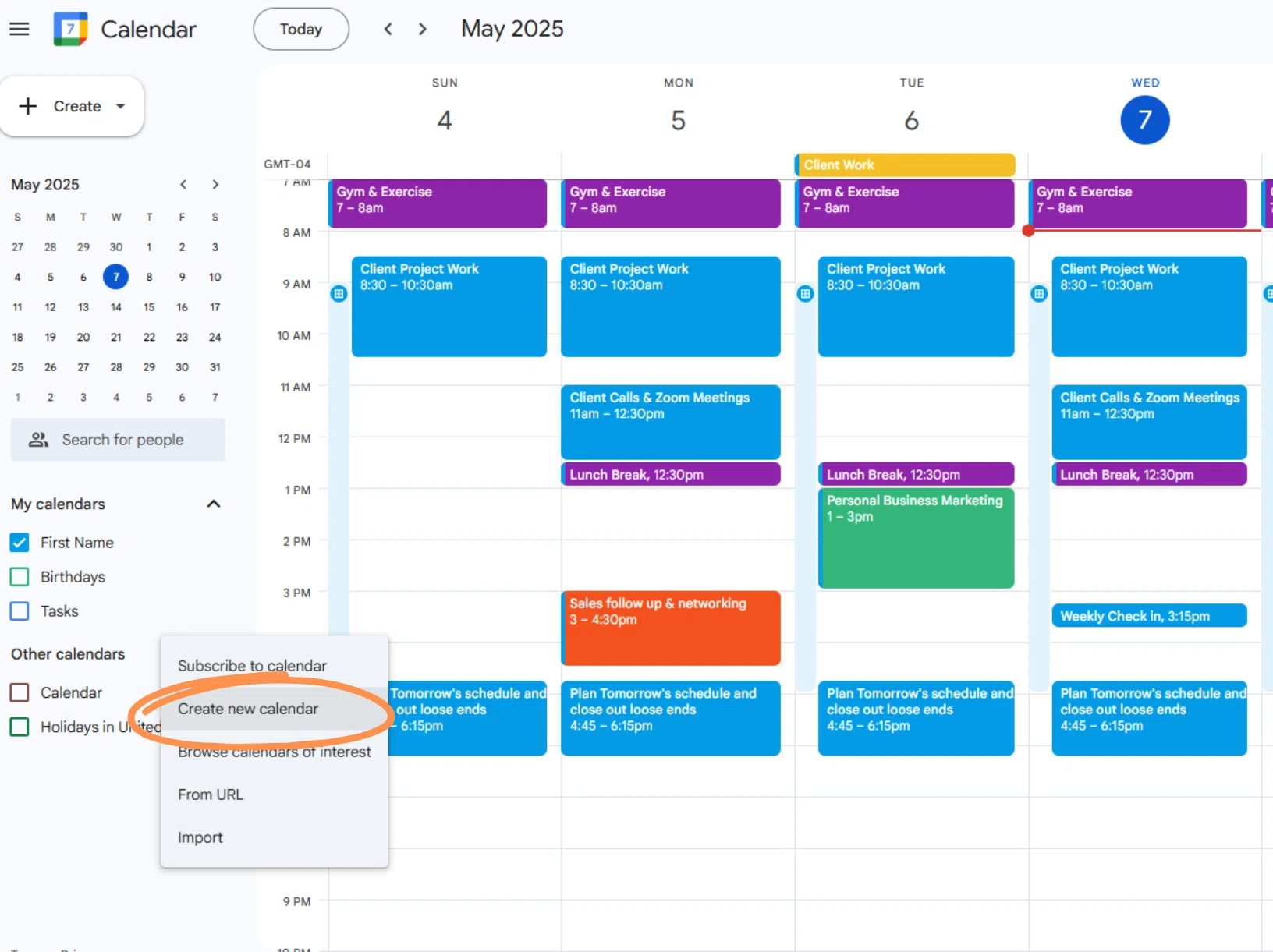
Google is blunt about the Mac situation in its own help pages: there is nothing to download or install on a computer, so Google Calendar means calendar.google.com in a browser, with iOS and Android apps for the phone in your pocket. The paid version is not a calendar upgrade but a Google Workspace plan, which adds booking pages, working hours, time insights and focus time.
Verdict: excellent as the calendar everyone else can see, weak as the surface you plan on. A browser tab is the easiest window in the world to lose behind thirty others, and planning happens in whatever is closest. If Google Calendar is your source of truth, keep it there and plan somewhere faster. Google Calendar time blocking walks through the method inside it.
Which Mac calendar app is built for time blocking?
Every app above is a calendar first. Chunk is built the other way round, which is why it sits beside them rather than in the table.
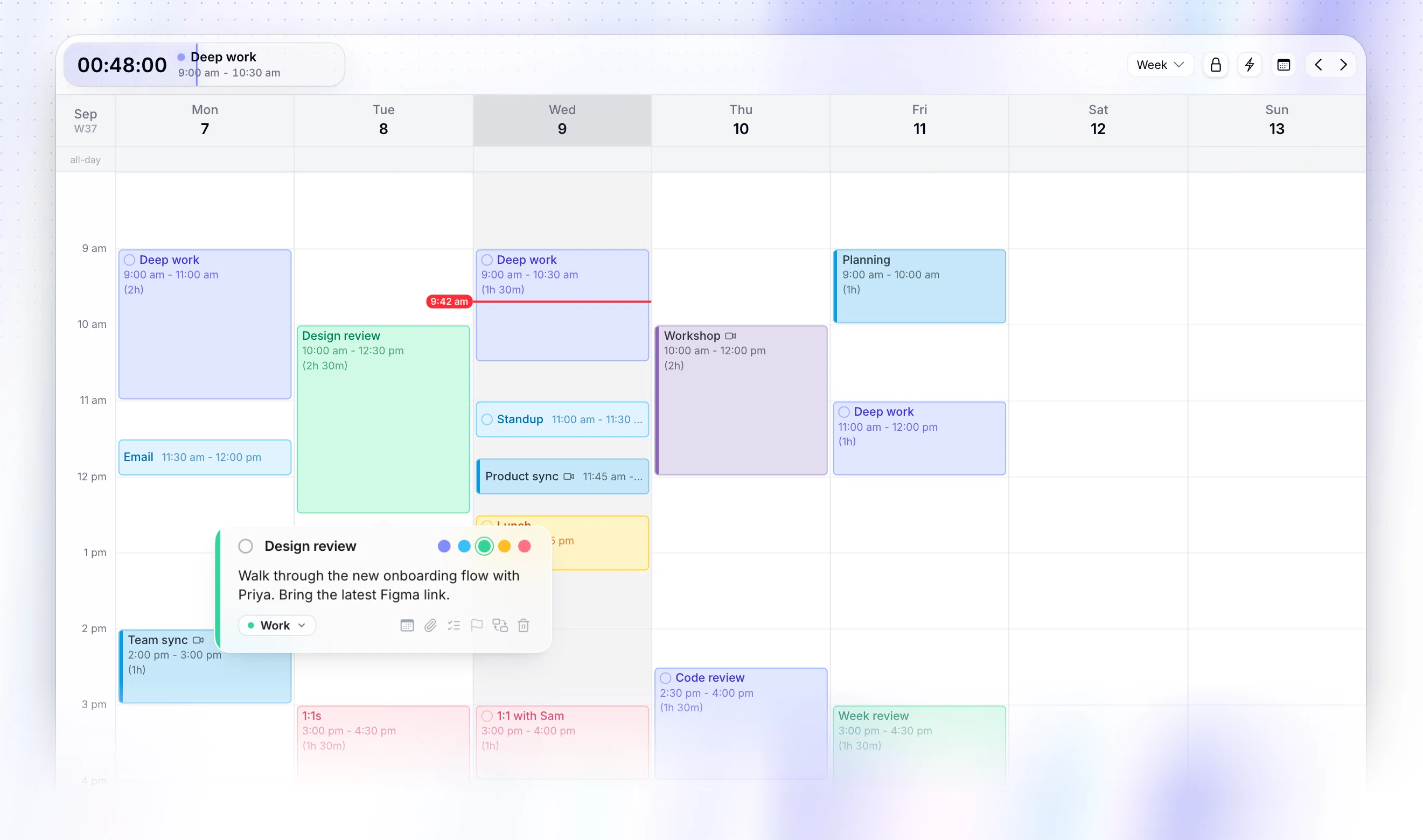
Chunk is a macOS time blocking app that opens from the menu bar over whatever you are working on, fullscreen apps included, and shows the day as a 24-hour timeline you edit by dragging. Tasks live beside it in lists, so scheduling one is a drag onto the day rather than retyping it as an event. Templates and routines rebuild a repeating day for you, and a countdown in the menu bar keeps the current block visible without opening anything.
It syncs two ways with Google, Outlook and Apple Calendar across multiple accounts, so the blocks you place show up wherever your colleagues look. It's Mac only, with no web, Windows or phone app, and it's a 7-day trial then a one-time $29.99 lifetime licence, or $59.99 for a family. Verdict: the pick if the calendar is where your work goes, not just where your meetings land.
Is there a better calendar app than Apple Calendar on Mac?
Yes, but only for things Apple Calendar was never trying to do. Fantastical is better at getting events in quickly and looks after a menu bar panel properly. BusyCal is better at carrying unfinished work forward. Morgen is better at deciding where things go. Notion Calendar is better if your projects live in Notion.
If your calendar is a record of commitments other people made with you, none of that is worth paying for, and Apple Calendar wins on the only metric that matters: it is already there. The case for switching gets strong the moment you want the calendar to hold your own work too, because that is when you start editing it several times a day.
Seeing the day without opening anything helps as much as the app you choose. A Mac calendar widget closes a surprising amount of that gap on its own.
Which Mac calendar app has two-way Google sync?
Most of this list connects to Google, but connecting and syncing both ways are different promises. Read-only sync shows you the event. Two-way sync means moving it in your calendar app moves it for everyone looking at the original.
Apple Calendar handles Google accounts natively. Notion Calendar connects Google, Outlook and iCloud-synced Apple calendars. Morgen advertises unlimited calendar integrations on its paid plans. Chunk syncs two ways with Google, Outlook and Apple Calendar, several accounts at a time, and adds a lock toggle so external events stay read-only while you plan around them.
There's a quick test for any trial. Move a synced event inside the app, then check the source calendar on your phone. If it didn't move, you've got two versions of your day. Two-way calendar sync goes deeper on why that breaks time blocking specifically, and time blocking across multiple calendars covers running work and personal accounts together.
So which is the best calendar app for Mac?
If you want one answer, it's Fantastical for most people, BusyCal if you refuse to rent software, and Apple Calendar if you're not convinced either is worth the money yet. Morgen if you want the planning done for you and you are not only on a Mac. Notion Calendar if Notion is already where the work lives.
If your problem is not storing events but deciding when the rest of your day happens, none of those five are aimed at you, and that is the gap Chunk is built for. Either way, the test is the same and takes an afternoon: put tomorrow in it, then change tomorrow twice and see how much that costs.
Chunk is free for 7 days if you want to run that test on a Mac. Connect the calendar you already use, block the next three things you have to do, and see whether the plan survives contact with the day.
Frequently asked questions
What is the best free calendar app for Mac?
Apple Calendar, because it is already installed and syncs with iCloud and Google accounts without setup. Notion Calendar is the better free choice if your work lives in Notion, since it shows database items next to your events. Google Calendar in a browser is free to use and syncs everywhere, but it never becomes a Mac app.
Can you put a calendar on your Mac desktop?
You can keep one visible without keeping a window open. macOS supports desktop and Notification Centre widgets, and several calendar apps live in the menu bar instead, which is closer at hand than a window you have to find. Chunk opens from the menu bar over whatever you are working on, including fullscreen apps, and shows a countdown to the end of the current block.
Is Outlook or Apple Calendar better on a Mac?
Outlook is better if your work calendar is Microsoft 365 and you live in shared rooms, delegated calendars and meeting invitations. Apple Calendar is better for personal scheduling on a Mac and handles Exchange and Google accounts alongside iCloud. Neither is built for planning the gaps between meetings, which is the part time blocking cares about.
Which calendar app is best for time blocking on a Mac?
One where creating and moving a block costs a drag rather than a dialog, and where the change syncs back to the calendar everyone else can see. Chunk is built for that on macOS: a 24-hour timeline in the menu bar, tasks you drag onto the day, reusable templates and routines, and two-way Google, Outlook and Apple Calendar sync.
Chunk vs the field.
A quick side-by-side. We kept it honest — Chunk isn't the right fit for everyone, and that's fine.
Chunk
This is usPricing reflects each tool's lowest-tier individual plan at time of writing. Check the source for current numbers.