Best time blocking app for Mac in 2026
Published on 5/9/2026

What should you look for in a time blocking app for Mac?
Not every app that calls itself a time blocker is built with Mac in mind. Some are web wrappers dressed up as desktop apps; others are iOS tools that happen to have a Mac companion. If you spend your day on macOS, that distinction matters more than most review sites let on.
Here are the criteria worth weighing before you commit:
- Mac-native vs cross-platform. A native macOS app uses the operating system's own UI frameworks, responds faster, and sits more naturally in the dock and menu bar. Cross-platform Electron apps can feel heavy and disconnected from the rest of your system.
- Menu bar access. Your calendar is useless if you have to break focus to open it. A menu bar panel that floats above fullscreen apps means your schedule stays visible without disrupting deep work.
- Calendar sync depth. Two-way sync means events you create in the app push to your calendar, and events on your calendar pull into the app. One-way sync (read-only) is a common source of frustration. If you use both Google Calendar and Apple Calendar, check that both are supported bidirectionally.
- Pricing model. Subscription fatigue is real. A one-time licence costs more upfront but pays for itself within months compared to $15–20 monthly fees. If you are evaluating apps partly to reduce recurring charges, this deserves a column in your comparison.
- ADHD-friendly features. Live time countdowns, colour-coded blocks, and pre-built day templates reduce the daily friction of replanning. These features help anyone, but they matter especially if you experience time blindness or decision fatigue.
If you want a foundation before comparing tools, what is time blocking covers the method itself, and why time blocking beats to-do lists explains why the approach works better than a task list alone.
How do the top Mac time blocking apps compare?
The market has fragmented into three rough camps: Mac-native apps built for the Apple ecosystem, cross-platform subscription tools aimed at knowledge workers on any OS, and AI-first schedulers that try to automate the planning entirely. Each camp makes different trade-offs. The comparison at the bottom of this post puts the main contenders side by side.
The most striking split is between Mac-native and cross-platform apps. Only Chunk, Sorted³, and Fantastical are genuinely built for macOS. Of those three, only Chunk combines menu bar access, full bidirectional sync with all three major calendar providers, and day templates in a single app. Fantastical is an excellent calendar viewer but it is not really a time blocker; Sorted³ is compelling for Apple-ecosystem users but lacks the menu bar panel and Outlook support.
Looking at the cross-platform tools, you gain flexibility across devices but you lose the tight macOS integration. Sunsama and Motion both require you to open a browser window or an Electron shell to plan your day. That is a different type of interaction from a panel that slides from your menu bar in under a second.
For people deciding primarily on price, the picture is clear. Every cross-platform competitor in this list charges a monthly or annual subscription. Over two years, a $20/mo subscription costs $480. The $29.99 one-time Chunk licence pays for itself inside two months.
What makes Chunk the best fit for most Mac users?
Chunk was built for one platform and one platform only: macOS. That focus shows in the details.
Menu bar panel that stays out of the way until you need it
Press Cmd+/ and Chunk's panel slides down from the menu bar, floating above fullscreen apps using a native NSPanel. You do not have to quit Xcode, leave your writing app, or switch spaces. Your day is one keystroke away. When you close the panel, it disappears completely. There is no window cluttering your desktop.
Live countdown in the menu bar itself
Chunk's tray icon shows a live countdown to the end of your current time block. You can see how many minutes remain without opening anything. For anyone who loses track of time mid-task, that small ticker carries a lot of weight.
Two-way sync across all three major calendar providers
Chunk syncs bidirectionally with Google Calendar, Outlook Calendar, and Apple Calendar simultaneously. Create a block in Chunk and it appears in Google. Move it in Apple Calendar and Chunk reflects the change. Most competitors support only Google and Outlook, leaving Apple Calendar as a second-class citizen. If your work calendar runs on Exchange and your personal calendar runs on iCloud, Chunk handles both in the same view.
Day templates and weekday routines
Instead of rebuilding your schedule from scratch every morning, you can save a day template: a pre-arranged set of colour-coded blocks that represents your ideal Tuesday or your ideal deep-work day. Weekday routines go one step further, applying a template automatically on the relevant day. This removes the daily replanning tax that causes most time blocking attempts to collapse after a week.
Local Claude MCP integration
Chunk ships a local Claude MCP server. If you run Claude on your Mac, your own Claude instance can read and edit your Chunk schedule directly on your device. This is not AI auto-scheduling in the cloud. Your calendar data never leaves your machine. It is a local tool integration for people who already use Claude and want it to have access to their schedule without cloud sync.
One-time $29.99 licence
Chunk costs $29.99 as a lifetime licence for a single Mac, with a family plan at $59.99 covering up to six Macs. There is a 7-day free trial with no credit card required. You can read more about the full feature set in our detailed Chunk overview and in our roundup of the best macOS productivity apps in 2026.
When does Sunsama make more sense than Chunk?
Sunsama occupies a different niche. Its core workflow is a structured daily planning ritual: you open it each morning, pull tasks from integrations like Asana, Linear, or Gmail, estimate how long each will take, and block them into your day. That ritual is genuinely well-designed, and the app has a calm, considered interface that suits focused knowledge workers.
Sunsama makes sense over Chunk in a few specific situations:
- You work across Mac and Windows. Sunsama runs in the browser and has apps for both platforms. If you switch between a MacBook and a Windows work machine, Sunsama's web-first architecture is an advantage rather than a limitation.
- Your team uses Sunsama for daily standups. Sunsama has team features built around shared intentions and daily check-ins. Chunk has no team or collaboration layer at all; it is a personal scheduling tool.
- You want deep task integrations. Sunsama pulls tasks from a wider range of project management tools. If your workflow centres on Asana or Notion tasks appearing automatically in your daily plan, Sunsama's integrations go further.
Where Sunsama falls short on Mac is the things Chunk does natively. Sunsama has no real menu bar presence; you open it in a browser tab or a desktop wrapper. Apple Calendar support is limited compared to its Google and Outlook integrations. And at $20 per month, two years of Sunsama costs over $480, versus $29.99 total for Chunk's lifetime licence.
The honest summary: if your team is split across operating systems and you want shared daily rituals, Sunsama is worth the subscription. If you are Mac-only, prefer to keep calendar data on your own machine, and want a menu bar experience that fits naturally into macOS, Chunk is the stronger choice.
Is Motion worth it for Mac time blocking?
Motion is doing something fundamentally different from Chunk. Rather than giving you a canvas to arrange your own blocks, Motion's AI analyses your tasks, deadlines, and calendar commitments and fills your day automatically. You describe what needs to get done; Motion decides when each item happens.
That is an appealing proposition if you are drowning in competing priorities and want to hand scheduling decisions to an algorithm. Motion works well for people managing a large backlog of tasks with varying deadlines, particularly in team contexts where it can coordinate scheduling across multiple calendars.
The trade-offs are significant, though. Motion starts at around $19 per month and has no offline mode. The Mac app is an Electron wrapper rather than a native macOS application, which puts it in the same category as cross-platform web apps rather than purpose-built Mac software. There is no menu bar panel for quick access.
More fundamentally, Motion's approach means giving up control over your own schedule. The AI decides when you do deep work, when you handle admin, and when meetings fit. Some people find that liberating. Others find that the auto-generated schedule rarely matches their actual energy levels or working preferences, and that correcting it repeatedly defeats the purpose.
If you want to stay in control of your own time structure and simply want a better tool for executing the plan, Chunk is a better fit. If you want to delegate the scheduling problem entirely and are comfortable paying a monthly fee for a cloud-based service, Motion is worth trialling. For more on protecting your focused time, see our piece on deep work and time blocking.
Which Mac time blocking app works best for ADHD?
ADHD creates specific problems with time management: difficulty sensing how much time has passed, high replanning friction, and the tendency for a complex system to collapse under its own maintenance cost. A good ADHD-friendly time blocking app needs to reduce cognitive load at every step, not add to it.
Chunk addresses several of these problems directly:
- Live countdown in the tray. The menu bar icon shows how many minutes remain in the current block. This externalises time sense, which is exactly what time blindness requires. You do not have to remember to check; the information is always present at the edge of your screen.
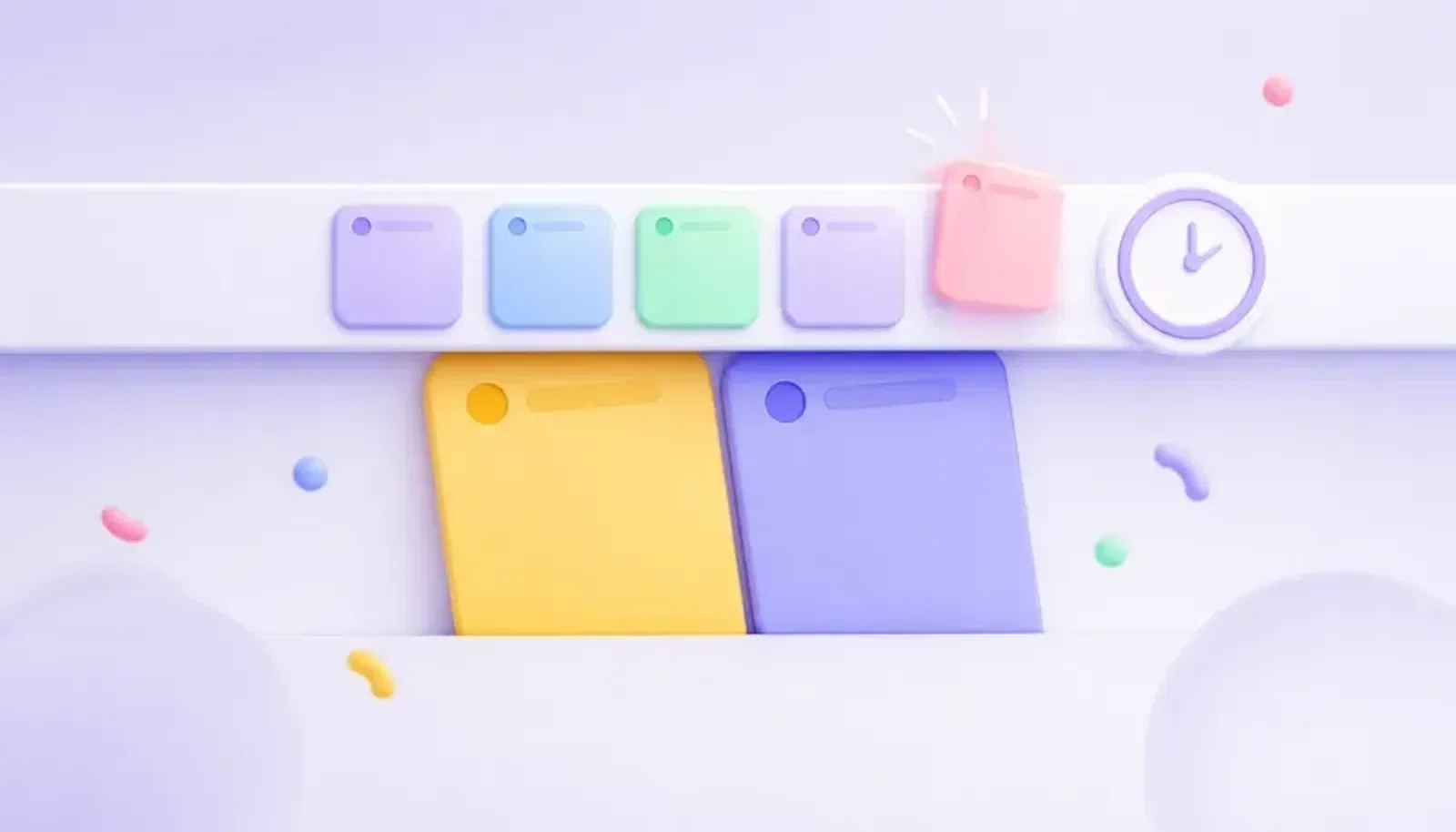
- Five colour-coded block types. Chunk uses five named colours: Indigo, Sky, Emerald, Amber, and Rose. Colour-coding at a glance reduces the reading load when you scan your day. You can see the shape of your schedule without processing text.
- Day templates that remove replanning. One of the reasons time blocking fails for ADHD is that building the day from scratch every morning is cognitively expensive. A saved template means you press one button and your standard structure appears. Weekday routines take this further by applying templates automatically.
- Menu bar visibility. Because Chunk lives in the menu bar and can float above fullscreen apps, the plan stays visible without requiring you to switch contexts. The schedule is never more than a glance away.
Two dedicated ADHD apps are worth mentioning: Tiimo and Structured. Both have thoughtful visual designs built specifically around ADHD and autism. However, both are iOS-first. Tiimo has limited Mac support and limited calendar sync. Structured is similarly phone-centric. If your day happens on your Mac, neither will serve you as well as a native macOS app.
Chunk is currently the only Mac-native time blocking app that combines ADHD-oriented features (live countdown, colour-coded blocks, day templates) with full two-way calendar sync across all three major providers. For more on this topic, see time blocking for ADHD and ADHD time management strategies.
Is there a Mac time blocking app you only pay for once?
Yes. Chunk is the only Mac-native time blocking app in this comparison that offers a one-time lifetime licence.
- Chunk: $29.99 one-time for a single Mac; $59.99 family plan covering up to 6 Macs. 7-day free trial included.
- Sunsama: $20/mo subscription.
- Motion: from $19/mo subscription.
- Akiflow: $14.99/mo subscription.
- Fantastical: approximately $57/yr subscription.
- TickTick: free tier available; premium at approximately $35.99/yr.
- Sorted³: free tier with a premium upgrade; pricing varies by version — check the App Store for current options.
If you run the maths on a two-year horizon, most subscription tools cost between $240 and $480 over that period. Chunk's $29.99 covers you indefinitely. That is not the only reason to choose it, but if part of your motivation for switching apps is to stop adding to your monthly subscription stack, the pricing alone makes Chunk worth evaluating first.
The family plan at $59.99 is particularly good value if you have a partner or children using Macs at home, since it covers up to six devices under one purchase.
How do you start time blocking on your Mac today?
Getting started with Chunk takes less than ten minutes. Here is the straightforward path:
- Step 1: Download Chunk and start your trial. Head to the Chunk website, download the Mac app, and open it. The 7-day trial starts immediately with no credit card required. Chunk works on both Apple Silicon and Intel Macs.
- Step 2: Connect your calendar. In Chunk's settings, connect your Google Calendar, Outlook, or Apple Calendar account (or all three). Chunk will pull in your existing events bidirectionally within a few seconds.
- Step 3: Create your first day template. Think about what a good, standard workday looks like for you: a morning focus block, a slot for meetings, a period for shallow work in the afternoon. Arrange those blocks in Chunk using the five colour categories, then save the layout as a named template.
- Step 4: Apply the template and adjust. Each morning, load your template with one click and move blocks around to fit the day's actual constraints. This takes two to three minutes rather than the twenty minutes most people spend mentally negotiating with their task list.
Once the habit is established, the menu bar countdown and the visible structure of your day do most of the work. You can go deeper on how Chunk fits into a broader macOS productivity setup in our guide to the best macOS productivity apps in 2026.
If you have been running your day from a browser tab and a half-watched calendar, a dedicated Mac time blocker changes what your mornings look like. The 7-day trial costs nothing, and your menu bar has a new use.
Chunk vs the field.
A quick side-by-side. We kept it honest — Chunk isn't the right fit for everyone, and that's fine.
Chunk
This is usPricing reflects each tool's lowest-tier individual plan at time of writing. Check the source for current numbers.
Related articles

How to choose a calendar app for time blocking on Mac
How to choose a calendar app for time blocking on Mac

Best time blocking app with recurring tasks for Mac
Best time blocking app with recurring tasks for Mac