10 Best macOS Productivity Apps for 2026 (Tested)
Published on 4/23/2026


Your Mac is a productivity machine — in theory. In practice, it's a browser with forty tabs, five chat apps pinging at once, and a to-do list that's been quietly growing since Tuesday. Sound familiar? The Mac App Store is full of tools that promise to fix this, and most of them add more noise than they remove.
A handful actually earn their place though. Fast, native, respectful of your attention, and built to solve one problem well rather than bolting features on top of features. Those are the ones worth keeping.
This guide rounds up the ten best macOS productivity apps for 2026 — the ones worth the setup cost, the ones that stay out of your way, and the ones that actually make your day feel shorter. You'll find picks for window management, voice dictation, time blocking, launching, task management, note-taking, browsing, focus, screenshots, and keeping your Mac awake when it matters. A practical stack, not a shopping list.
How We Picked the Best macOS Productivity Apps
The shortlist below is weighted toward apps that feel like they were built for the Mac — not ports, not Electron wrappers stretched to fit. Every pick had to tick three boxes:
Genuinely native or near-native feel — keyboard shortcuts, menu bar behaviour, dark mode, system integrations.
Solves a real daily friction — not "nice to have", but something that saves minutes every single day.
Respectful of your attention — no pop-ups, no upsell nags, no dark patterns.
No app is perfect for everyone, so alongside each pick you'll find who it's for and who might want to skip it.
1. AeroSpace — Best Free Window Manager for macOS
macOS window management is still stuck in 2008. AeroSpace drags it into the present by bringing i3-style tiling to the Mac. Instead of dragging and resizing windows, you define a keyboard shortcut for everything: split, swap, resize, send to workspace, jump between monitors. Windows tile themselves automatically, and you fly around with your hands on the keys.
It's free, open source, keyboard-first, and — crucially — doesn't require disabling SIP, which most of the older Mac tiling managers (looking at you, yabai) still do. That alone makes it viable on locked-down work machines. Config is a single TOML file, so it's dotfiles-friendly and easy to sync across machines.
Fair warning: there's a real learning curve. AeroSpace itself calls out that it's aimed at advanced users. Give it a weekend.
Best for: developers, terminal-dwellers, anyone who lives on the keyboard and wants to stop touching the trackpad to manage windows.
Skip if: you mostly use one or two apps at a time and the macOS defaults already feel fine. Either way, Chunk floats over fullscreen and tiled layouts, so you can peek at your schedule without breaking flow.

2. Superwhisper — Seriously, Who Is Still Typing in 2026?
You'd be surprised how much of your day is spent hammering keys to produce text that could have been spoken in a fraction of the time. Emails, Slack messages, meeting notes, prompts to an LLM, code comments, documentation. Superwhisper is the app that finally makes voice dictation on macOS feel like the obvious default.
Hit a shortcut, speak, release. The text appears wherever your cursor is — any app, any field. The transcription runs on-device using Whisper models, so nothing leaves your Mac unless you want it to. Accuracy is genuinely excellent across 100+ languages, and it handles background noise better than you'd expect. The killer feature is Super Mode, which watches what app you're in and adapts formatting and tone automatically — short and casual for Slack, structured for emails, precise and technical for coding assistants.
After a week, the keyboard starts to feel slow.
Best for: anyone who writes a lot all day — emails, docs, chats, prompts — and especially people who work across multiple languages or find typing physically tiring.
Skip if: you're in shared office spaces where talking to your laptop is socially awkward, or you genuinely enjoy typing and don't find it a bottleneck.

3. Chunk — Best Menu Bar Time Blocking App
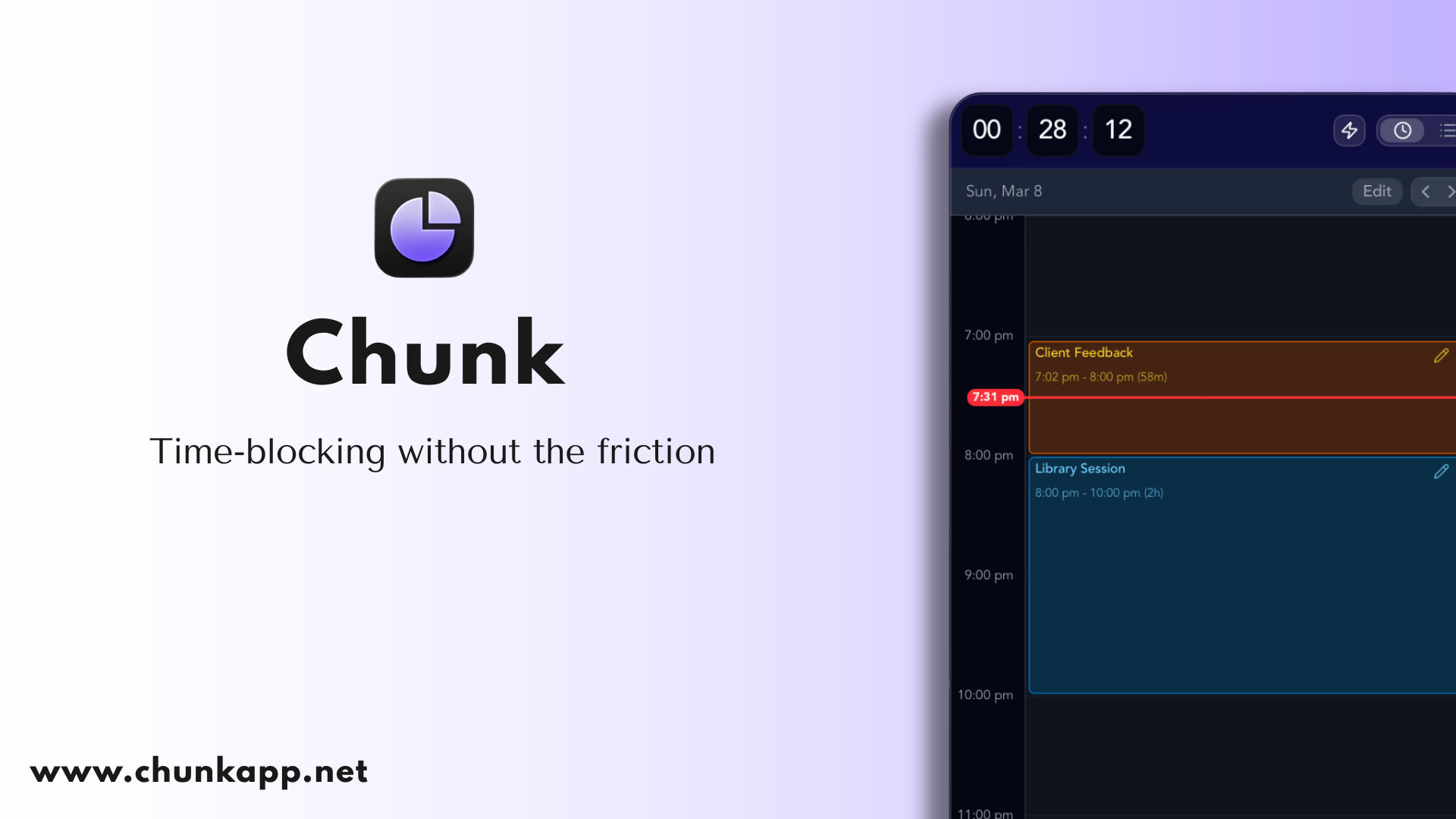
If your day has a habit of melting into a puddle of reactive tasks, Chunk is the app that quietly puts it back together. It's a macOS-native time blocking app that lives in your menu bar, slides down from the top-right corner with a keyboard shortcut, and floats above every other window — including fullscreen apps.
You build your day as colour-coded blocks ("Deep Work 9–11", "Emails 11–11:30", "Lunch"), and Chunk runs a live countdown in the system tray so you always know where you are. Templates and Routines let you save a typical Monday once and have it auto-apply every Monday. No cloud, no subscription, no bloat — it's a one-time purchase and your data stays on your Mac.
Best for: anyone who wants their schedule one shortcut away without switching apps, and anyone who's tired of productivity suites that want to own their whole workflow.
Skip if: you need cross-device sync or a mobile app — Chunk is macOS-only currently.
4. Raycast — Best Launcher and Productivity Command Bar
Spotlight is fine. Raycast is what Spotlight should have been. It launches apps, searches files, runs window commands, controls Spotify, creates calendar events, triggers shortcuts, and exposes a whole ecosystem of extensions — all from one keystroke.
The thing that makes Raycast land is speed. Everything is a few characters away, and the muscle memory is worth the first week of retraining.
Best for: keyboard-first users, developers, and anyone who copies the same snippets or runs the same actions dozens of times a day.
Skip if: you already love Alfred and your workflows are dialled in there — switching is real work.

5. Things 3 — Best Native macOS To-Do App
Things 3 by Cultured Code is the to-do app Apple would make if Apple made a to-do app. It's opinionated, elegant, keyboard-driven, and it has one of the best iOS/iPadOS companions in the business.
Tasks move through Inbox → Today → Anytime → Someday in a way that matches how most people actually think. No boards, no kanban, no feature creep — it's been refined, not reinvented, for over a decade.
Best for: people who keep a personal task list and want something beautiful, fast, and reliable.
Skip if: you need teams, assignees, comments, or project-management features — this is a personal tool.

6. Obsidian — Best Note-Taking App for a Second Brain
Obsidian is a Markdown-based knowledge base that stores everything as plain text files on your Mac. Links between notes form a graph, making it one of the best tools for building a personal wiki, research archive, or long-running project log.
It's free for personal use, endlessly extensible through community plugins, and your notes outlive the app — because they're just Markdown files, not trapped in a proprietary format.
Best for: writers, researchers, students, and anyone who wants to own their notes for the long haul.
Skip if: you prefer a polished, opinionated notes app like Apple Notes or Bear — Obsidian is more LEGO than furniture.
7. Arc — Best Browser for macOS (With a Caveat)
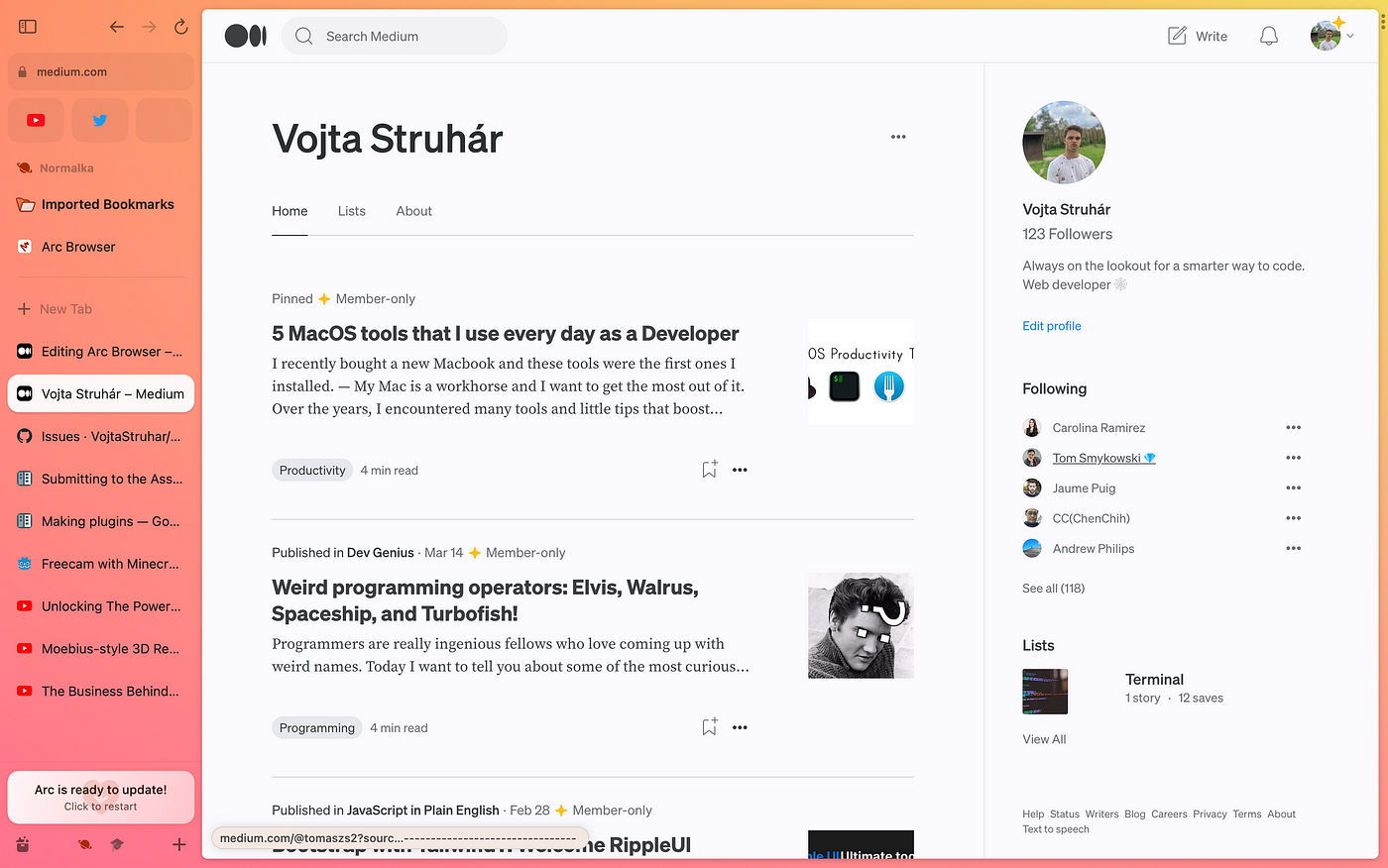
Arc rethought the browser from scratch. Vertical tabs in a collapsible sidebar instead of a cramped top bar. Spaces for separating work, personal, and side-project contexts without juggling profiles. Split view that actually works. A command bar that feels like Raycast for the web. Tabs that quietly archive themselves after 12 hours so your sidebar never becomes a graveyard.
Once you've used it for a week, going back to Chrome feels like going back to stock macOS window management after AeroSpace — technically fine, aesthetically bleak.
The caveat: Arc is in maintenance mode. The Browser Company paused active development in May 2025 to focus on Dia, their AI-first browser, and Atlassian acquired them for $610M in September 2025. Arc still works, still gets Chromium security updates, and the core experience is stable — but no new features are coming. If that kills it for you, look at Zen Browser (the closest open-source Arc clone) or Dia itself once it's more widely available.
Best for: people who live in their browser and want it to feel like a workspace instead of a tab dumpster. Already-on-Arc users have no reason to panic-switch.
Skip if: you need a browser you can commit to for the next five years, or you're setting up a brand-new machine and don't want to build a workflow around a sunset product.
8. Opal — Best App Blocker for Your Phone
Your phone is where focus goes to die. You pick up to check the time, come back to consciousness 20 minutes later halfway down a TikTok rabbit hole. Opal blocks the apps that do this to you — Instagram, TikTok, X, Reddit, YouTube, whatever your personal poison is — on a schedule or on demand.
The killer feature is Deep Focus mode: once a session starts, you can't cancel or bypass it. No five-more-minutes, no "just checking one thing." The app is simply gone until the timer's up. It also blocks the web versions of whatever you've banned, so you can't weasel around it through Safari.
Pair it with a time blocking app and you've got a proper deep work stack: Chunk tells your brain what to focus on and for how long; Opal makes sure your phone isn't the thing that pulls you out of it.
Best for: anyone who's tried willpower and lost, especially if you already know the 3–5 apps that eat your day.
Skip if: your distractions are desktop-based — Apple's built-in Screen Time is free and surprisingly decent if you don't mind the rough edges, though it's trivial to bypass.

9. CleanShot X — Best Screenshot Tool for Mac
macOS's built-in screenshot tool is fine. CleanShot X is genuinely better. Scrolling captures, instant annotations, a clipboard-only mode that doesn't spam your Desktop, short video recordings with mouse-click highlights, and a pinned-on-top overlay for referencing while you work.
If you spend any time writing documentation, bug reports, tutorials, or social posts that involve showing your screen, this pays for itself in a week.
Best for: developers, designers, support teams, content creators.
Skip if: you take screenshots once a week — the built-in tool is enough.
10. Amphetamine — Keep Your Mac Awake When You Actually Need It
You know the scenario. You kick off a long build, a large file download, a training run, or a render, then walk away to make coffee. You come back 20 minutes later to find your Mac asleep, the job half-finished or just silently died.
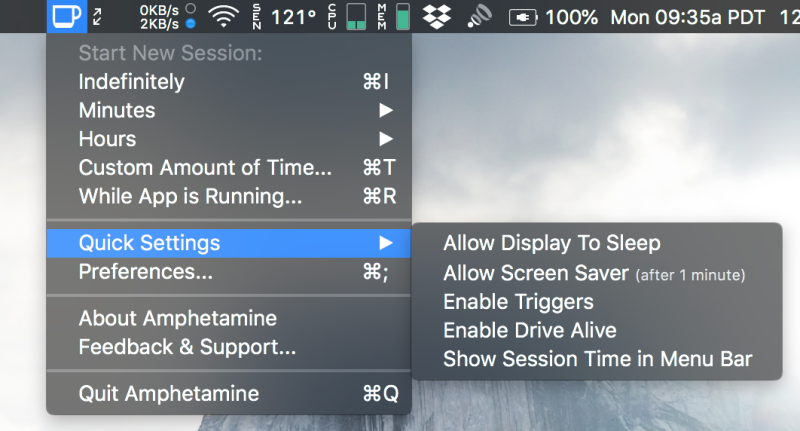
Amphetamine solves that with a menu bar switch. Click it, and your Mac stays awake, indefinitely, for a set duration, until a specific time, or (the best bit) only while a specific app is running or a file is downloading. When the trigger ends, sleep behaviour goes back to normal on its own. It's also completely free. No ads, no in-app purchases, no "pro" tier, no data harvesting.
Best for: developers running long builds or test suites, anyone who works with large file transfers, people giving presentations, and laptop users who want to work with the lid closed on an external monitor without the machine snoozing.
Skip if: you genuinely need your Mac to sleep aggressively to save battery, and you don't mind babysitting long-running tasks.
What Makes a Great macOS Productivity App?
It Feels Like a Mac App, Not a Web Page in a Wrapper
Native apps load faster, respect your battery, and play nicely with macOS conventions — menu bar, keyboard shortcuts, dark mode, Shortcuts app integration. Electron apps can be excellent, but there's a reason the list above leans toward Swift, AppKit, and Tauri-built tools: they just feel better to use all day.
It Solves One Problem Really Well
The best macOS productivity apps don't try to be your everything. Chunk doesn't want to be your browser. Things doesn't want to be your calendar. AeroSpace doesn't want to be your launcher. They each own one slice of your day and leave the rest alone — which is why they all stack so cleanly together.
It Respects Your Attention
No "are you sure you want to leave?" dialogs. No weekly upsell emails. No pop-ups begging for reviews. A productivity app that interrupts you to sell you something has lost the plot.
How Many Productivity Apps Do You Actually Need?
Probably fewer than you think. A sensible starter stack from this list is:
A launcher — Raycast for everything-from-one-keystroke.
A task list — Things 3 for personal tasks that need to stick.
A time blocking tool — Chunk, for the daily "when am I doing what".
A window manager — AeroSpace if you're keyboard-first, or stick with macOS defaults if you're not.
A capture tool — Obsidian for notes that compound over time, or Superwhisper for ideas you'd rather speak than type.
Five apps will cover 90% of what most people need. Everything else on the list above is optional — add it when you feel a specific friction, not because a blog post told you to.
What Is the Best macOS Productivity App for Time Blocking?
If you want a proper time blocking experience on macOS, Chunk is purpose-built for it — menu bar access, drag-to-create blocks, Templates and Routines, a live countdown in the system tray, and calendar sync with Google, Outlook, and Apple Calendar.
Motion and Sunsama are popular alternatives, but both are subscription-first and do a lot more than time blocking. If you want a fast, focused, one-time-purchase tool that does time blocking brilliantly and stays out of your way the rest of the day, Chunk is the simpler answer. Read more on why time blocking beats a to-do list most days.
Are Free Mac Productivity Apps Actually Good?
Some are excellent — AeroSpace, Obsidian, and Amphetamine on this list are all genuinely great with no strings attached. But "free" sometimes means "subscription that hasn't started yet" or "your data is the product", so check before you commit.
Chunk takes the old-school approach: pay once, use forever, no subscription, no account required. If you value privacy and local data storage, that model is worth paying for.
Do I Need Time Blocking If I Already Use a To-Do List?
A to-do list tells you what to do; time blocking tells you when. Most of us have more tasks than hours, and a to-do list doesn't force that trade-off. Time blocking does — and that's the point. If you've ever finished a day with a full to-do list and no idea where the hours went, this is the fix.
Pairing Things 3 for your task list with Chunk for your daily schedule is one of the cleanest setups on macOS — each app does its job and neither steps on the other's toes.
Conclusion
You don't need twenty apps to have a productive day. You need a small, well-chosen stack: a launcher, a task list, a time blocking tool, a window manager, and something to capture the thought that just hit you in the shower (or dictate it straight in via Superwhisper).
Three quick takeaways:
Native beats novel. Apps that feel like the Mac will get used; apps that don't won't.
One-time purchases beat subscriptions for tools you'll use for years — especially for something as core as your daily planner.
The best app is the one you actually open. Pick fewer, set them up properly, and give them a real week.
If time blocking is the piece you're missing, download Chunk today, block your first three tasks, and see what a planned afternoon actually feels like.