Time block planner app for Mac: plan from the menu bar
Published on 7/31/2026

A good time block planner app turns your task list and calendar into a visible plan for the day. On a Mac, the fastest version is one you can open from the menu bar, adjust in seconds, then close without leaving the work in front of you.
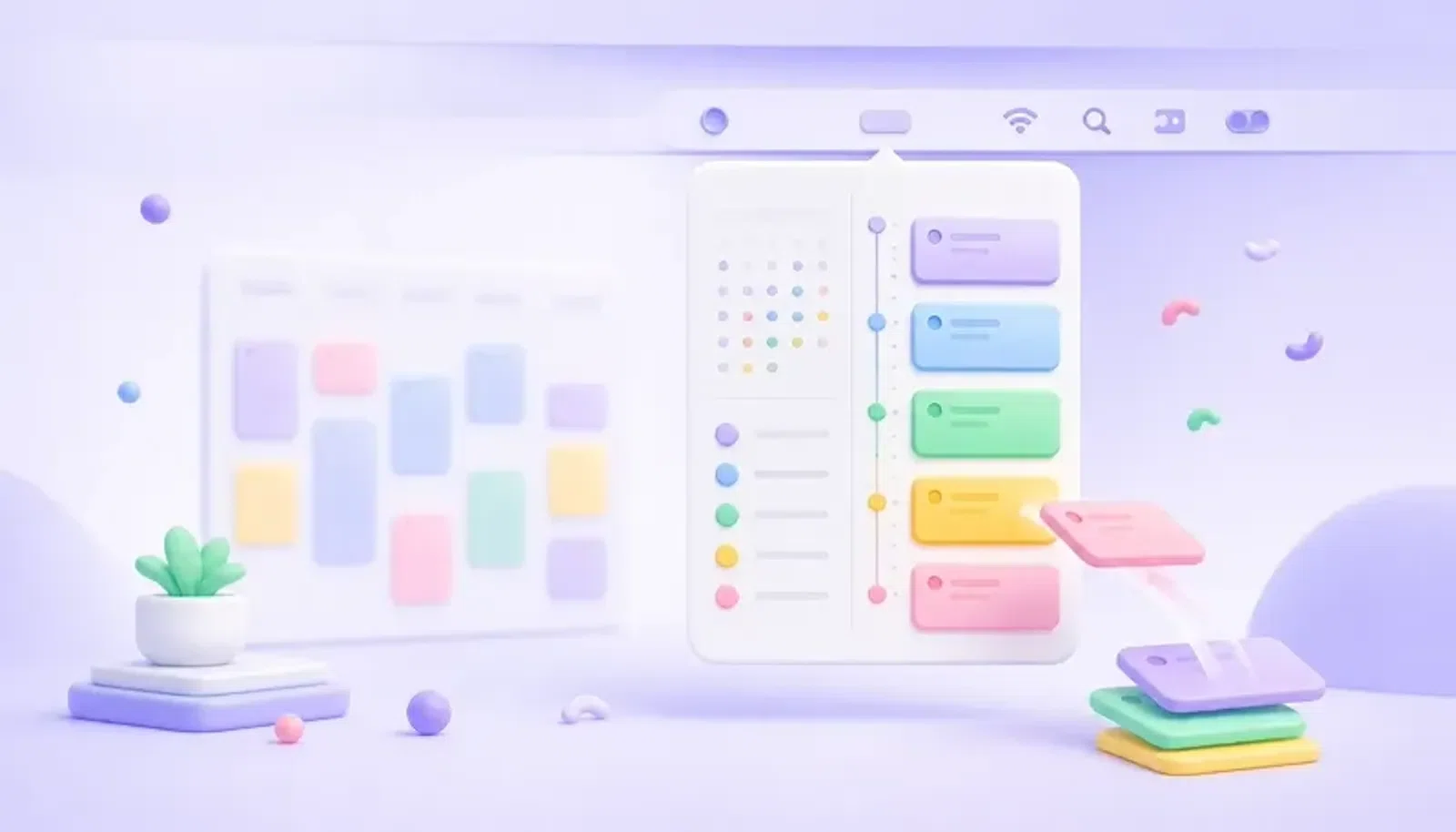
Chunk is built for that exact job. It lives in the macOS menu bar, opens with a shortcut, shows your day as a vertical timeline, and lets you create, move and resize time blocks by dragging. Your tasks, templates and Apple, Google or Outlook calendar events can sit in the same planning view, so the question changes from “what should I do?” to “where does this fit today?”
This guide focuses on the planner workflow, not another generic app roundup. If you already know you want the broader buying guide, start with the best time blocking app for Mac. If you want the menu-bar version of that workflow, keep reading.
What should a time block planner app actually do?
A time block planner app should help you decide when work will happen, not just store what work exists. A to-do list captures tasks. A calendar captures commitments. A planner connects the two by placing tasks into specific blocks of time.
The important difference is friction. If planning means opening a full calendar, switching spaces, dragging windows around and checking another task app, you will do it less often. Planning needs to be quick enough to use when the day changes, not just during a tidy Monday morning review.
For a Mac-based workflow, the core features are simple: a timeline for the day, fast block creation, drag-to-move, resize handles, visible external calendars, and a way to pull tasks into the plan. Chunk keeps those pieces in one menu-bar panel, so your plan stays close to the work instead of becoming another destination app.
Why plan from the menu bar instead of a calendar window?
The menu bar matters because planning usually happens between tasks. You finish a call, notice a deadline, or realise a block took longer than expected. At that moment, you do not need a full calendar command centre. You need a quick view of the rest of today.
Chunk opens from the system tray with a click or global shortcut. The panel can float above other windows, including fullscreen apps, so you can check your day without switching context. That makes it easier to keep the plan current while you are already working.
A full calendar still has its place, especially for multi-day review, invites and account settings. The planner layer is different. It is where you decide that the report gets 45 minutes now, admin moves to 16:00, and tomorrow’s recurring routine can stay untouched. For a closer look at the speed advantage, see how a menu bar calendar helps you see your day faster.
How do you turn a task list into time blocks?
Start by separating capture from commitment. Capture is the list of everything you might do. Commitment is the smaller set of tasks you are actually giving time to today. A time block planner app should make that second step physical: drag a task into a time slot, give it a duration, then see the cost on your timeline.
In Chunk, task mode gives you lists beside the day view. You can keep separate lists, use smart lists such as Today and Upcoming, or bring Apple Reminders into the same sidebar. When a task is ready to schedule, drag it onto the timeline. If it has a stored duration, the dropped block uses that duration. If the plan changes, resize the block and the task duration updates.
This is where time blocking beats a plain checklist. A list can quietly grow beyond the hours you have. A timeline makes the trade-off visible. If five tasks need six hours and your afternoon only has three, you find out before you start, not at the end of the day.
If your starting point is Apple Reminders, the same idea applies. You can read more in how to add time blocking to Apple Reminders on Mac.
How do calendars fit into a time block planner?
Your calendar is the fixed edge of the day. Meetings, appointments and hard deadlines create the boundaries around your focused work. A useful planner should show those commitments before you place new blocks, otherwise you are planning against an imaginary day.
Chunk syncs with Apple Calendar, Google Calendar and Outlook Calendar. External events can appear on the same day timeline as your Chunk blocks. When editing is allowed for an account, you can move or resize synced events from Chunk and push those changes back to the source calendar. If you want external events to stay untouched while you plan around them, a lock toggle can freeze them as read-only.
The practical workflow is simple: connect the calendars that matter, show them in the day view, then place your own work in the gaps. Your work blocks no longer compete with hidden meetings, and your calendar stops being only a record of other people’s demands. For the sync-specific version, read how two-way calendar sync works for Mac time blocking.
What does a menu-bar planning session look like?
A useful planning session can take a few minutes. Open Chunk from the menu bar, scan the existing calendar events, then drag the first real task into the earliest sensible slot. Add a colour if it helps you read the shape of the day: Indigo, Sky, Emerald, Amber or Rose.
Next, place the work that needs your best attention before the low-energy admin. Resize blocks to match the effort, not wishful thinking. If a task is too large for the space, split the intention into a smaller block with a concrete name, such as “outline proposal” instead of “proposal”.
Finally, leave buffers where the day usually breaks. A good plan is not a wall of perfect rectangles. It is a map you can update. When a meeting runs late, open the panel, drag the next block down, shorten something less important, or move it to another day. For a broader walkthrough of the planning method, see how to plan your day with a time blocking calendar on Mac.
How do templates stop you rebuilding the same day?
If your days have a familiar rhythm, a planner should not make you rebuild that structure each morning. Templates are useful when the shape repeats: a writing morning, a meeting-heavy Tuesday, a study evening, or a Friday shutdown routine.
Chunk lets you save reusable day templates with named blocks, start and end times, and colours. You can apply a template to the current day, or drag only one template block into today’s plan. That keeps the structure reusable without making the day rigid.
Routines go one step further. A template can auto-apply on selected weekdays, so a repeated structure appears on the days you choose. Standalone time blocks do not recur by themselves in Chunk, which keeps calendar behaviour clear. Recurrence belongs to tasks and routines, while templates handle the shape of the day.
If you want a repeatable weekly structure, this weekly time blocking template guide for Mac shows how to think about the larger pattern.
What should you avoid when choosing a planner?
Avoid any app that adds planning friction to solve planning friction. If it takes too many clicks to create a block, too much setup to see your calendar, or too much discipline to keep the day updated, the app will become another list you ignore.
Also check the product boundary. Some planners are built for teams, auto-scheduling, web dashboards or mobile-first routines. Those can be useful, but they are not the same as a personal Mac planner that stays one shortcut away. Chunk is macOS only, local-first for schedule data, single-user, and focused on manual time blocking rather than automatic AI scheduling. It also has a local Claude MCP server if you want Claude Desktop to read and write your local Chunk data, but the app itself is not an AI auto-scheduler.
Pricing can matter too. Chunk offers a 7-day trial, then a one-time licence for the direct version. If you want to avoid another monthly subscription, compare the trade-offs in the guide to time blocking apps without a subscription.
Is Chunk the right time block planner app for you?
Chunk is a strong fit if you plan your day on a Mac, want your task list and calendar in the same workflow, and prefer dragging blocks on a timeline to managing a complex project system. It is especially suited to the moment-by-moment job of keeping today realistic.
It is not the right fit if you need Windows, iPhone, Android, a web app, team scheduling, collaboration, cloud sync between devices, or a built-in Pomodoro timer. It is also not a replacement for every calendar feature you may use elsewhere. It is the planning layer that helps you decide what happens next and when.
If the problem is that your list and calendar never quite become a plan, try Chunk on your Mac. Open it from the menu bar, block the next part of your day, and adjust the timeline when real life pushes back.