How to use a weekly time blocking template on Mac
Published on 7/20/2026

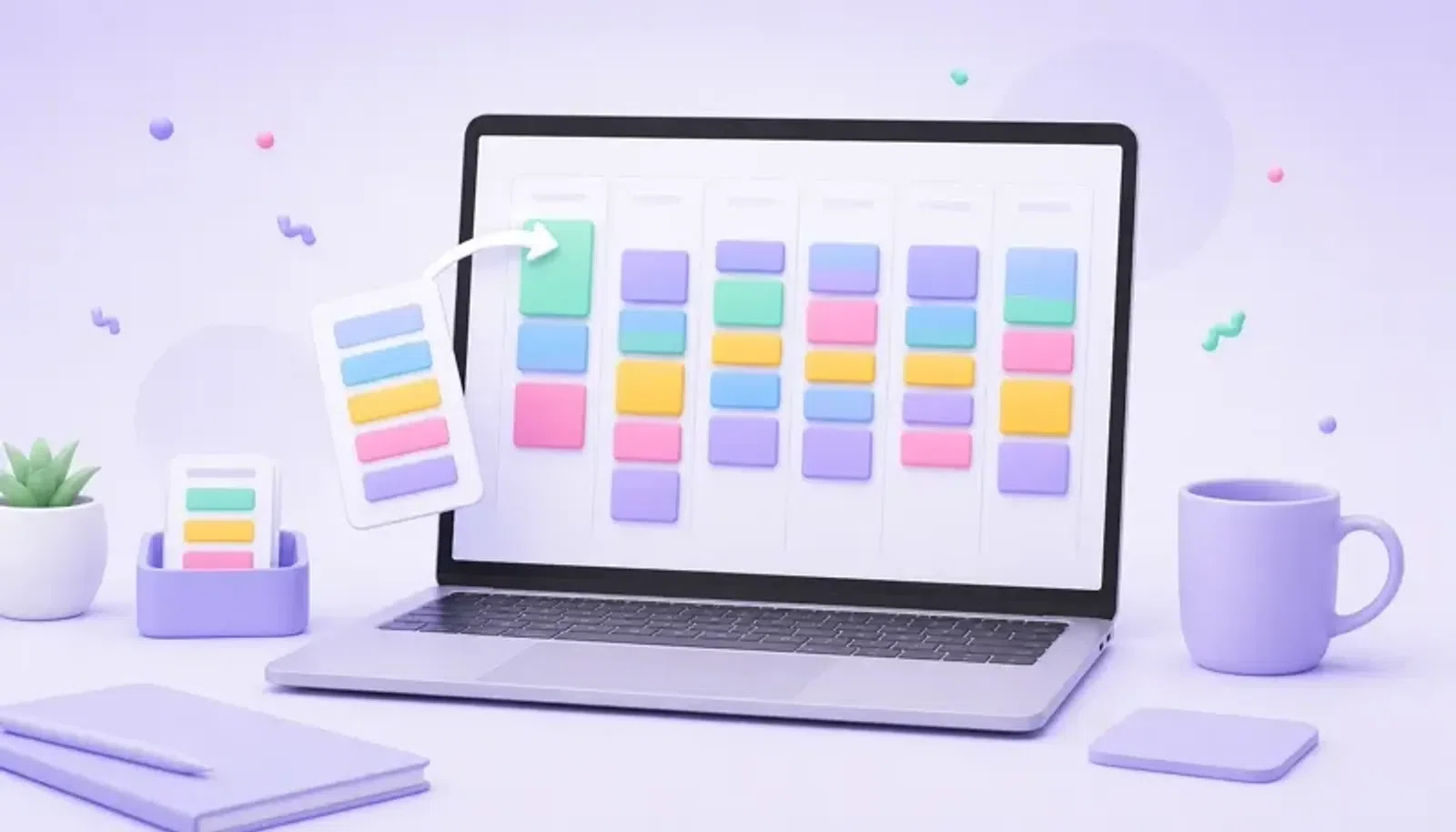
A weekly time blocking template gives you a repeatable structure for your week, so you are not rebuilding the same plan every Monday. The useful version is not just a printable grid. It is a set of named blocks you can reuse, apply to real days, and edit when the week changes.
If you are on a Mac, Chunk turns that template into live time blocks. You can build reusable day templates, apply them to your current day, drag individual blocks into place, and set routines so the right structure appears on selected weekdays. Your week still stays flexible, but the blank-page work disappears.
Start with a simple weekly shape, then make it real in your calendar workflow. The goal is not to fill every minute. It is to give your priorities a default place, keep recurring work from crowding out focus, and make each day easier to start.
What should a weekly time blocking template include?
A good weekly time blocking template includes your fixed commitments, recurring work, focus blocks, admin time, breaks, and a short planning slot. It should also leave buffer time, because a template that assumes a perfect week will break by Tuesday.
Use this plain structure as your starting point: mornings for planning and focus, midday for meetings or communication, afternoons for lighter execution, and the end of the day for review. If your energy pattern is different, swap the order. The template is a default, not a rule.
- Weekly planning: 30 minutes at the start of the week.
- Daily planning: 10 to 15 minutes before the first work block.
- Deep work: one or two 60 to 120 minute blocks on your best days.
- Admin and messages: one or two contained windows, not all day.
- Breaks and meals: visible blocks, not vague intentions.
- Review: 10 minutes at the end of the day or week.
If you are new to the method, read what time blocking is first. The short version: you decide when work happens, not just what work exists.
How do you design a weekly template that you will actually use?
Design the template around the work that repeats, not around an ideal version of your week. Start by listing the commitments that already have times: meetings, classes, school runs, appointments, exercise, meals, and any standing personal routines. These are your anchors.
Next, add the work that needs protection. Give your most important work a real block before you fill the week with smaller tasks. If your focus is best in the morning, do not spend every morning on email. If your afternoons are better for calls, put communication there.
Finally, add friction blocks. These are the small pieces that stop the week from falling apart: planning, inbox clearing, travel, reset time, and shutdown. A weekly template works better when it includes recovery and transition time, because you are planning for the week you will have, not the week you wish you had.
For a more detailed daily planning workflow, see how to plan your day with a time blocking calendar on Mac.
What is a simple weekly time blocking template?
Here is a practical weekly time blocking template you can copy into a notebook, spreadsheet, calendar, or Chunk template. Keep the labels broad at first. You can make the blocks more specific once the shape feels right.
Monday
Start with weekly planning, then protect one focus block before reactive work begins. Use the afternoon for meetings, admin, or project setup. End with a short review so Tuesday starts clean.
Tuesday to Thursday
Use these as your main execution days. Put your longest focus blocks where your attention is strongest. Batch messages and admin into contained windows. Leave at least one buffer block each day for spillover.
Friday
Keep Friday lighter if you can. Use it for finishing, review, planning the next week, and clearing loose ends. Avoid turning Friday into a warehouse for every task that slipped earlier in the week.
A simple version might look like this: 09:00 planning, 09:30 focus, 11:30 messages, 12:30 lunch, 13:30 meetings or collaboration, 15:30 admin, 16:30 review. Change the times to match your real day.
How do you turn the template into reusable blocks on Mac?
In Chunk, open Template mode and create a reusable day template. Add blocks by dragging on the 24-hour timeline, then name each block, set the start and end time, and choose one of the five block colours: Indigo, Sky, Emerald, Amber, or Rose.
Make one template per day shape, not one giant weekly file. For example, you might create “Focus Monday”, “Meeting Tuesday”, “Admin Friday”, and “Light weekend”. Each template stores its own set of blocks, so you can apply the right structure without recreating it.
When you want to use a template, apply it to the current day in one click. If you only need one part of the template, drag a single block from the template editor into the day view. This is where a Mac-native template beats a static PDF: you are not copying boxes by hand, you are placing real blocks onto a live timeline.
Chunk’s panel lives in the menu bar and opens with a global shortcut, so the template is close even when you are working in another app. If you often work fullscreen, a fullscreen-friendly Mac time blocker keeps planning from becoming a context switch.
When should you use routines instead of applying templates manually?
Use routines when the same day shape should appear automatically on selected weekdays. In Chunk, any day template can become a routine by choosing the weekdays it should apply to. On a routine day, Chunk auto-populates that day’s schedule with the template’s blocks.
This is useful for recurring structure: a Monday planning rhythm, a Tuesday focus day, a Friday review day, or a study schedule that repeats during term time. The routine gives the week a default shape before you start making daily choices.
Use manual templates when your week changes often. For example, if your meeting load varies, you may prefer to apply a “meeting-heavy day” template only when needed. You can also apply a routine, then move or resize blocks as the day changes.
One important boundary: Chunk does not create recurring standalone calendar blocks in the same way a calendar repeats an event. Templates and routines are the shipped way to reuse day structures. That is usually better for planning, because your template remains editable without turning every block into a rigid recurring event.
How do you keep the weekly template flexible?
Build slack into the template before you need it. A rigid week looks tidy, but it creates stress as soon as one block overruns. Add buffer blocks between demanding work, leave some afternoons lighter, and avoid stacking focus blocks back to back without transition time.
On Mac, the practical habit is to review the template against your real calendar before the week begins. Chunk can show external Google, Outlook, and Apple Calendar events alongside your Chunk blocks. If an external event needs to move and editing is enabled, you can drag or resize it from Chunk and push the change back to the source calendar.
Lock external events when you only want to plan around them, not change them. Then adjust your Chunk blocks around the fixed commitments. This keeps the template useful without making your calendar fragile. If your week spans several calendar accounts, read how two-way calendar sync supports time blocking on Mac.
What mistakes make weekly time blocking templates fail?
The first mistake is making the template too detailed. If every block has a narrow task name, the plan becomes stale quickly. Use broad categories for the weekly shape, then add specific tasks during daily planning.
The second mistake is ignoring energy. A template that puts hard creative work after a draining meeting block may look sensible on paper but fail in practice. Match block types to your attention, not just to empty space.
The third mistake is treating the template as proof that the work will fit. A weekly template is a capacity check. If the important blocks do not fit before the week starts, the answer is not to shrink every block until it looks possible. The answer is to cut, defer, or renegotiate work.
If attention and time awareness are part of the challenge, try shorter blocks and clearer transitions. The guide to ADHD time blocking block duration explains how to choose block lengths that are easier to start and finish.
What is the fastest way to start this week?
Start with one reusable day template, not a perfect weekly system. Pick the day that repeats most often, create blocks for planning, focus, messages, admin, breaks, and review, then apply it to tomorrow. Use the day as a test instead of trying to design the whole week in one sitting.
At the end of the day, adjust the template. Move the blocks that felt wrong, shorten anything you kept avoiding, and add buffer where the day became tight. After two or three uses, duplicate the template and adapt it for another day shape.
Chunk is built for this exact loop on macOS: create a reusable template, apply it to a real day, adjust blocks as the week changes, and keep the countdown visible from the menu bar. Start with the free trial, build one day template, and let next Monday begin from a structure you already trust.