Apple Calendar MCP: plan your day with Claude
Published on 8/31/2026


If you want an Apple Calendar MCP workflow, the cleanest Mac-native answer is to use Chunk as the local planning layer between Apple Calendar and Claude Desktop. Chunk connects to Apple Calendar through macOS, runs a local Claude MCP server, and gives Claude enough context to help plan your day as editable time blocks on your Mac timeline.
That distinction matters. You are not asking a cloud scheduler to take over your calendar, and you are not just browsing a developer repository for a raw MCP server. You are using Apple Calendar as the source of existing commitments, Claude as the conversational planning surface, and Chunk as the place where the plan becomes a schedule you can actually follow.
The result is a practical loop: see your Apple Calendar events, ask Claude to shape the open space, create or adjust blocks in Chunk, then work from a menu-bar timeline with a live countdown. It keeps the day close to macOS instead of burying your plan in another web tab.
What does Apple Calendar MCP mean in practice?
Apple Calendar MCP usually means you want Claude to understand what is already on your Apple Calendar and help you plan around it. MCP stands for Model Context Protocol, an open protocol introduced by Anthropic for connecting AI assistants to tools and data sources through defined servers. In a calendar workflow, that means Claude can ask a connected tool for schedule context instead of relying on you to paste your day into chat.
For day planning, the useful version is not just “Claude can read a calendar”. The useful version is “Claude can help turn today’s constraints into a time-blocked plan”. Existing meetings, appointments and travel buffers set the edges. Your tasks, focus blocks and routines fill the space between them.
Chunk is built for that second layer. It connects Apple Calendar to your Mac timeline, then exposes a local MCP server to Claude Desktop. Claude can help create and update Chunk events, tasks, templates and template items, while external calendar events provide context on the same day view. If you want the broader local planning angle, the related guide on Claude MCP time blocking on Mac covers the privacy-first workflow in more detail.
Why use Chunk instead of a generic Apple Calendar MCP server?
A generic Apple Calendar MCP server can be useful if your goal is developer control: inspect events, test prompts, or wire Claude into a custom setup. But day planning usually breaks down after the chat answer. Claude may suggest a sensible schedule, yet you still need to turn that text into a calendar you can see, edit and follow.
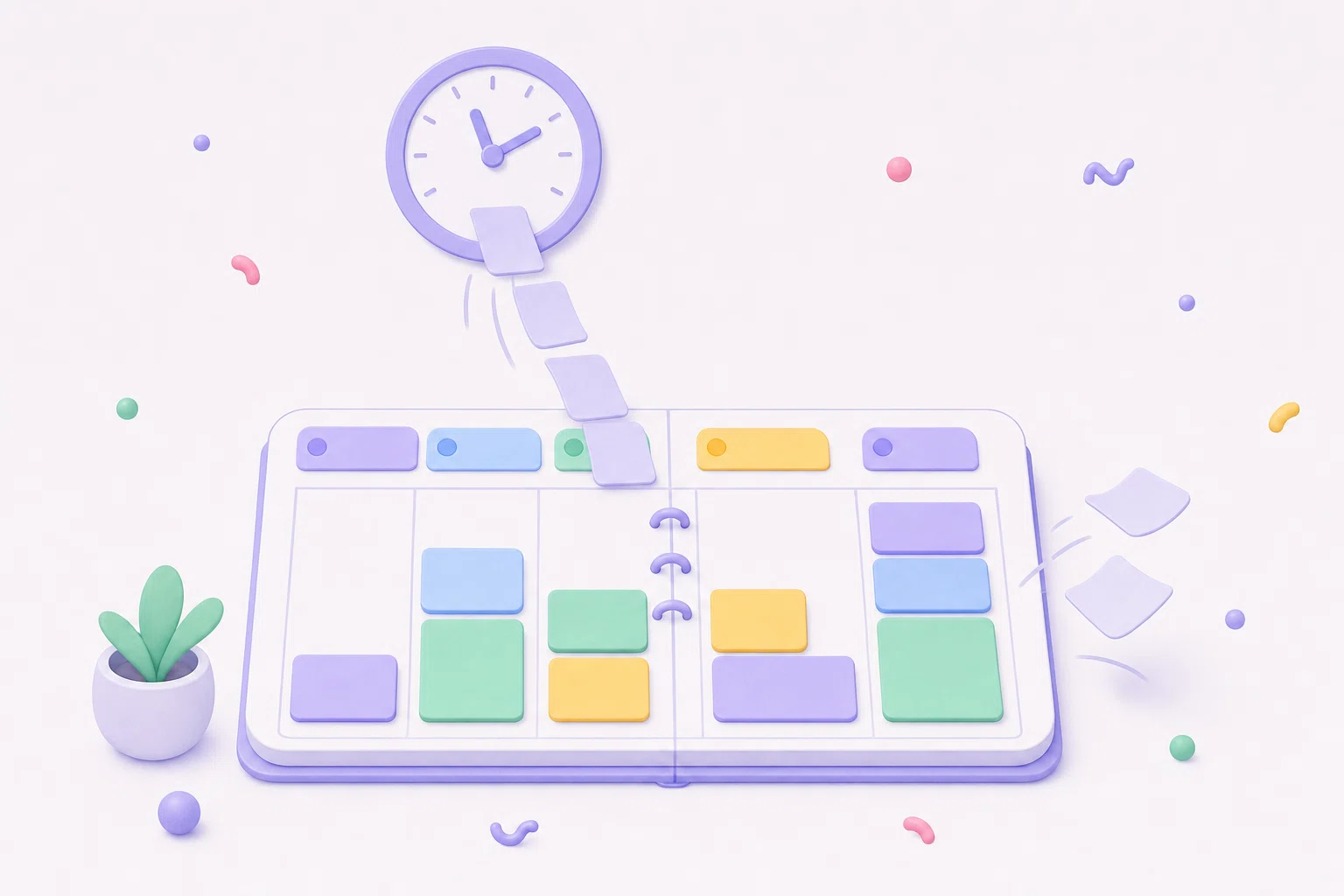
Chunk gives the plan a Mac-native home. It lives in the menu bar, opens with a shortcut, and shows your day as a vertical 24-hour timeline. Apple Calendar events appear beside your Chunk blocks, so you can plan around real commitments without switching to a full calendar window. The panel can float over fullscreen apps, which helps when you are working in one space and need a quick schedule check.
The local MCP server connects Claude to that planning surface. Instead of ending with “here is a suggested agenda”, the workflow can produce real blocks in Chunk that you can drag, resize, rename or recolour. That is the main product fit: Apple Calendar gives the constraints, Claude helps reason about the day, and Chunk turns the result into time blocks.
How does Chunk connect Apple Calendar and Claude?
Chunk connects Apple Calendar through a native macOS integration. In settings, you choose which Apple calendars appear in the day view and whether editing is allowed. Apple Calendar events can show on the same timeline as your Chunk blocks, and Chunk supports two-way Apple Calendar sync for calendar edits made through the app.
The Claude side is separate. Chunk registers a local MCP server with Claude Desktop from the app’s AI integrations settings. The server runs on your Mac and talks to Chunk’s local SQLite data through local IPC. Chunk does not send your schedule to its own cloud for AI scheduling. Claude still processes what you ask it inside Claude Desktop, but Chunk’s server and schedule store stay local to the machine.
There is one important boundary: Chunk’s MCP tools expose read and write access for Chunk events, tasks, lists, templates and template items, with read-only access to external calendar events. In plain English, Claude can use Apple Calendar events as planning context and create or adjust the Chunk blocks that fill the rest of your day. That makes the workflow safer than giving an assistant broad calendar write access from the start.
What can you ask Claude to do with your Apple Calendar day?
Start with prompts that describe the planning outcome, not the integration. For example: “Plan my day around my Apple Calendar events, leave 15 minutes before calls, and put writing before lunch.” Claude can inspect the connected schedule context through Chunk, then propose blocks that fit the open spaces.
You can also ask for changes after the first pass. Try: “Move admin work later and protect a 90-minute focus block this morning,” or “Create a lighter afternoon because I have back-to-back meetings.” The value is not that Claude invents a perfect day. It is that you can negotiate the plan in natural language, then keep editing it visually in Chunk.
This is especially useful when your Apple Calendar contains fixed commitments but not the real work. Meetings are usually already there. The missing parts are drafting, study, chores, email, review time and breaks. Chunk lets those become visible blocks rather than a to-do list beside the calendar. For the non-MCP version of that workflow, see Apple Calendar time blocking on Mac.
How private is this compared with a cloud scheduler?
Chunk is local-first by design. Your schedule data is stored in SQLite on your Mac. The MCP server runs locally and connects to Claude Desktop on the same machine. Nothing extra leaves your Mac because Chunk has to “schedule with AI” on a remote server; there is no Chunk cloud scheduler sitting between your calendar and your plan.
That does not mean no data ever leaves your device. Apple Calendar sync still uses your Apple calendar infrastructure, OAuth calendar integrations use their providers, licensing uses LemonSqueezy, and Claude receives the information you choose to send through Claude Desktop. The meaningful difference is that Chunk itself is not a hosted AI scheduling service. Its job is to provide the local Mac surface and the local MCP tools.
If your main concern is avoiding opaque auto-scheduling, this model is easier to reason about. Claude can suggest and create blocks, but you still see the plan on a timeline before you live by it. You can drag a block shorter, lock external events as read-only when you want to avoid accidental calendar edits, and keep the day under your control.
How do you set up an Apple Calendar MCP workflow in Chunk?
The setup has two parts: calendar context and Claude access. First, connect Apple Calendar in Chunk’s calendar settings. Choose the calendars you want shown in the day view, decide whether editing is allowed, and keep the day timeline as the place where your commitments and planned blocks meet.
Second, connect Claude Desktop from Chunk’s AI integrations settings. Chunk registers its local MCP server in one click. After that, Claude can use Chunk’s exposed tools for events, tasks, templates and related planning data. You do not need to run a separate developer server or copy local database paths into a config file.
Once connected, ask Claude for a plan and review the resulting blocks in Chunk. The visual pass matters. A chat plan can sound plausible while hiding a bad transition, a missing break or a focus block placed too late. In Chunk, you can fix that by dragging, resizing and renaming blocks directly on the timeline. If you also plan across Google or Outlook, the guide to two-way calendar sync for Mac time blocking explains the multi-calendar layer.
What should stay in Apple Calendar and what should become a Chunk block?
Keep fixed commitments in Apple Calendar: meetings, appointments, shared events, travel bookings and anything another calendar app or account needs to see. Those events are the hard edges of the day. Chunk can show them on the timeline so your planning starts from reality instead of an empty grid.
Use Chunk blocks for the work you need to protect: writing, coding, studying, admin, exercise, breaks, errands and routine slots. These are often missing from Apple Calendar because they feel too flexible to schedule. That flexibility is exactly why they benefit from time blocking. If the block is visible, it has a place in the day before incoming tasks take the space.
Chunk also gives you five block colours: Indigo, Sky, Emerald, Amber and Rose. Keep colour meaning simple, such as focus, meetings, admin, personal and recovery. The point is not to decorate the schedule. It is to make the shape of the day legible at a glance, especially from the menu bar panel when you are between tasks.
How is this different from Google Calendar MCP?
The planning idea is similar: bring calendar context into Claude, then turn the answer into a time-blocked day. The difference is where your calendar source of truth lives. With Apple Calendar, Chunk uses the macOS-native calendar connection. With Google Calendar, Chunk uses Google OAuth and calendar selection. In both cases, Chunk is the Mac planning layer rather than a cloud scheduler.
If you use several calendar providers, the distinction becomes less important than the timeline. Work may live in Google, personal appointments in Apple Calendar and client calls in Outlook. Chunk can bring Apple, Google and Outlook calendars into one Mac day view, then let you plan the open space with blocks. That is more useful than treating each provider as a separate planning world.
For the Google-specific MCP angle, read turn Google Calendar MCP into a Mac time-blocked day. For a provider-neutral setup, time blocking multiple calendars on Mac shows how to work across accounts without rebuilding the same plan three times.
When is Apple Calendar MCP worth using?
Use it when your calendar is already full enough that planning by hand feels slow, but not so fixed that an auto-scheduler should decide everything for you. Claude is good at turning constraints into a first draft: where to put focus work, how to leave buffers, what to defer, and how to make a crowded day less brittle.
Skip it when all you need is a quick calendar view. If you only want to glance at the next event, a menu-bar calendar may be enough. If you want to build and follow a plan, Chunk is a better fit because it combines synced Apple Calendar events, editable time blocks, task lists, templates, routines and a countdown in one Mac panel.
The best test is simple: ask Claude to plan tomorrow around your Apple Calendar, then open Chunk and inspect the timeline. If the plan helps you start the next block without rethinking the whole day, the MCP layer is doing useful work. Try Chunk with the 7-day trial, connect Apple Calendar and Claude Desktop, and build your first local Claude-assisted day plan from the menu bar.