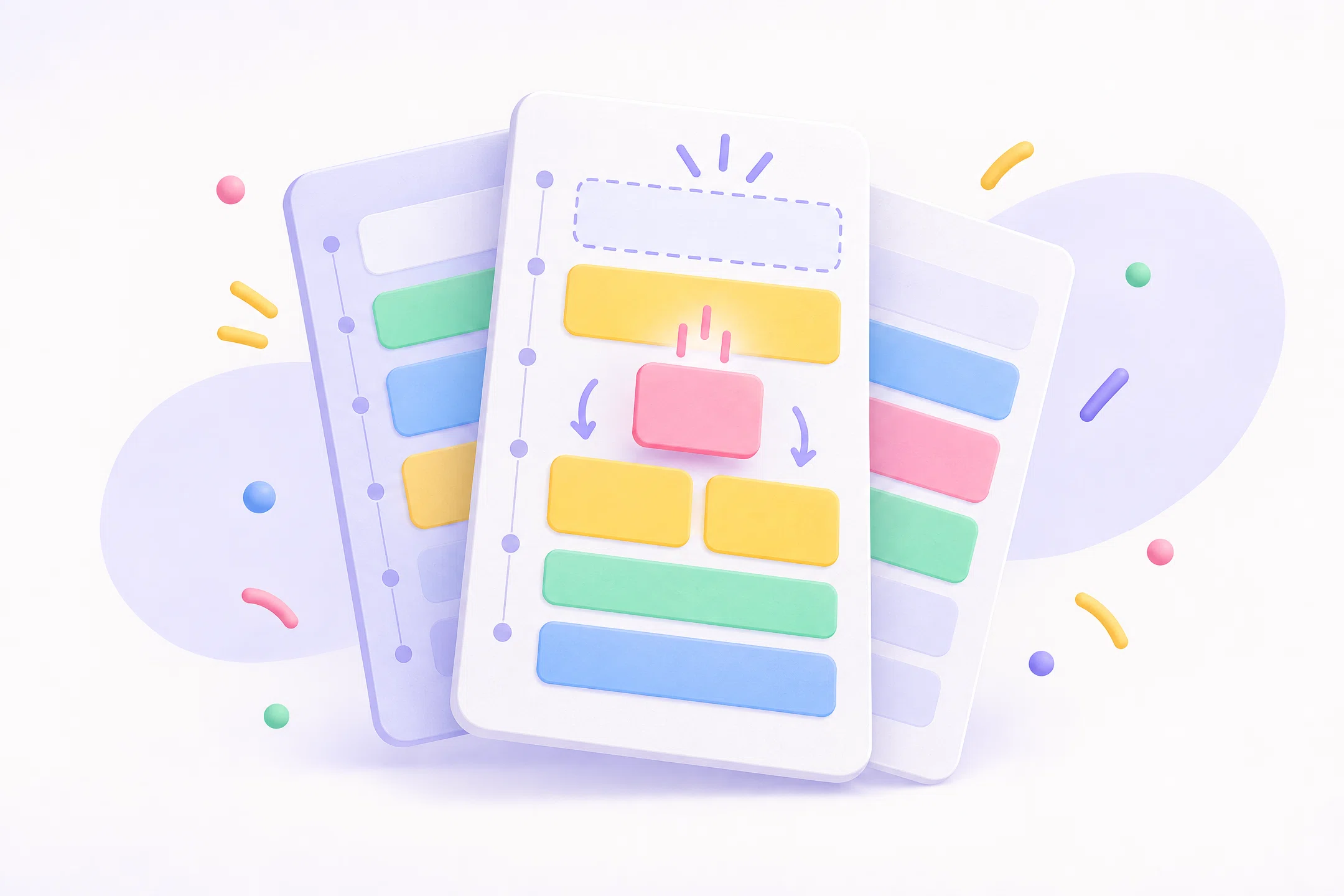
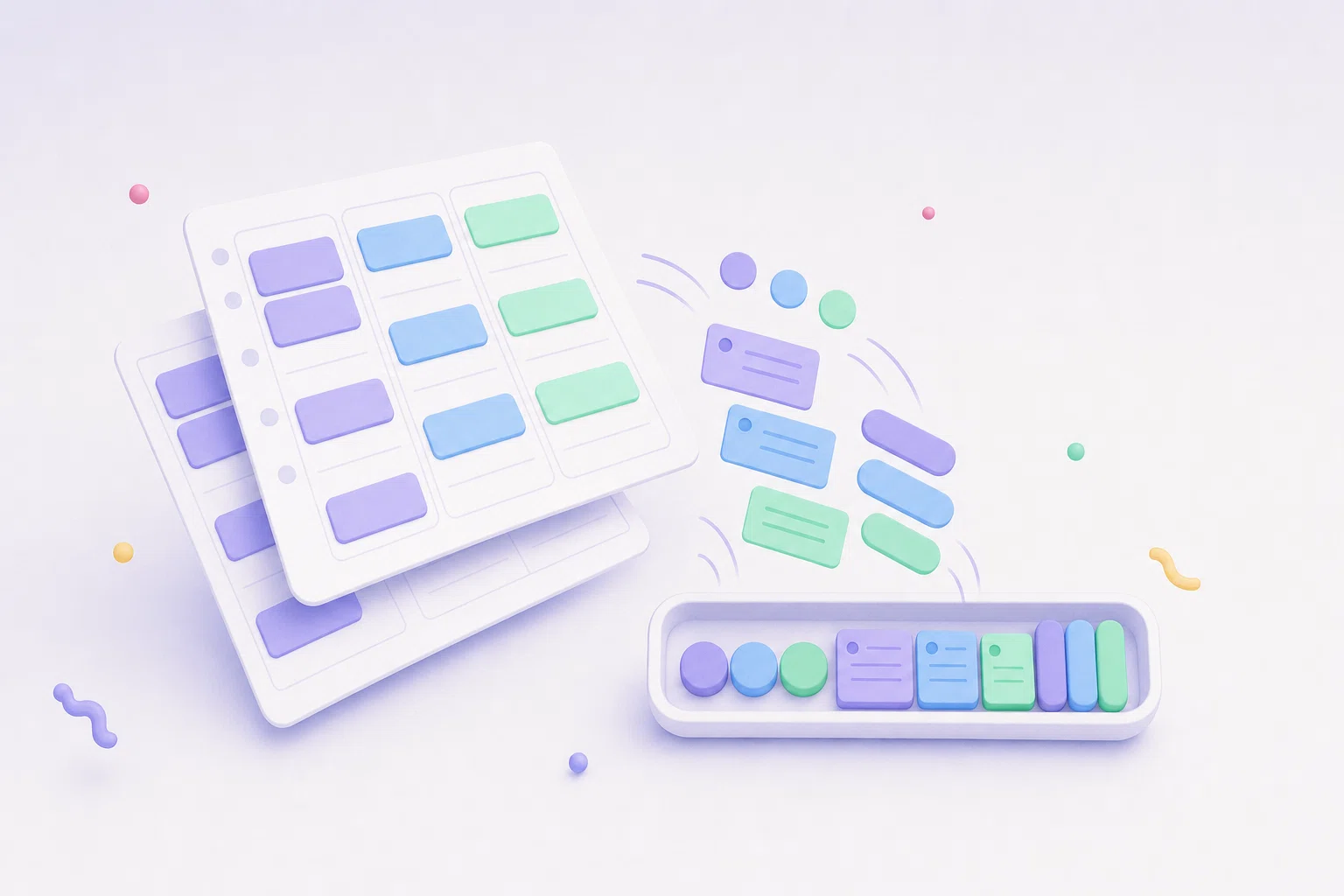
Best time blocking app with recurring tasks for Mac
Published on 8/31/2026

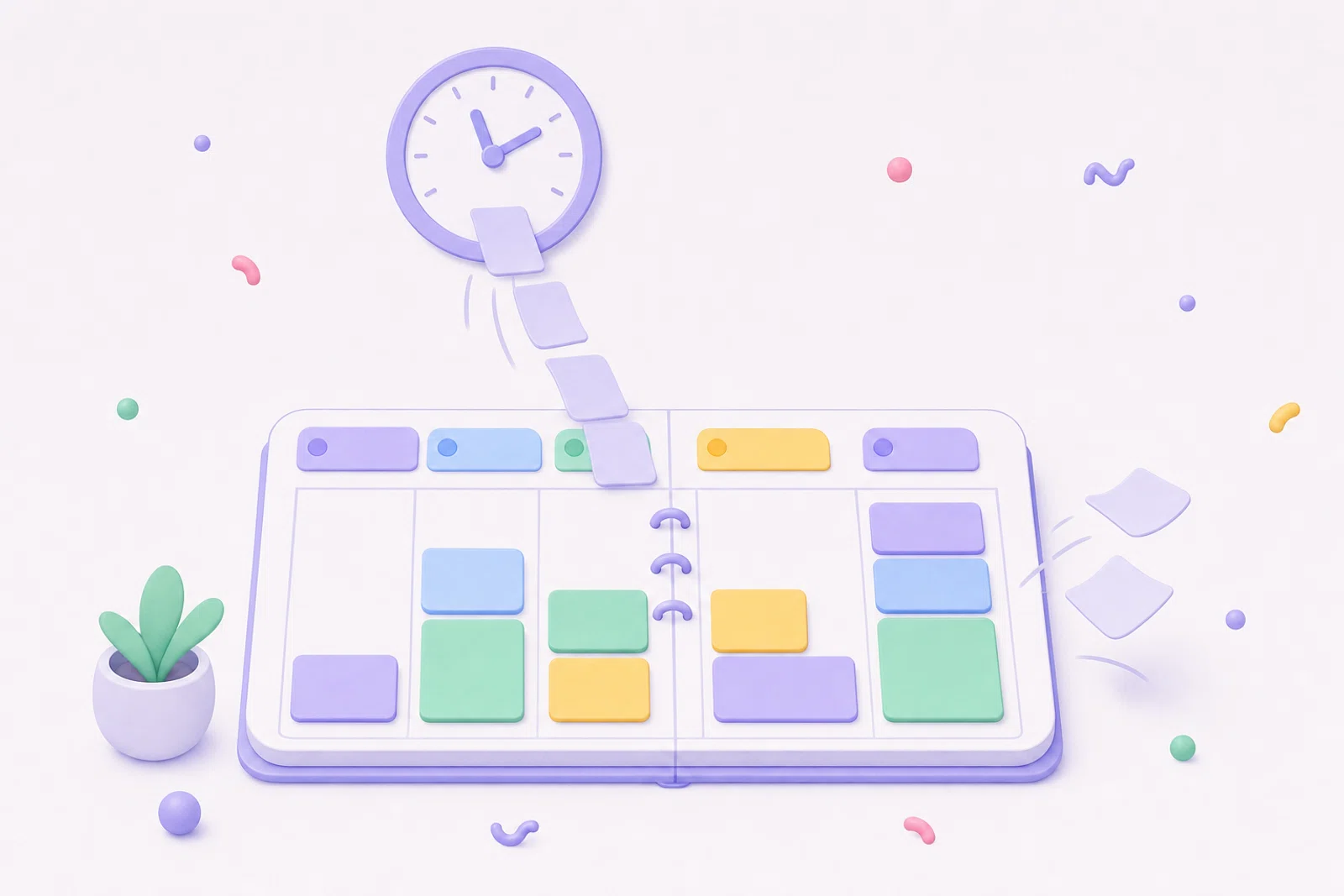
The best time blocking app with recurring tasks for Mac should do one simple job: turn the things you repeat into real time on your calendar-style plan. If your recurring tasks live in a separate to-do list, you still have to remember to schedule them. That is where routines quietly break.
Chunk is built for this routine-to-timeline step. You can create recurring tasks, project their occurrences into day and week views, and drag them onto your Mac timeline when you are deciding what actually fits. That makes recurring work visible in the same place as today’s plan, not hidden in a list you check after the day is already full.
This guide is an app-selection checklist, not a generic productivity roundup. Use it to judge whether a time blocking app can handle repeated tasks without creating a second planning system.
What should a time blocking app with recurring tasks actually do?
A good time blocking app with recurring tasks should connect three layers: the repeating commitment, the next occurrence, and the block of time where it will happen. If those layers are split across different screens or apps, you are back to manual planning.
The key feature is not just “repeat daily” or “repeat weekly”. Many task apps can repeat a checkbox. The harder part is showing the next instance where you plan your day, then letting you schedule that instance without changing the whole series. For example, your Friday review might usually happen at 15:00, but this week it may need to move to 11:30.
In Chunk, recurring tasks can repeat daily, weekly, monthly, yearly, every N intervals, or on chosen weekdays. They appear in the day and week calendar views, in Today, Upcoming and other task lists, and on the Mac timeline where you schedule your day. Only today’s occurrence is completable, so future repeats stay as planned work rather than premature checkboxes.
Why do recurring tasks fail when they are only a list?
Recurring tasks fail when they ask you to make the same scheduling decision again and again. A list can remind you that something exists, but it does not protect time for it. “Exercise”, “weekly review”, “clear receipts” and “plan tomorrow” can all sit in Today while meetings, messages and errands consume the hours.
Time blocking fixes the missing step by putting a task against a start and end time. The plan becomes more honest because you can see whether the task fits. If five repeating routines land on the same morning, the problem is visible before you start.
This is also why a calendar-only approach can feel too rigid. A calendar event repeats at fixed times, but a task often needs a due pattern plus flexible placement. Chunk treats recurrence as a task feature, not as recurring standalone blocks. You keep the task’s details, checklist, notes and attachments, then schedule individual occurrences onto the day when you are ready.
If you want a practical method for building repeated routines, read how to turn recurring tasks into Mac routines. This article focuses on choosing the right app surface.
Which recurring-task features matter most on Mac?
Start with flexible repeat rules. Daily and weekly repeats are table stakes. A better app also supports monthly and yearly repeats, every-N intervals, weekday selection, end conditions, and after-completion repetition. After-completion matters for routines that depend on when you last did the work, such as “follow up three days after sending proposal”.
Next, look for occurrence control. You should be able to skip one future instance, delete a single occurrence, and move one scheduled instance without rewriting the whole pattern. That distinction keeps your routine stable while still letting real life happen.
Then check how the app handles missed repeats. If every overdue occurrence piles up, your task list becomes punishment instead of guidance. Chunk shows the next actionable occurrence in standard lists, so old missed instances do not stack endlessly in Overdue. Upcoming can still show projected occurrences for the current month, grouped by day, so you can plan ahead without cluttering every list.
Finally, prefer a Mac-native planning surface. A menu-bar app that opens with a shortcut is easier to check during the day than a full calendar window buried behind other work. For a wider Mac planning comparison, see the best time blocking apps for Mac.
How does Chunk turn recurring tasks into time blocks?
Chunk starts in task mode. You create a task, add notes, checklist items, attachments and a default duration if needed, then set it to repeat. The repeat rule can be fixed to calendar rhythm or based on completion. Once active, the series projects occurrences into the day and week views.
From there, the planning step is visual. You can drag an occurrence onto the timeline, resize it, and place it beside your other blocks and synced calendar events. Moving a future occurrence schedules that single instance at the chosen time without changing the rest of the series.
This is the important difference from a normal recurring to-do list: the repeat does not stop at “remember this”. It reaches the timeline where you decide what the day can hold. The system tray countdown then shows time left in your current block, so the plan remains visible even when the panel is closed.
If you already like planning your day as a timeline, this Mac planner timeline guide explains why that shape works better than a flat list for many days.
Should recurring tasks sync to your calendars?
Recurring tasks and calendar sync solve different problems. A recurring task is a commitment you need to do again. A calendar event is time other systems may need to see. The best setup lets you plan recurring work locally, then choose when calendar visibility matters.
Chunk syncs Google, Outlook and Apple Calendar events into the same day and week views with two-way editing. That means meetings and external commitments sit beside your Chunk tasks while you plan. You can create, edit, move, resize and delete synced events from Chunk when write access is enabled.
For recurring tasks, the useful part is context. You can see whether your weekly admin task fits around work meetings, family calendars or appointments before you drag it into place. If you need a scheduled block to exist on an external calendar, Chunk can swap a block onto an external calendar or convert a calendar block into a task list item, depending on the action you take.
For more detail on planning across accounts, read how to time-block multiple calendars on Mac.
What is the difference between recurring tasks, routines and templates?
Recurring tasks are best for repeated actions with their own task detail: notes, checklist, due pattern, attachments and completion history. Examples include weekly invoicing, medication refill checks, language practice or end-of-day shutdown.
Templates are better for reusable day shapes. In Chunk, a template is a saved set of blocks with names, times and colours. You can apply a template to the current day or drag one block from the template into the day view. Routines are templates that auto-apply on selected weekdays, so the shape of the day appears without recreating it.
The distinction helps you avoid forcing everything into one feature. If the work repeats as a task, use a recurring task. If the shape of the day repeats, use a routine. If both are true, you can let the routine create the day’s scaffolding, then schedule recurring task occurrences into the open spaces.
For calendar-first planning, this time blocking calendar guide shows how to build a day from fixed commitments outward.
How should you compare time blocking apps with recurring tasks?
Compare apps by the planning decision they help you make. A task manager with excellent recurrence can still leave you asking, “When will I do this?” A calendar app can repeat events, but may feel too heavy for movable personal routines. An AI scheduler may place tasks for you, but you may not want your day constantly rearranged by automation.
Use this checklist before you choose:
- Can recurring tasks appear where you plan the day, not only in a list?
- Can you schedule one occurrence without changing the whole series?
- Can you skip or delete one future instance?
- Can repeats be based on completion, not only calendar dates?
- Can you see external calendars beside your recurring work?
- Can you open the planner quickly on Mac without switching context?
If most of your planning happens on a Mac, Chunk is the closest fit when you want recurring tasks, a task sidebar, a day and week timeline, menu-bar access, and calendar context in one local-first workflow.
What should you try first in Chunk?
Start with one recurring task you often forget to schedule. Good candidates are short, repeated and easy to recognise: plan tomorrow, review inbox, update budget, stretch, tidy desk, prep lunch, clear downloads. Give it a realistic default duration so it lands on the timeline as the size of block you actually need.
Then open Chunk from the menu bar and place the next occurrence into today or this week. Do not rebuild your whole system on day one. The point is to test whether seeing the routine beside your calendar makes the decision easier.
Once that works, add a second layer: connect Apple, Google or Outlook Calendar so fixed commitments appear beside your recurring tasks. If you use Apple Reminders for capture, you can add time blocking to Apple Reminders on Mac by dragging reminder items into Chunk’s timeline.
Try Chunk with a 7-day trial, create one recurring task, and schedule its next occurrence onto your Mac timeline. If that single routine finally gets a real slot, you will know whether the workflow fits.
Chunk vs the field.
A quick side-by-side. We kept it honest — Chunk isn't the right fit for everyone, and that's fine.
Chunk
This is usPricing reflects each tool's lowest-tier individual plan at time of writing. Check the source for current numbers.