How to add time-blocking to Apple Reminders on Mac
Published on 7/2/2026

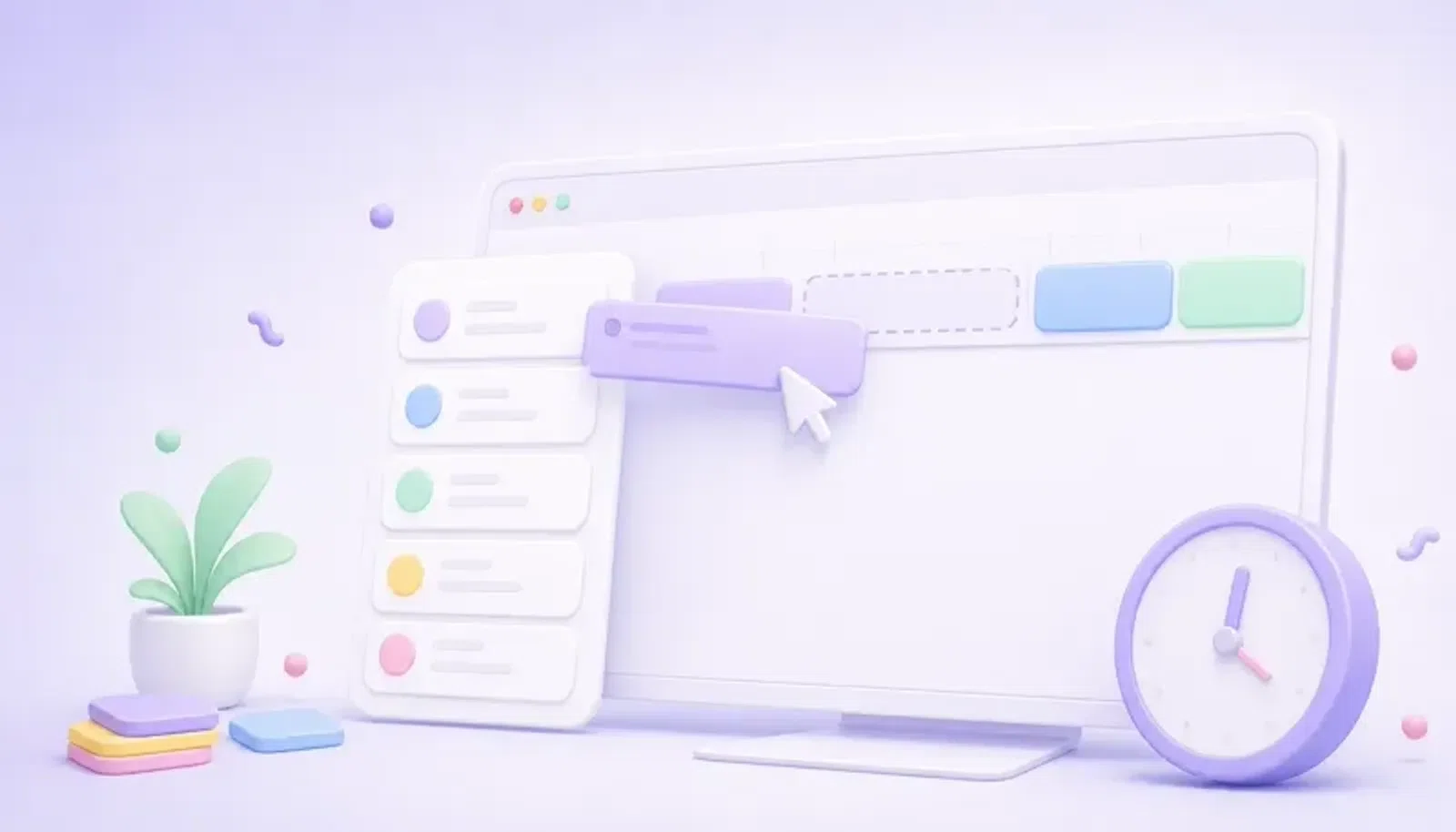
Apple Reminders can capture what you need to do, but due dates alone do not protect time to do it. The practical fix is to keep Reminders as your task source, then schedule the items onto a real timeline so each task has a start, an end and a place in your day.
Chunk is built for that gap on macOS. It shows your Apple Reminders lists inside its task sidebar, lets you drag reminder items onto a 24-hour timeline, and keeps changes round-tripped through Apple’s Reminders app using the Mac’s native EventKit system.
That means you do not have to choose between Reminders capture and calendar planning. You can keep the simple Apple list you already use, then turn the work that matters today into visible, editable time blocks from a menu-bar panel.
Why do Apple Reminders still feel unscheduled?
Apple Reminders is good at holding tasks, dates and lists. It is less good at answering the question that decides whether the task will happen: when, exactly, are you going to do it? A due date tells you the deadline. It does not reserve 45 minutes at 10:00, protect a focused block before lunch, or show that your afternoon is already full.
That is why a Reminders list can look organised while your day still feels vague. You may have a tidy Today list, but every item is competing for the same undefined pool of time. When meetings, messages and context switches arrive, the loose tasks are the first to slip.
Time blocking fixes the missing layer. Instead of treating each reminder as an isolated promise, you give it a slot on your day. For a broader Mac planning setup, the same principle applies to calendars too, as covered in Apple Calendar time blocking on Mac.
How does Chunk connect Apple Reminders to time blocks?
Chunk brings Apple Reminders into the same place where you plan your day. In Task mode, your Reminders lists appear in the sidebar alongside Chunk’s own lists, so you can review captured tasks without opening another app or copying items by hand.
From there, a reminder can be dragged onto the timeline like any other task. Dropping it onto the day creates a scheduled block with a start and end time. You can then move it, resize it, edit it, or work from the live countdown in the menu bar.
The integration is native to macOS. Chunk talks to Reminders through an Apple EventKit sidecar, so supported changes stay in sync with the Reminders app. Reminder items support creating, renaming, completing and uncompleting, due dates and deletion from inside Chunk. The important part for planning is simple: your task list becomes schedulable without leaving your Mac workflow.
What is the best workflow for planning Reminders into your day?
Start with capture, not scheduling. Keep using Apple Reminders for quick tasks, grocery-style lists, errands, admin and anything you want Siri or the Reminders app to collect. You do not need every captured item to become a calendar event the moment it appears.
When you are ready to plan, open Chunk from the menu bar and switch to Task mode. Scan your Reminders lists, choose the items that need protected time today, and drag them onto the timeline. A short admin item might get 15 minutes. A writing task might get 90. A call prep task might sit directly before the meeting it supports.
This is where time blocking becomes useful rather than decorative. You are deciding what fits before the day fills itself. If you also work across Apple, Google or Outlook calendars, read two-way calendar sync on Mac for time blocking to see how external calendar events can sit beside your planned task blocks.
How should you size a reminder when you drag it onto the timeline?
A reminder title rarely tells you how long the work will take. “Email accountant” could be five minutes or 40. “Draft proposal” could be one block or a whole morning. Before you drag an item onto the timeline, make a plain estimate and give the task enough space to be real.
Chunk lets you resize scheduled tasks after dropping them, so the first estimate does not have to be perfect. If a task deserves 30 minutes, drop it and adjust the block edge. If it grows while you are working, extend it if the day allows. If it is too large, split the work into smaller reminder items before scheduling.
For planning, the best block length is the one you can actually start. If you often avoid vague tasks, write the next visible action into the reminder title before you block it. “Proposal” is abstract. “Draft proposal outline” is easier to schedule and easier to begin.
Can Reminders and calendar events live in the same plan?
Yes. That is the point of moving from a plain task list to a time-blocked day. Your reminders are the work you intend to do. Your calendar events are the fixed commitments already taking space. Seeing both together helps you avoid planning a full task list into a day that only has two real free hours.
Chunk can show external Apple, Google and Outlook calendar events on the timeline, and those events can sync both ways when editing is enabled. Reminders can then be dragged around the fixed events, so your plan reflects the day you actually have.
This is different from turning every task into a calendar event by default. You can keep lightweight capture in Reminders, then promote only the right tasks into time blocks. If you want a faster way to check the shape of the day without living in a calendar tab, see how a menu-bar calendar helps you see your day faster.
What should stay in Reminders, and what should become a block?
Not every reminder needs a time block. A useful rule is to block work that needs focus, sequence or a real chunk of time. Keep tiny tasks, reference items and low-pressure errands in Reminders until they become relevant.
Turn a reminder into a block when one of these is true:
- It will take more than a few minutes.
- It has to happen before a meeting, deadline or handoff.
- You keep postponing it because it is vague.
- It needs quiet time or a specific energy level.
- It competes with meetings or other fixed calendar events.
This keeps your calendar from becoming cluttered while still protecting the work that matters. For the bigger argument behind this split, read why time blocking beats todo lists.
How do you keep the plan visible while you work?
A plan only helps if it stays close while you are working. Chunk lives in the macOS menu bar, so you can open your day with a shortcut instead of switching to a full calendar app. The panel can float above other windows, including fullscreen apps, which makes it easier to check the next block without losing your place.
Once a reminder is scheduled, the active block can drive the live countdown in the menu bar. That makes the current task visible even when the panel is closed. Instead of repeatedly asking what you meant to do next, you can glance at the tray and see what block you are in.
If you are building a fuller Mac setup around focus blocks, templates and external calendars, the best calendar app for time blocking on Mac compares the planning job more broadly. For this specific workflow, the key is simpler: Reminders holds the tasks, Chunk gives them time.
When is Apple Reminders time blocking worth it?
Apple Reminders time blocking is worth it when your list is accurate but your day is not. If tasks sit in Today with no clear order, if due dates create pressure without a plan, or if you keep underestimating how much your calendar already contains, scheduled blocks give you the missing shape.
Chunk is a good fit when you want that shape to stay Mac-native. You can keep Apple Reminders for capture, use Chunk’s sidebar to schedule the work, see calendar commitments on the same timeline, and adjust the plan from the menu bar as the day changes.
Try it with one list first. Pick three Reminders that need real attention today, drag them into Chunk, and give each one a realistic slot. If the day suddenly feels less abstract, keep going. That is the job: turn loose reminders into a plan you can actually follow.
Related articles
How to choose a calendar app for time blocking on Mac
How to choose a calendar app for time blocking on Mac
Best time blocking app with recurring tasks for Mac
Best time blocking app with recurring tasks for Mac