Recurring tasks on Mac: turn routines into time blocks
Published on 7/26/2026


A recurring tasks app is most useful when repeats do not stop at a checkbox. If a routine matters, it needs a visible place in your day: a time block, a duration, and enough context to start when the slot arrives.
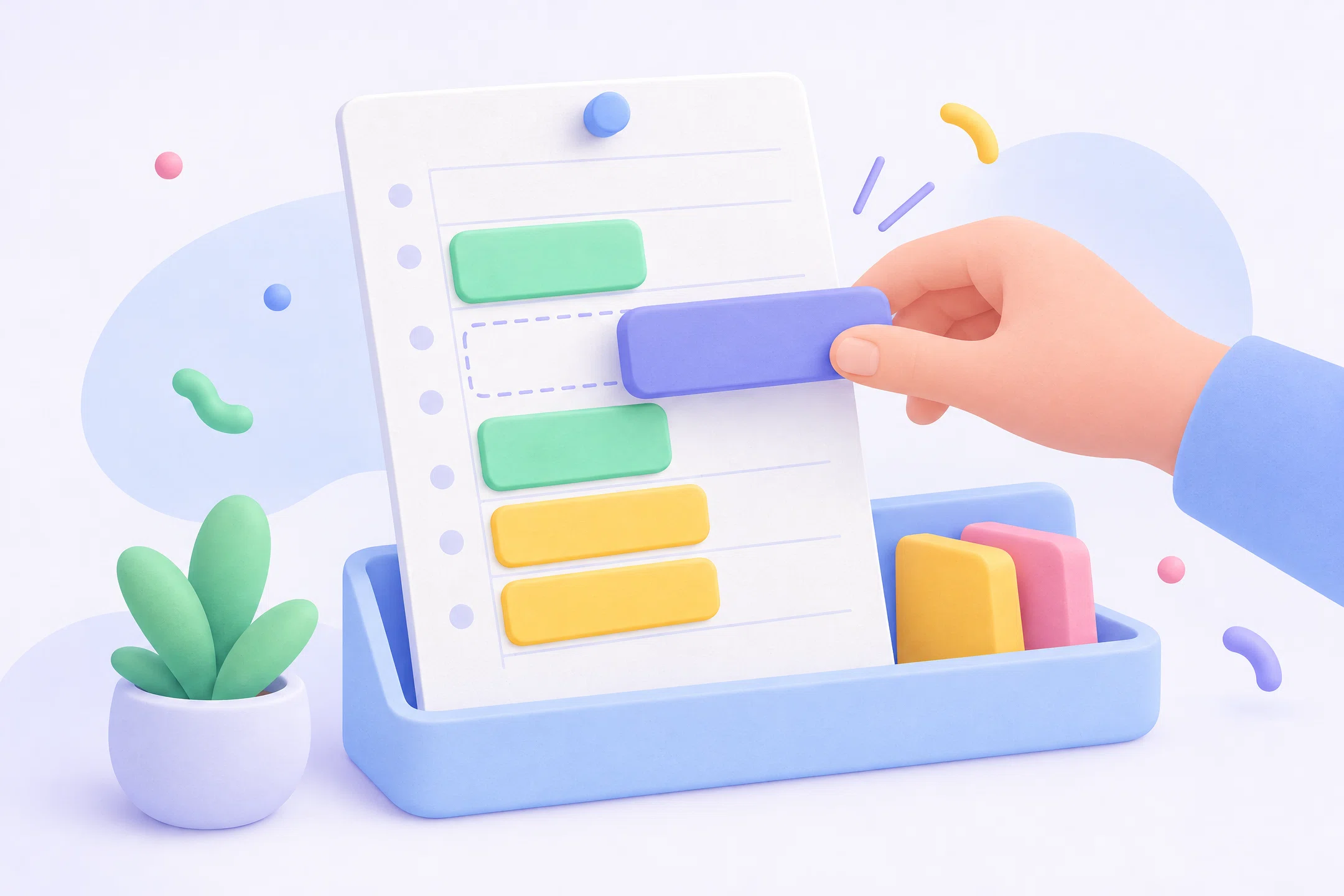
Chunk is built for that Mac workflow. You can create recurring tasks, see upcoming occurrences in your day and week views, then drag each instance onto the timeline when it needs protected time. The point is not to collect more repeat reminders. The point is to make routines usable.
That makes recurring tasks different from recurring calendar events. A calendar event says something happens at a fixed time. A recurring task says something needs doing again, but you still decide where it fits today.
What should a recurring tasks app do on Mac?
A good recurring tasks app on Mac should capture repeat work once, project the next due instances, and help you schedule the actual work into the day. If it only creates a long list of repeating checkboxes, it still leaves you with the harder problem: deciding when each task will happen.
That distinction matters for routines like weekly planning, medication refills, invoice checks, laundry, monthly admin, study reviews, or Friday shutdowns. These tasks repeat, but they rarely complete themselves just because they appear in a list.
In Chunk, recurring tasks live beside one-off tasks in task mode. A task can repeat daily, weekly, monthly, or yearly, including every-N intervals and selected weekdays for weekly repeats. Occurrences show up in Today, Upcoming, Overdue, user lists, and the day or week calendar views, so the routine is not hidden in a separate repeat settings screen.
If you are still choosing between list-first and calendar-first planning, start with why time blocking beats todo lists. The short version: lists hold commitments, but blocks reserve attention.
How do you turn a routine into a time block?
Start by writing the routine as a task, not as a vague intention. “Clean kitchen” is weaker than “Reset kitchen surfaces and start dishwasher”. A concrete task is easier to size, easier to schedule, and easier to complete.
Next, set the repeat rule. In Chunk, you can choose a daily, weekly, monthly, or yearly rhythm, set an interval such as every two weeks, pick weekdays for weekly repeats, and choose whether the series ends never, on a date, or after a number of completions. That keeps the repeat logic attached to the task instead of scattered across calendar events.
Then give the task a realistic duration. When you drag it onto the Chunk timeline, it becomes a scheduled block for that occurrence. If the routine normally takes 30 minutes, make it a 30-minute block. If it often needs setup and wrap-up, give it the space it actually needs.
This is the core shift: the repeat rule answers “what comes back?”, while the time block answers “when will I do it today?”. For a full daily planning workflow, pair this with how to plan your day with a time-blocking calendar on Mac.
Should recurring tasks go on your calendar automatically?
Not always. Automatic calendar placement works for tasks that truly happen at the same time every time, but many routines need judgement. A weekly review might land on Friday morning one week and Friday afternoon the next. A recurring admin task may need to move around meetings.
Chunk keeps that distinction clear. Recurring tasks project their upcoming occurrences into your planning views, but dragging a future occurrence onto the day view schedules that single instance at the chosen time without changing the whole series. The routine stays stable, while today’s plan stays flexible.
This helps you avoid the common calendar problem where repeating events become background noise. When every habit, reminder, and chore auto-fills the calendar, the day can look full before you have made any real planning decisions.
If you do want repeat structure that auto-populates fixed parts of a day, Chunk also has templates and weekday routines. Those are better for reusable day shapes, such as a Monday writing morning or a Thursday admin afternoon. For that layer, read how to use a weekly time-blocking template on Mac.
How do you stop recurring tasks from piling up?
A recurring task system breaks down when missed instances stack into guilt. If you skip a daily tidy-up for a week, you do not need seven identical overdue tasks shouting at you. You need the next useful occurrence and a way to keep moving.
Chunk avoids that pile-up by showing one actionable occurrence per recurring series in standard lists: the next one. Missed past instances do not endlessly accumulate in Overdue. Today’s occurrence can be completed, and completing it logs that task before the series advances to the next occurrence.
Future occurrences are visible, but they are not treated like tasks you can complete early. They show a repeat marker and a next-date label, which keeps the difference between “available now” and “planned later” clear.
For exceptions, Chunk includes per-occurrence skip and delete controls in the recurring task editor’s Upcoming tab. You can skip a single holiday instance, restore a skipped slot, or delete one occurrence without destroying the rest of the routine.
When should a task repeat after completion instead of by date?
Date-based repeats are right when the calendar rhythm matters: every Monday, the first of each month, every weekday, or once a year. Completion-based repeats are better when the gap after finishing matters more than the calendar date.
For example, “review notes three days after finishing” should happen three days after you actually complete the work, not three days after the date you hoped to complete it. If you finish late, the next review should move with reality.
Chunk supports after-completion repetition for this kind of routine. When the mode is active, completing one occurrence schedules the next occurrence a fixed interval after the completion date. That keeps maintenance tasks, follow-ups, and review loops from drifting out of sync with what actually happened.
Use fixed repeats for calendar commitments. Use after-completion repeats for recovery, follow-up, maintenance, and review tasks where the interval is the point.
How do Apple Reminders fit into a recurring task workflow?
If you already use Apple Reminders, you do not have to abandon it to time-block your day on Mac. Chunk can show Apple Reminders lists inside its task-mode sidebar alongside Chunk lists, so your reminders and local tasks sit in one planning surface.
Reminder items can be created, renamed, completed, uncompleted, given due dates, cleared, and deleted from Chunk, with changes round-tripped through macOS EventKit so the Reminders app stays in sync. You can also drag a reminder onto the Chunk timeline like any other task.
That means Apple Reminders can remain your capture layer, while Chunk becomes the planning layer. Capture the thought quickly, then give it time when you build the day. For a more focused walkthrough, see how to add time-blocking to Apple Reminders on Mac.
The important rule is capability attribution: Apple Reminders is still the reminder list. Chunk is the Mac time-blocking layer that turns those tasks into scheduled work.
How do recurring tasks work with your real calendars?
Your recurring task plan should not ignore meetings, calls, and appointments. Chunk can connect Google Calendar, Outlook Calendar, and Apple Calendar with two-way sync, then show those events beside your Chunk blocks on the same timeline.
That lets you schedule a recurring task around your real calendar instead of guessing. If a weekly review clashes with a meeting, move that occurrence. If a maintenance task needs a quieter slot, drag it into open space. External calendar events can be visible on the same day view while you arrange the work around them.
Chunk also lets you edit connected Google, Outlook, and Apple Calendar events from the timeline when write access is enabled. A lock toggle can freeze external events as read-only when you want to plan around them without accidental changes.
If calendar sync is the part you are trying to solve first, read two-way calendar sync for Mac time blocking.
What is a simple recurring task setup to start with?
Keep your first setup small. Pick three routines that already matter, such as a daily reset, a weekly planning session, and a monthly admin check. Create each as a recurring task, add a realistic duration, and schedule the next occurrence into your day.
Do not build a giant repeat system on day one. The goal is to prove that recurring tasks can become time you actually protect. Once the first few routines feel useful, add more carefully.
A good starter pattern is: daily 15-minute shutdown, weekly 45-minute review, monthly 60-minute finance block. These are specific enough to schedule, frequent enough to prove the workflow, and small enough not to overwhelm the day.
Open Chunk from the menu bar, set one repeat rule, drag the next occurrence onto the timeline, and let the tray countdown make the block visible while you work. If you want a broader app overview before trying it, see the guide to the best time-blocking app for Mac.