Cal Newport time blocking on Mac, without a paper planner
Published on 10/21/2026

Cal Newport's time blocking method asks you to give every minute of your workday a job before the day starts. Fixed commitments go on a grid first. Deep work gets long blocks, and shallow tasks are grouped into short batches. When the day goes off course, you keep the plan and re-block whatever time is left. Newport describes the method on paper or in a plain text file, but none of it actually needs paper.
If you work on a Mac and your meetings already live in Google, Outlook or Apple Calendar, the digital version saves you copying those meetings into a notebook every evening. Chunk is a time blocking app for Mac. Its Schedule view shows your synced calendar events on a day timeline, and you place task blocks in the gaps around them. That is Newport's grid, connected to the calendars you already use.
This guide takes each part of the method in turn: the grid, block lengths, re-blocking, capturing stray tasks and the evening plan. For each one it shows how the step works in a time blocking app for Mac. Newport appears here only as the source of the method. He has no connection to Chunk.
How does Cal Newport's time blocking method work?
Newport set out the method in a 2013 post, Deep Habits: The Importance of Planning Every Minute of Your Work Day, and came back to it in his book Deep Work. The post's title gives you the core instruction: at the start of each workday, you decide what every minute is for. He writes the hours down the left side of a page and boxes off blocks of time for specific work. That way no stretch of the day is left open for email to fill.
Three habits sit under that grid. Fixed commitments such as meetings go down first, because you can't move them. Deep work gets long, uninterrupted blocks, because hard thinking takes time to warm up. Shallow work (email, admin, quick replies) goes into its own blocks so it doesn't spread across the whole day.
Most summaries skip the revision step. Newport is clear that the schedule will break. When it does, you stop at the next sensible moment and redraw the plan for the hours that are left. Following the first draft perfectly was never the goal. What matters is that you keep choosing, on purpose, what your time is for. If you want the basics of the technique before the Newport version, start with what time blocking is and why it works.
Is time blocking just scheduling?
No. Scheduling puts appointments on a calendar and leaves the space between them blank. Newport's version fills in that blank space as well. A normal calendar might show a 10:00 meeting and a 15:00 call. A time-blocked day also says that 08:30 to 10:00 is for the report draft, 10:45 to 11:15 is for email, and 13:00 to 14:30 is for the client proposal.
That difference explains why a calendar on its own seems like it should be enough and often isn't. Your calendar records what other people booked. The time-blocked plan records what you decided to do with the rest of the day. It also treats the plan as a draft you rewrite during the day, whereas a calendar entry usually stays put until someone cancels it.
On a Mac, this is where a planner on top of your calendar earns its place. Chunk puts the meetings from your calendars and your own task blocks on the same timeline. You see the booked time and the time you've planned in one view, instead of keeping the second half in your head.
How do you set up Newport's daily grid on a Mac?
Start by connecting your calendars. Chunk syncs two-way with several Google and Outlook accounts plus Apple Calendar, so work meetings and personal appointments land on the same day timeline in the Schedule view. These are your fixed commitments, the first layer of Newport's grid, and you don't have to copy any of them by hand.
Next, fill the gaps with task blocks. Add a block for each piece of work you want done today, then set its start time and length to your best estimate. Colour makes the grid easy to read at a glance. You might use Indigo for deep work, Amber for shallow batches and Rose for anything due today. Chunk offers five block colours (Indigo, Sky, Emerald, Amber and Rose). That's enough to tell kinds of work apart without the day turning into a paint chart.
The sync runs both ways. If you move or resize a meeting on Chunk's timeline, the change goes back to the source calendar, so your plan and your calendar always match. You can open Chunk from the menu bar as a panel that floats over fullscreen apps, or detach it into a normal window and keep the day in view beside your work. For a fuller walkthrough of planning around events you already have, see how to plan your day on a time blocking calendar on Mac.
How long should each block be?
Deep work needs long stretches. A block of 60 to 90 minutes gives you time to settle in and still produce something worth keeping, and hard projects often deserve two of those back to back. Shallow work goes the other way. Two or three short batches of email and admin a day usually beat checking messages every few minutes, and they keep the long blocks clean.
Your first estimates will be wrong, and Newport plans for that. One idea from his writing is to give an uncertain task a second block with a backup use: if the first block is enough, you spend the second on something else on your list. Short buffers between blocks do the same job on a smaller scale. A five or ten minute gap stops one overrun from knocking every later block off the grid.
Estimates improve when you can see how past days actually went. Chunk's built-in analytics dashboard shows your blocked time over the week, so you can spot the kind of work you always underestimate and size those blocks bigger. For more on protecting the long blocks themselves, read deep work time blocking.
What do you do when the day falls apart?
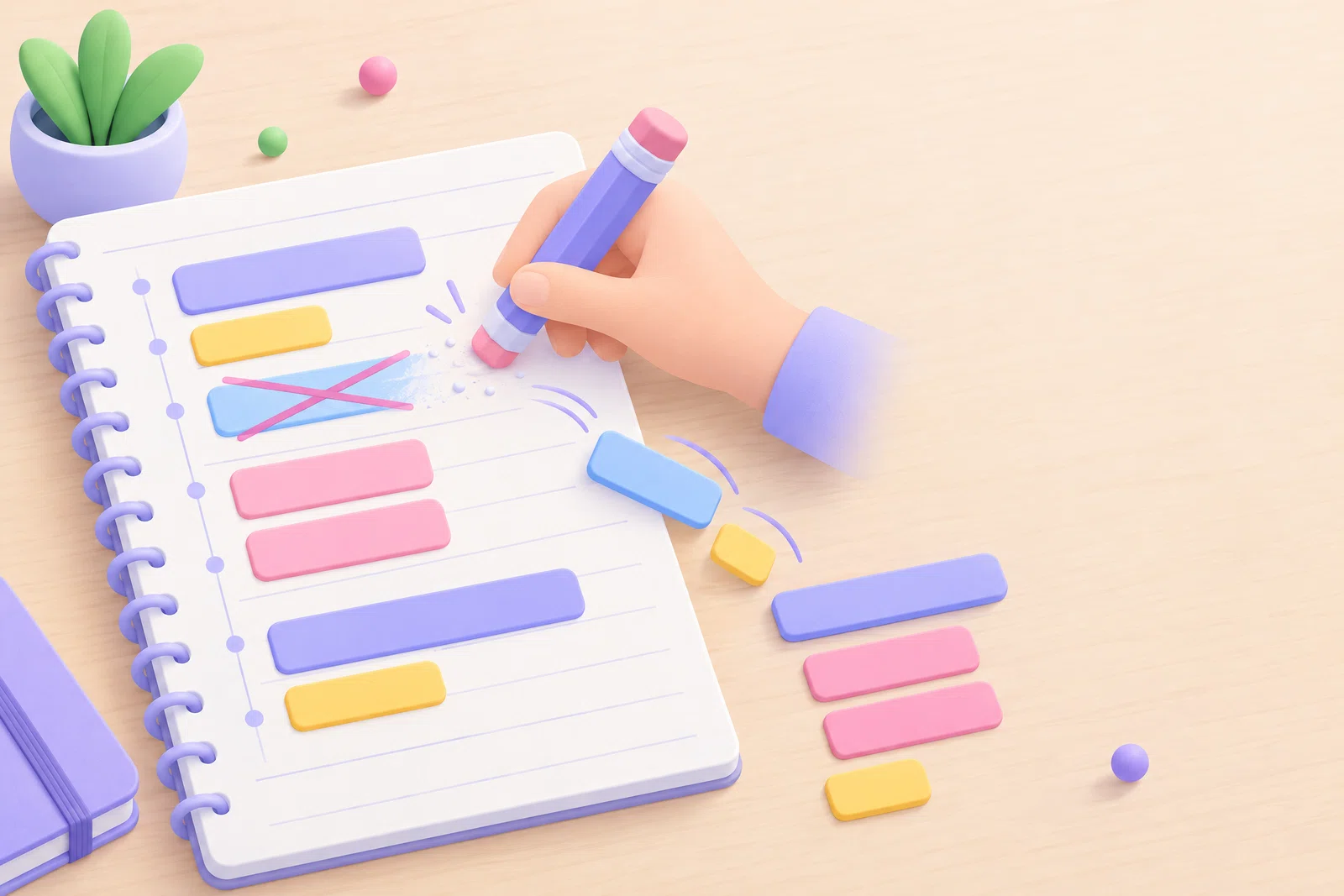
Newport's answer is to re-block. On paper, that means crossing out the rest of the column and drawing a new plan in the next column for the hours that are left. In Chunk, you change the blocks themselves. When a block ends, the notification lets you mark it complete or reschedule it straight from the alert. To change the rest of the afternoon, reschedule blocks from the timeline. Newport only asks you to re-plan the hours left in today, so the redraw stays the size he intended.
If your job is full of interruptions, plan for them rather than fighting them. Put a block of reactive time on the grid for incoming requests, and give some blocks a second purpose for when the main task gets cancelled. A request that arrives at 11:00 then has somewhere to go, and you don't have to tear up the whole morning.
Slippage is easier to catch early when the clock is in view. Chunk shows a live countdown for the current block in the menu bar, and a floating mini timer if you'd rather keep it on screen. That way you notice a block is running long at 11:20, not at 16:00. If you use Claude, Chunk's local MCP server lets you ask Claude to read your day and move blocks the way you tell it to. You decide the plan and Claude makes the changes. For worked examples of days that changed halfway through, see three time blocking examples for days that change.
Where do stray tasks go so the current block survives?
A block only protects your focus if new tasks have somewhere to go. Newport's approach includes a capture space beside the daily grid, where you write down whatever comes up mid-block so you can deal with it later. If you don't have one, every stray thought becomes a reason to switch tasks.
In Chunk, that capture space is a task list. Keep a list in Tasks mode for loose items, write the task down in a few words and go back to the block you were in. Customisable global keyboard shortcuts get you to Chunk in a keystroke, without hunting for it. Later, during a shallow-work batch or the evening plan, you sort that list and decide which items earn a block.
If you already capture tasks in Apple Reminders, you don't need to change that. Chunk's two-way Apple Reminders integration brings those reminders into Chunk, so tasks you collected elsewhere are ready to block when you plan.
How do you plan tomorrow and shut down today?
In Deep Work, Newport describes an end-of-day shutdown routine. You check that nothing is left uncaptured, look at what's coming tomorrow and then stop working for the day. The time-block plan fits naturally into this routine. Sketching tomorrow's grid before you close the laptop means the next morning starts with a decision already made.
In Chunk, open tomorrow in the Schedule view. Your synced meetings are already there, so you only rough in the task blocks around them. Recurring tasks deal with the work that comes back every day or week, like the morning email batch or a Friday review. Template lists and routines that apply themselves mean you don't rebuild those every evening. The week view helps when you'd rather plan several days at once, and the weekly time blocking template guide shows one way to set that up.
Keep the shutdown short. Ten minutes is enough to empty the capture list, rough in tomorrow and close the day. Planning that takes longer than that tends to get skipped by Wednesday.
Paper, text file or Mac app: which suits you?
Paper suits you if you want to plan away from the screen and like the feel of crossing out and redrawing. Newport's paper planner is built around this exact method. A plain text file suits you if you want the lightest possible setup, and Newport explains that version in Text File Time Blocking. Both work well. Both also mean typing or writing out meetings that already exist in your calendar.
A Mac app suits you if your calendars already live on your Mac, if your day changes often, and if you'd rather redraw the plan in a few clicks than start a fresh column. Chunk is built for one person planning their own day. It comes with a 7-day free trial, then a one-time licence, so running Newport's method doesn't add another monthly bill.
Whichever you choose, give it one full workday before you judge it. Connect your calendars tonight, block tomorrow around your meetings and re-block once when something breaks. Doing that redraw once will teach you more about Newport's method than reading about it.