7 best time blocking apps in 2026 (and the Mac pick)
Published on 10/23/2026


Picking a time blocking app comes down to one question: do you want to place the blocks yourself, or have software place them for you? If you work on a Mac and want to decide where your day goes, Chunk is the pick. Chunk is a time blocking app for Mac. It syncs two ways with Google, Outlook and Apple calendars and counts down the block you are in. You pay once for a licence instead of a monthly subscription.
The rest of this roundup covers cross-platform apps, because most of what turns up when you search for time blocking apps runs on several systems and charges monthly. Sunsama and Morgen guide you through planning each day. Motion and Reclaim schedule your tasks automatically. Akiflow and Todoist gather your tasks into one place before you block them. Each app gets its own section below: the job it does best, who it suits, and when it is the wrong choice. Prices were checked in October 2026.
If you only want Mac options, our Mac-only time blocking comparison goes deeper on that shortlist. This page is the wider view, so you can see where a Mac app fits beside the tools that run everywhere.
What does a time blocking app actually do?
Time blocking means giving each task its own slot on your calendar instead of leaving it on a list. A list tells you what you could do. A blocked calendar tells you what you will do at 2pm on Tuesday, and how much of the week is already spoken for. Cal Newport, the author of Deep Work, made the method popular. In his version you block out every working hour and redraw the plan whenever the day knocks it off course. Our guide to what time blocking is covers the method in more detail.
An app helps in three ways that paper can't. It puts your tasks and your meetings on the same timeline, so you are never planning around commitments you forgot. Moving a block takes one drag, which matters because plans rarely survive the morning. And it tells you when one block ends and the next begins, so the schedule keeps running even when you stop looking at it.
When you plan matters too. Some of you plan the night before, so the morning starts with a decision already made. Others plan first thing, once the inbox has shown what the day really holds. A common pattern is a rough weekly sketch on Sunday or Monday, then a detailed daily pass. Guided apps build a planning ritual into a set time. Manual tools let you plan whenever suits you.
How did we choose these time blocking apps?
Every app here can put a task on a calendar as a block of time. Beyond that baseline, we compared them on the things that decide whether you keep using a planner after the first week:
Calendar integration: which calendars it reads, and whether changes flow back to the source calendar or stay trapped in the app.
Task consolidation: whether it pulls tasks in from elsewhere or expects you to type them in.
Ease of blocking: how many steps it takes to place, resize and move a block.
Flexibility when plans change: what happens to the rest of the day when a meeting overruns.
Price and how you pay: monthly subscription, per-seat pricing or a one-time licence.
Platforms: where it runs, taken from each vendor's own download or pricing page.
We left out apps that only track time after the fact, and apps that block distracting websites. Those answer a different question ("can I block apps for a certain time?") from the one this page answers, which is how to plan a day in blocks.
Which app is best for manual time blocking on a Mac?
Manual time blocking means you decide where each task goes, and the app makes that decision quick to act on and easy to change. It suits you if your days shift in ways software can't see coming, or if you have tried automatic scheduling and spent more time correcting the plan than following it. It also suits you if you think best with the whole day laid out in front of you.
Chunk
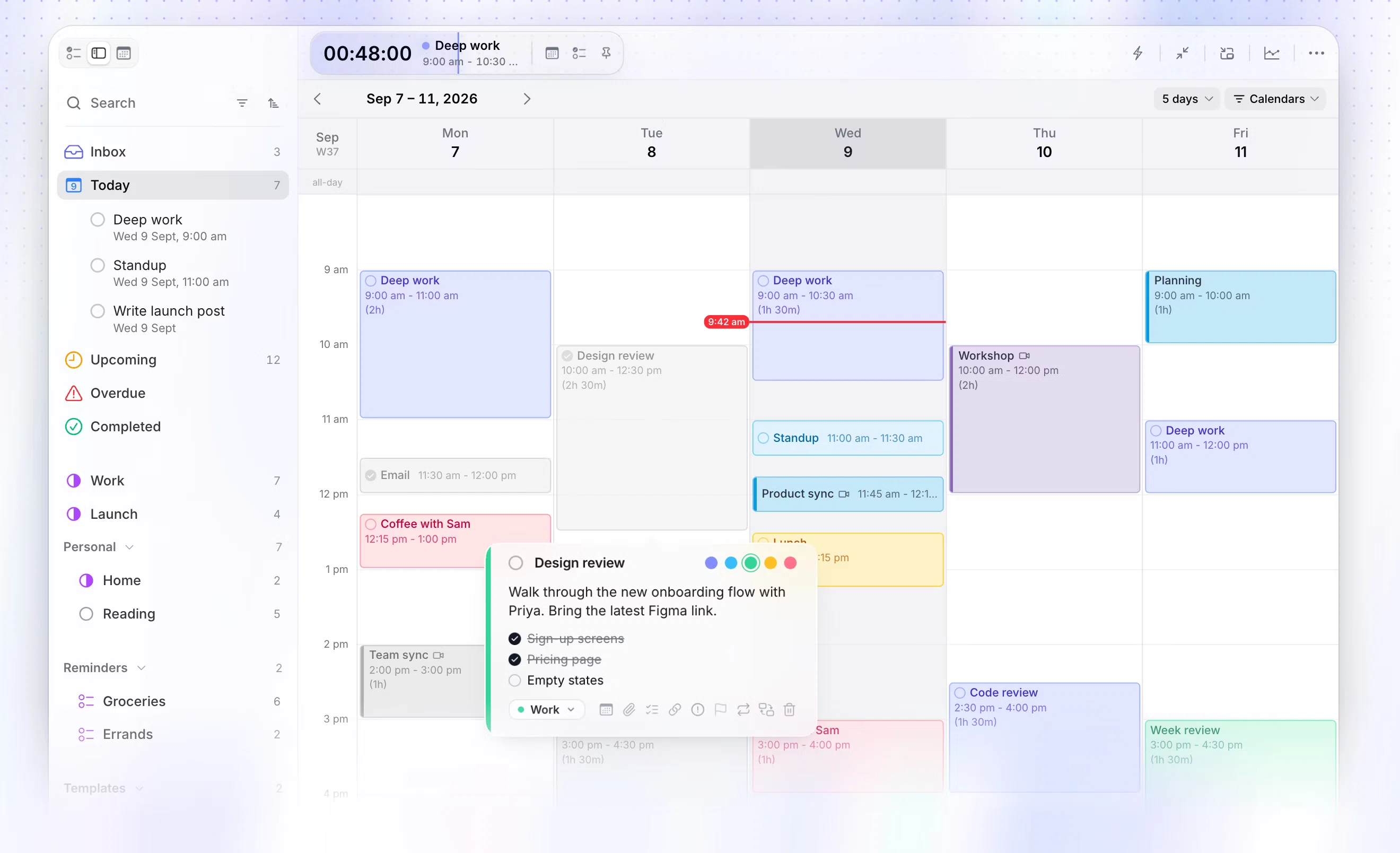
Chunk is a time blocking app for Mac. You drag tasks onto a day or week timeline, and your Google, Outlook and Apple Calendar events sit beside them with two-way sync across several accounts, so a block you move in Chunk moves in the source calendar too. Day templates, recurring tasks and Apple Reminders sit in the same sidebar. Chunk suits you if you want to place every block yourself and keep a live countdown of the current block in your menu bar. It runs on Mac only, with a 7-day free trial and then a one-time licence, so it is the wrong choice if you need Windows or want software to build the day for you.
Which apps guide you through planning each day?
Guided planners take you through a routine: review what's waiting, choose what fits, then block it. They help most if the hard part for you is starting the planning, not doing it.
Sunsama
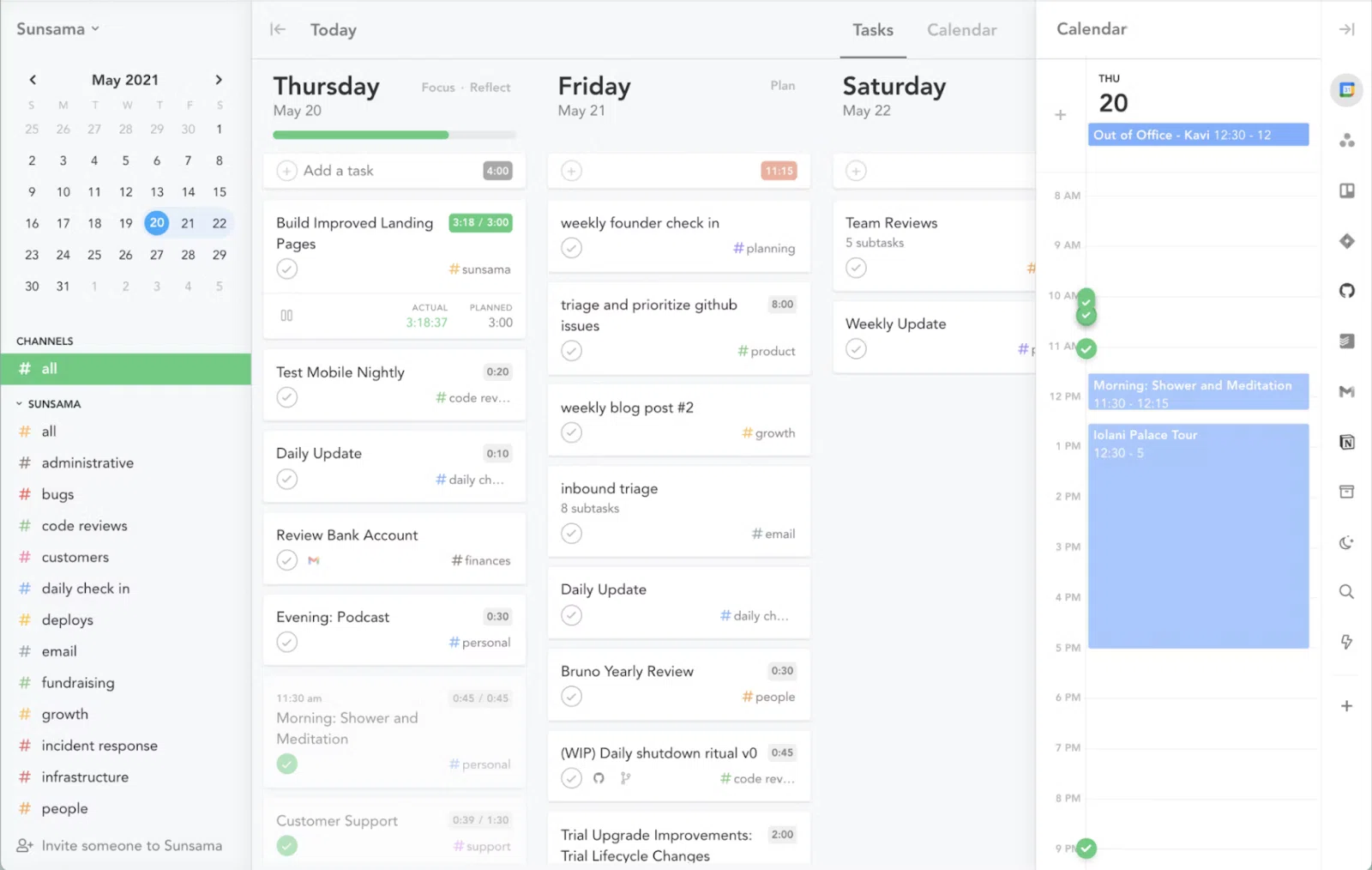
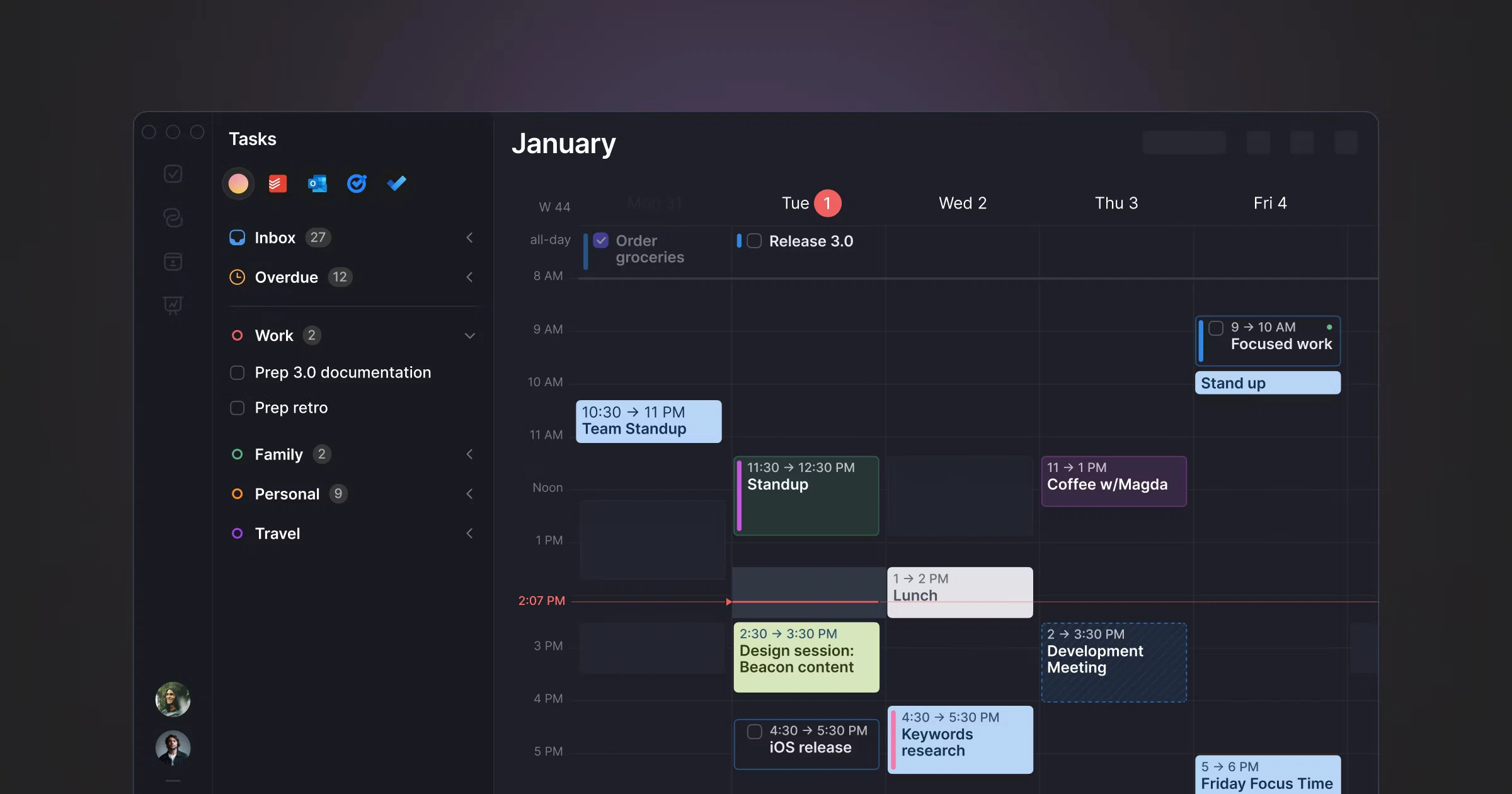
Sunsama is built around a guided daily planning ritual. Each morning it walks you through choosing today's tasks, estimating how long they'll take and dragging them onto your calendar. It suits you if you want a calm, structured start to the day and use several tools whose tasks you'd like pulled into one plan. It runs on Mac, Windows, Linux, iOS, iPadOS and Android at $22/mo, so it is a poor fit if you'd rather not pay a monthly fee for a planning habit.
Morgen
Morgen brings calendars from several accounts and tasks from your other tools into one view, then helps you time-block the day from there. It suits you if your main problem is juggling calendars, and you want a planner that can suggest a schedule you then adjust by hand. It runs on Mac, Windows, Linux, iOS, Android and the web from $15/mo, which is a lot to pay if a single calendar already covers your week.
Which apps schedule your tasks for you?
Automatic schedulers take your tasks, deadlines and priorities and decide where each one goes. You trade control for speed. They work best if you have more tasks than hours and your priorities are clear enough for software to rank them.
Motion
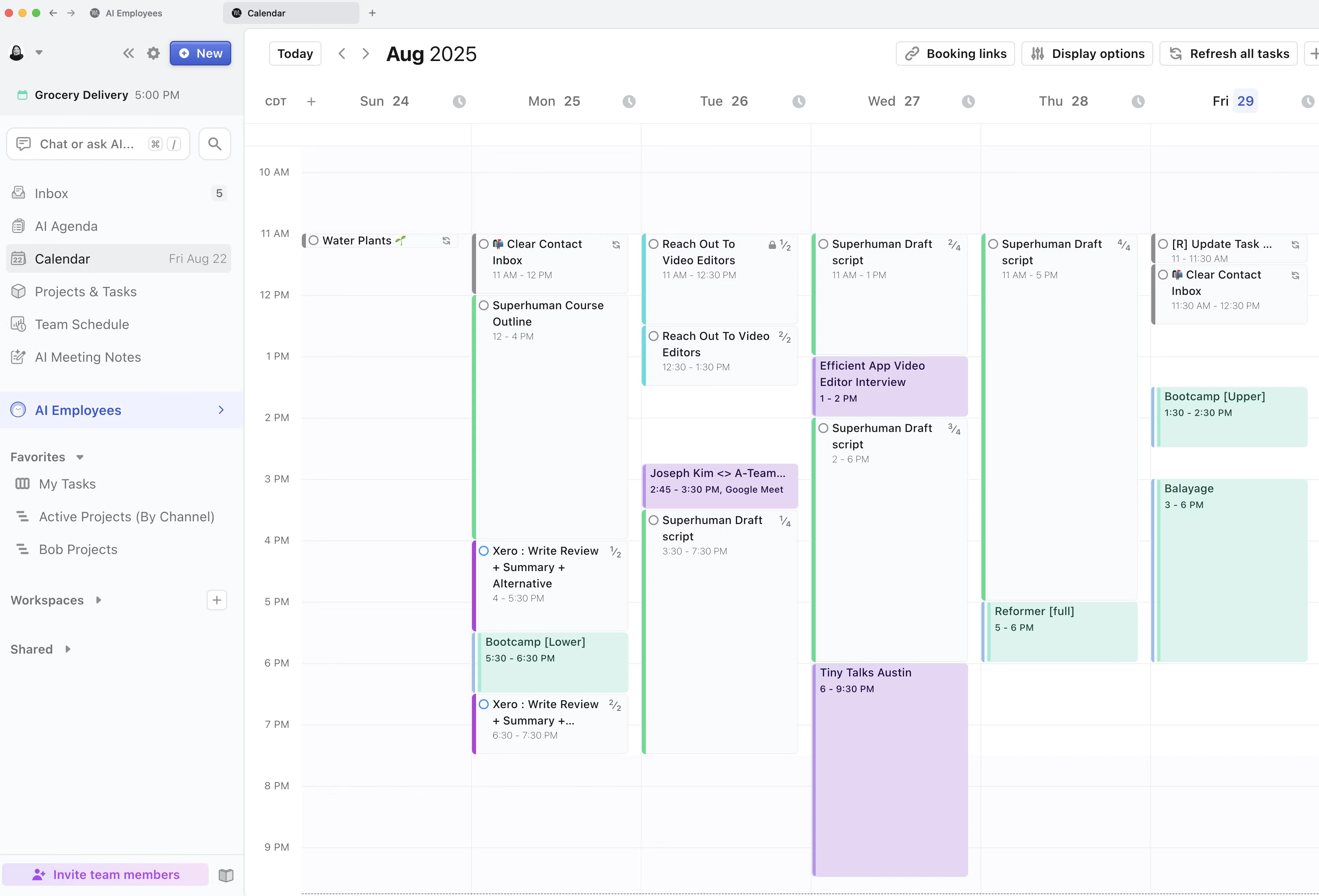
Motion places your tasks on your calendar automatically, based on deadlines, priorities and how long you expect each task to take, and re-plans when something slips. It suits you if you would rather review a plan than build one, and you are comfortable letting software move your work around. It runs on Mac, Windows, Android, iOS and the web at $19/mo, and it is the wrong choice if you want to decide where each block goes yourself.
Reclaim
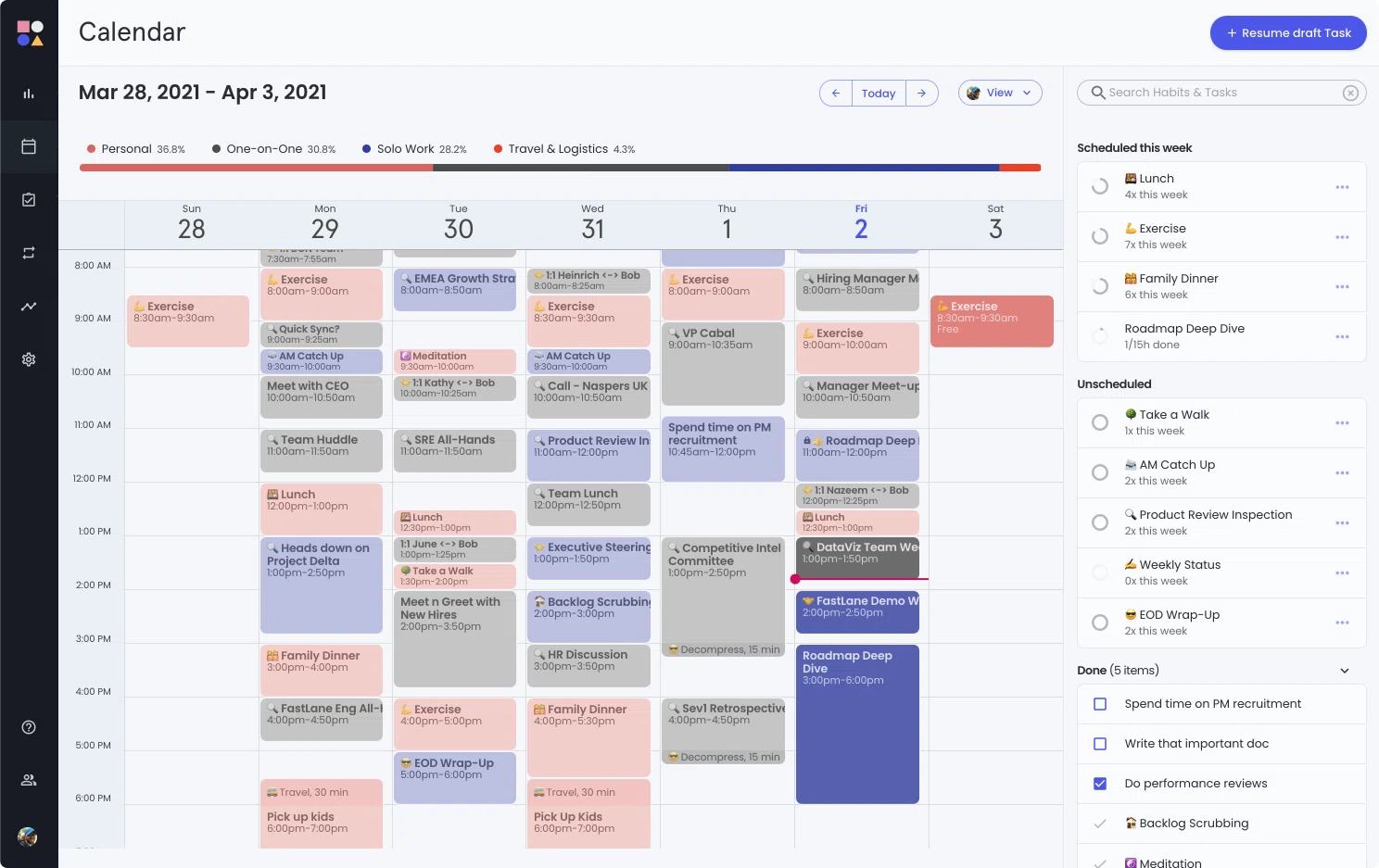
Reclaim works inside Google Calendar. It protects time for habits, focus work and tasks by booking flexible events that shift as your week fills up. It suits you if your working life already runs on Google Calendar and you want protected focus time without opening another planner. It runs on the web, as a Google Calendar and Gmail add-on and as a Raycast extension, with a free plan and paid plans from $10/seat/mo. There is no standalone desktop planner, so you plan in your calendar rather than in Reclaim itself.
Which apps gather your tasks before you block them?
If your tasks arrive by email, chat and project boards, blocking time is the second problem. The first is getting everything into one list you trust. These two apps start there.
Akiflow
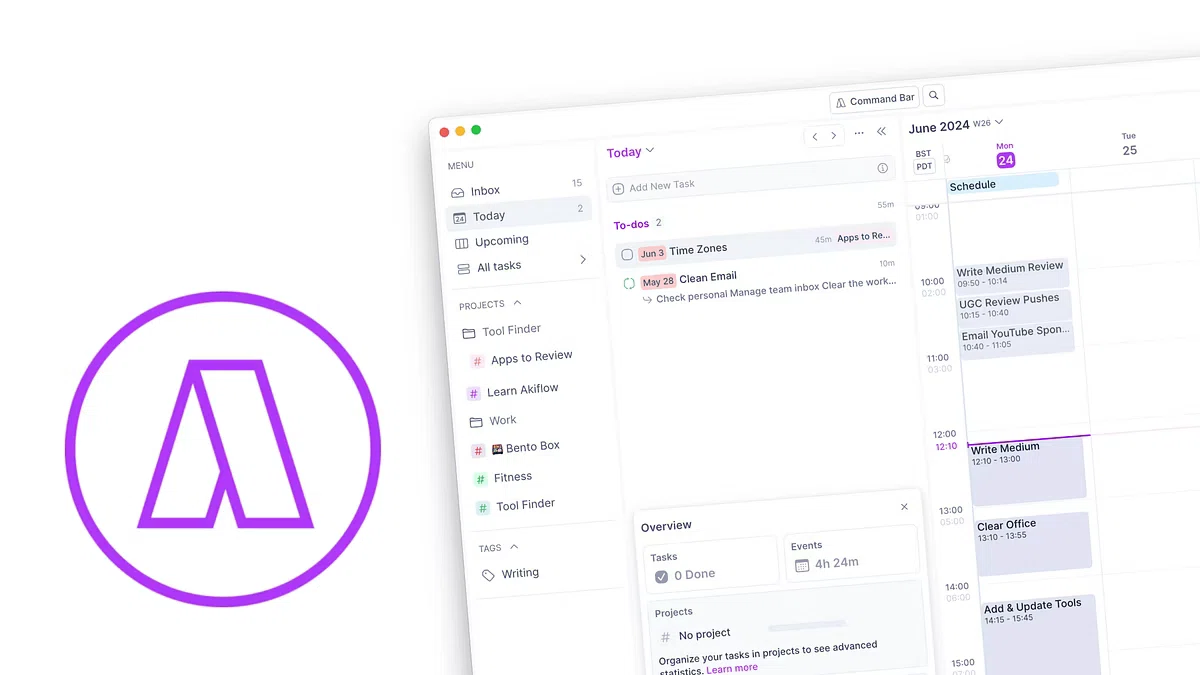
Akiflow collects tasks from your email, chat and project tools into one inbox, and you drag them onto your calendar from there to block time. It suits you if work reaches you from many places and you want to clear a single queue, mostly from the keyboard. It runs on Mac, Windows, the web and Android at $34/mo, the highest monthly price in this roundup, and the keyboard-first design takes a while to learn.
Todoist
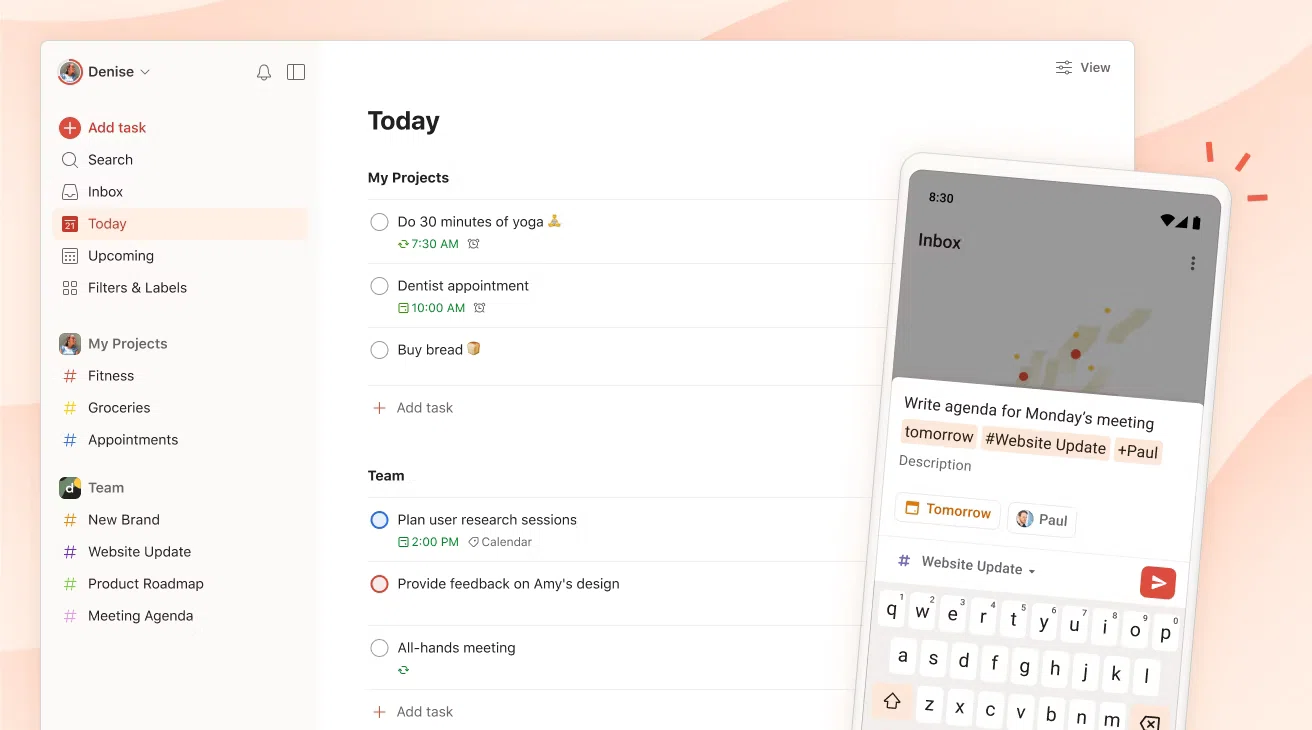
Todoist is a task manager first, with quick capture, projects, priorities and recurring tasks, and you can give a task a time and a duration. It suits you if you mainly need a reliable list and only want light time blocking alongside it. It runs on web, desktop, phone, tablet and watch at $7/mo, but planning the whole day in blocks isn't its focus, so you may end up pairing it with a calendar-based planner.
Do you need a dedicated app, or will your calendar do?
You can time-block in the calendar you already use. Create an event called "Write report", give it a colour, and you have a block. For a week or two, that is the cheapest way to find out whether the method suits you, and you lose nothing if it doesn't.
The limits show up quickly, though. A calendar has no idea which events are tasks and which are meetings, so unfinished work doesn't follow you anywhere. It sits in the past while your list lives in another app. If you have a work account and a personal account, you end up flicking between two calendars to find a free hour. And a calendar won't count down the block you are in or nudge you when it ends.
A dedicated app pays for itself once those gaps start costing you time. The key test is sync: blocks you create should show up in the calendar your colleagues see, so nobody books over your focus time. Our guide to time blocking with two-way calendar sync on a Mac explains why one-way imports fall short.
What happens when your plan changes mid-afternoon?
Every plan breaks at some point. A call overruns, a task takes twice as long, a colleague needs you for an hour. How an app handles that moment matters more than how it looks on a quiet Monday morning.
The apps in this roundup take three different approaches. Automatic schedulers like Motion and Reclaim reshuffle for you, moving tasks to the next free slot without asking. Guided planners like Sunsama focus on the next planning session: unfinished work is waiting to be picked up again when you plan tomorrow. Manual tools leave the decision with you and try to make it quick.
Chunk takes the manual route. When a block ends, a banner or fullscreen alert lets you mark the task complete or reschedule it on the spot, and moving the rest of the afternoon is a few drags on the timeline. If you have ADHD, that loud end-of-block moment can be the difference between noticing a slipped plan and losing the whole afternoon. Our guide to time blocking for ADHD covers how to set blocks up so they bend instead of breaking.
How do you pick the right time blocking app?
Start with the job you need done, then check the platform and the price. These rules cover most situations:
You work on a Mac and want to place every block yourself across Google, Outlook and Apple calendars: Chunk.
You want a guided morning routine across several devices: Sunsama.
Your main pain is juggling several calendars on several platforms: Morgen.
You want software to build and rebuild the plan for you: Motion.
You live in Google Calendar and want focus time protected for free: Reclaim.
Your tasks arrive from many tools and you want one inbox: Akiflow.
You mostly need a dependable task list with light scheduling: Todoist.
Then do the maths over a year. At listed monthly prices, Akiflow is $34/mo, Sunsama $22/mo, Motion $19/mo, Morgen $15/mo and Todoist $7/mo, while Reclaim has a free plan and paid plans from $10/seat/mo. Chunk is the one app here sold as a one-time licence after its 7-day trial. If paying monthly for a planner bothers you, our guide to time blocking apps without a subscription sets out the trade-offs.
If your work happens on a Mac, the quickest test is a real week. Start the free trial, connect the calendars you already use and drag tomorrow's three most important tasks onto the timeline tonight. By Friday you will know whether placing your own blocks keeps your days on track, or whether you would rather a scheduler did it for you.