No Google Calendar app for Mac? 7 options for 2026
Published on 10/23/2026

Google doesn't make a Google Calendar app for macOS. It has apps for phones and a full web version at calendar.google.com. On a Mac, though, you either work in a browser or choose another app that connects to your Google account. Most of the real options are free or cheap, and they only take a few minutes to set up.
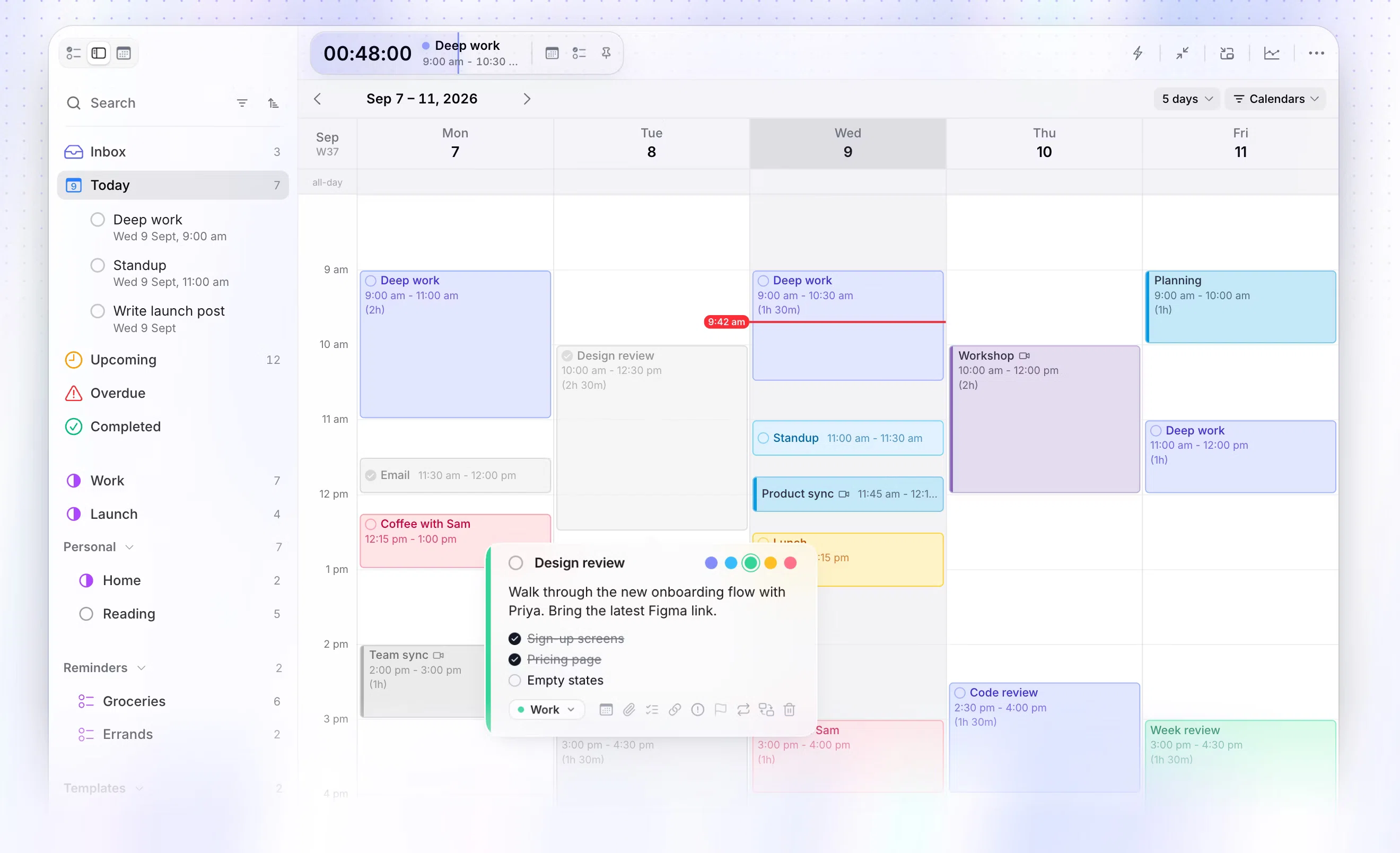
This guide covers seven options: a browser shortcut, Apple Calendar, four third-party calendars (BusyCal, Fantastical, Microsoft Outlook and Calendar for Google Calendar) and Chunk. The first six let you see and edit your Google events. Chunk is the pick if you also want to plan your day around those events. Chunk is a time blocking app for Mac. It syncs Google Calendar both ways, shows your events on a day timeline next to your tasks, and sends any change you make back to Google.
If you only need to check your week, the free options will probably do. If your calendar is packed and the hard part is finding time for real work, read the planning section.
Is there an official Google Calendar app for Mac?
No. Google's help page for using Calendar on a computer sends you to the browser version, and Google doesn't offer a macOS download. Any app with "Google Calendar" in its name in your search results comes from an independent developer, not from Google.
When you search for a Google Calendar app, you usually want four things a browser tab doesn't give you. You want a Dock icon you can click without hunting through tabs, alerts that show up even when your browser is closed, a window that sits next to your other work, and somewhere to see the rest of your life alongside your Google events.
The web version also shows your calendar but not your to-do list. Your meetings are there, but deciding when to do the work in between still happens somewhere else, often in your head. That gap is why the options below fall into two groups: apps that show your Google calendar well, and an app that helps you plan with it.
So the real question isn't which Google Calendar app to download. It's which Mac app should hold your Google calendar, and whether it only needs to show your day or should help you plan it.
How do you get Google Calendar on your Mac for free?
Two free routes cover most needs. Both keep your events stored in Google, so your phone and any shared calendars stay in step whatever you do on the Mac.
Google Calendar in Chrome or Safari
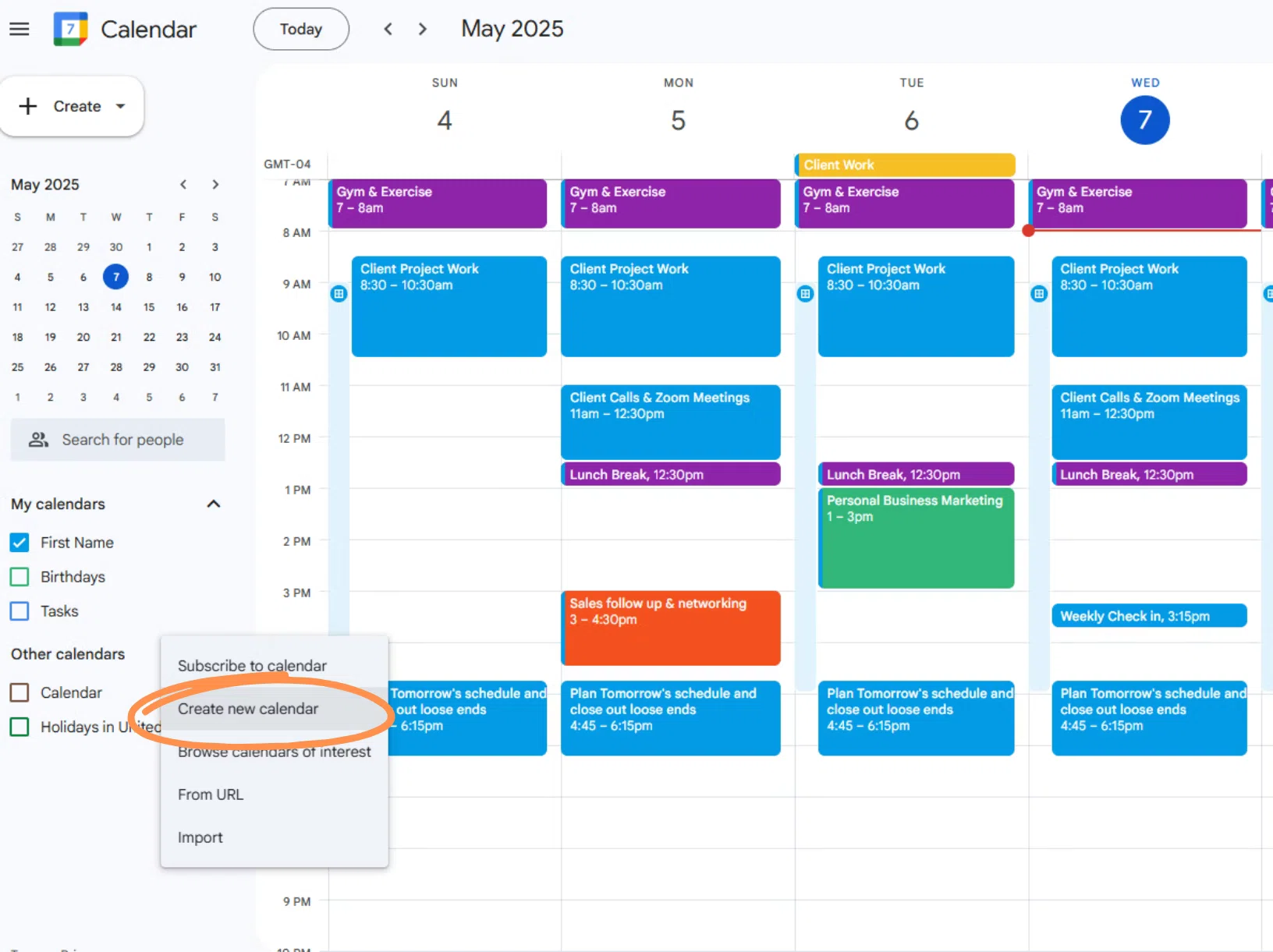
The closest you can get to an official app is the web version saved as its own window. In Chrome, open calendar.google.com, click the three-dot menu, choose Save and share, then Create shortcut, and tick Open as window. In recent versions of Safari, open the page and choose File, then Add to Dock. Either way, you get a Dock icon that opens Google Calendar away from your normal browser tabs.
Pick this if you already know Google's layout and want every feature Google ships, such as appointment schedules and Meet links, exactly as they work on the web. The catch is that it only shows Google calendars, so a work Outlook calendar or an iCloud calendar needs another window. It also behaves like a web page rather than a Mac app, so keyboard shortcuts and alerts follow Google's rules, not your Mac's.
Apple Calendar
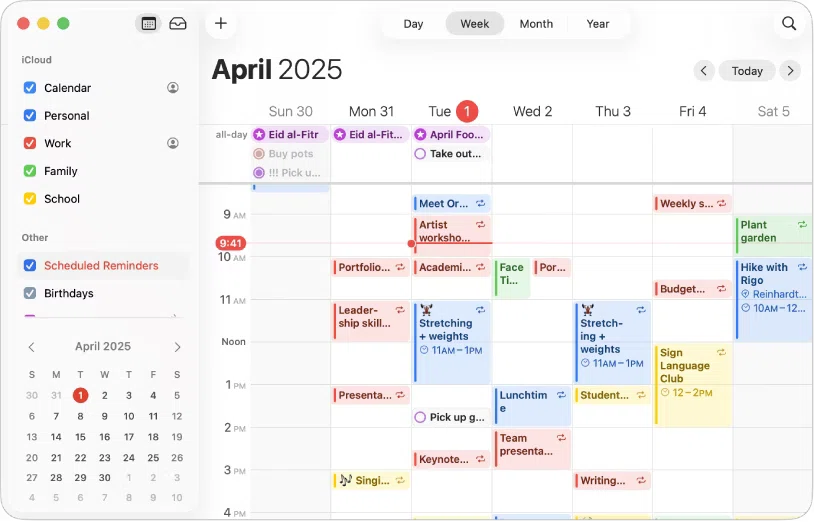
Apple Calendar is already on your Mac and reads Google calendars directly. Open Calendar, choose Calendar, then Settings, then Accounts. Click the plus button, pick Google and sign in on Google's page. Tick Calendars, and your Google events appear alongside iCloud and any other accounts you've added. Changes you make in Apple Calendar sync back to Google.
This is the best free option if you want a proper Mac window, alerts that don't rely on a browser, and Google and iCloud calendars in one view. Its limits show up when you try to plan. Apple Calendar holds events, not tasks, so deciding when to tackle your to-do list means dragging between two apps. Our guide to time-blocking with Apple Calendar on a Mac covers how to work around that.
Which Mac calendar apps sync with Google Calendar?
If you want more than Apple Calendar gives you, four paid or freemium apps are worth a look. Each one connects to your Google account and leaves your events in Google, so nothing gets locked inside the app if you switch later. The prices below come from each developer's own page or App Store listing.
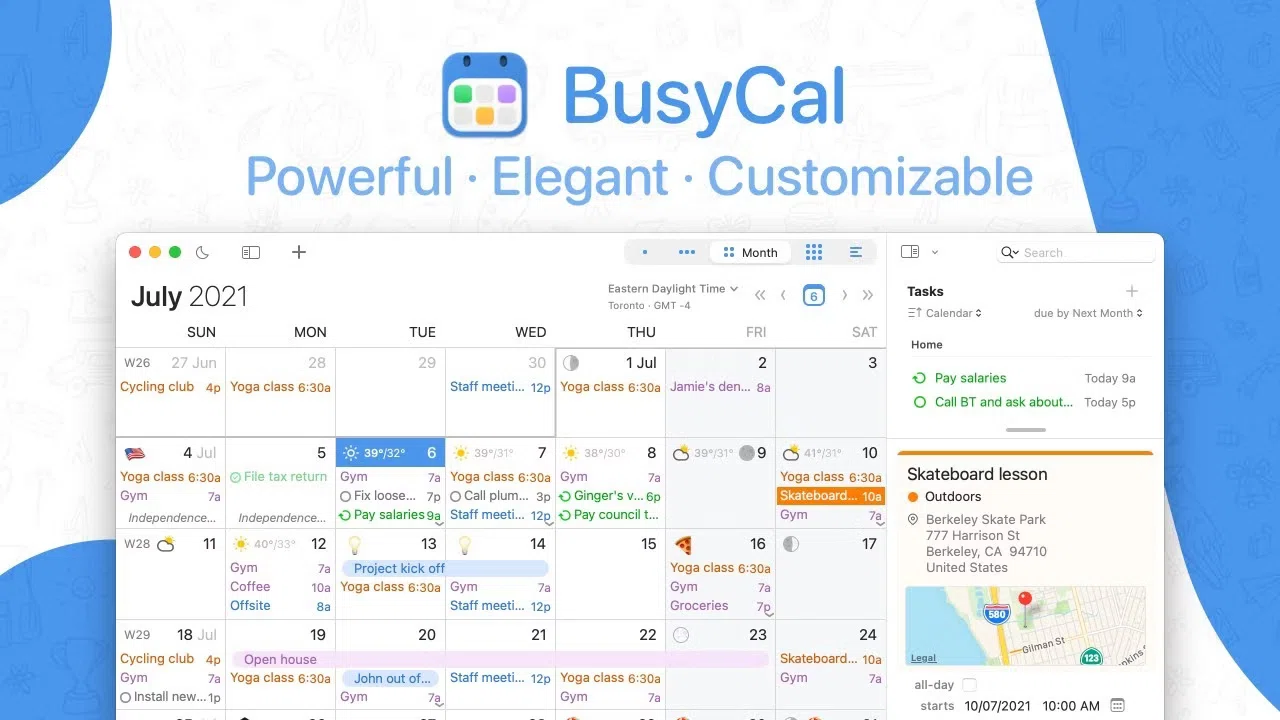
BusyCal
BusyCal is a full desktop calendar for Mac and iPhone from BusyMac, and it connects to your Google account so your Google events sit alongside any other calendars you add. It costs $49.99 as a one-time purchase, which makes it the clearest choice here if you want a full-featured calendar without a monthly bill.
It suits you if you keep lots of calendars, like a traditional calendar layout, and care more about paying once than about having a Windows or Android version. The trade-off is the same as Apple Calendar's when it comes to planning: it's built to hold events, so your to-do list still lives somewhere else and finding time for it is up to you.
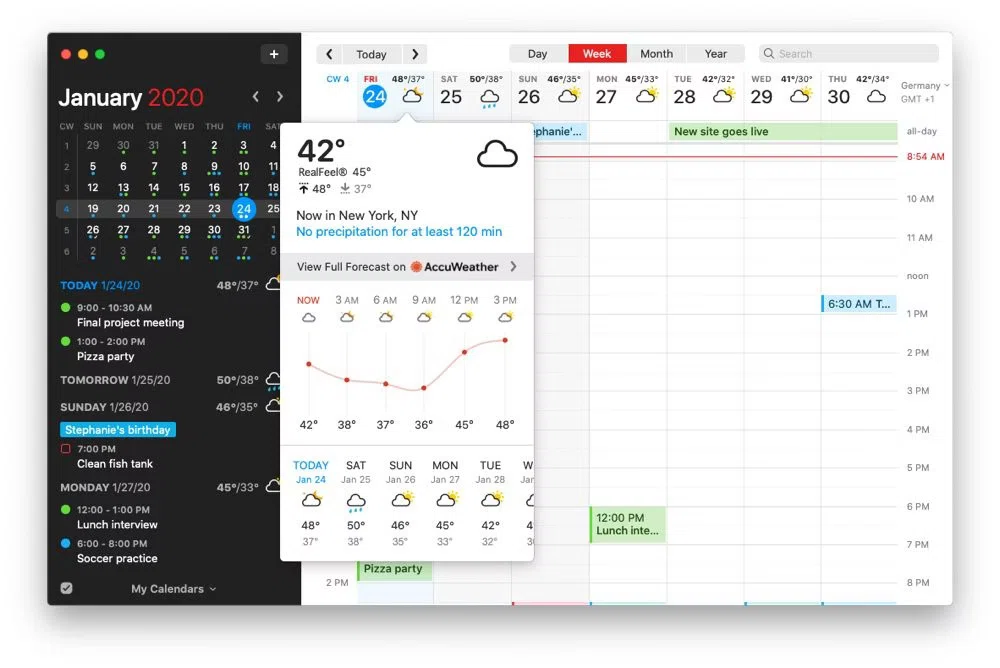
Fantastical
Fantastical is a polished calendar from Flexibits. According to its pricing page, it runs on Mac, iPhone, iPad, Apple Watch, Apple Vision Pro, Windows and Googlebook. It connects to Google accounts and has a free tier, and Individual Premium costs $4.75 a month, billed annually.
It suits you if you switch between several devices every day, including a Windows PC, and want one calendar that looks and works the same on all of them. The free tier lets you try it before you decide. The premium features are a subscription, so weigh that against BusyCal's one-time price if you only ever use a Mac
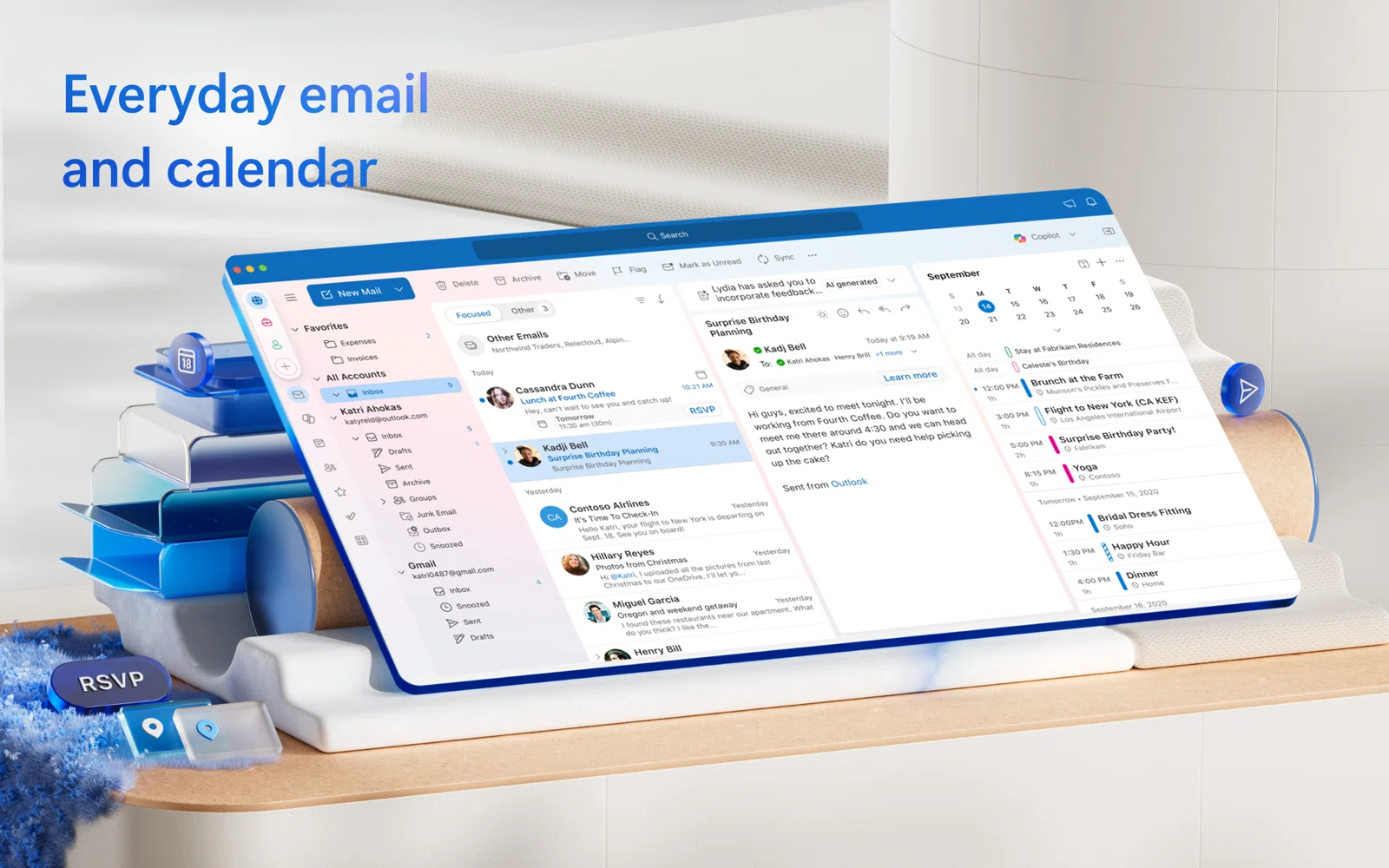
Microsoft Outlook
Outlook for Mac is free. Microsoft 365 Basic at $19.99 a year or Personal at $99.99 a year removes the ads, according to Microsoft's Outlook for Mac page. You can add a Google account next to a Microsoft one, so Gmail, Google Calendar and your work calendar sit in one app.
It suits you if your job already runs on Microsoft 365 and you'd rather bring Google into Outlook than switch between two mail and calendar apps all day. It also runs on Windows, iPhone and Android, which helps if your work machine isn't a Mac. If you mainly want a calendar, though, it brings a whole mail client along with it.
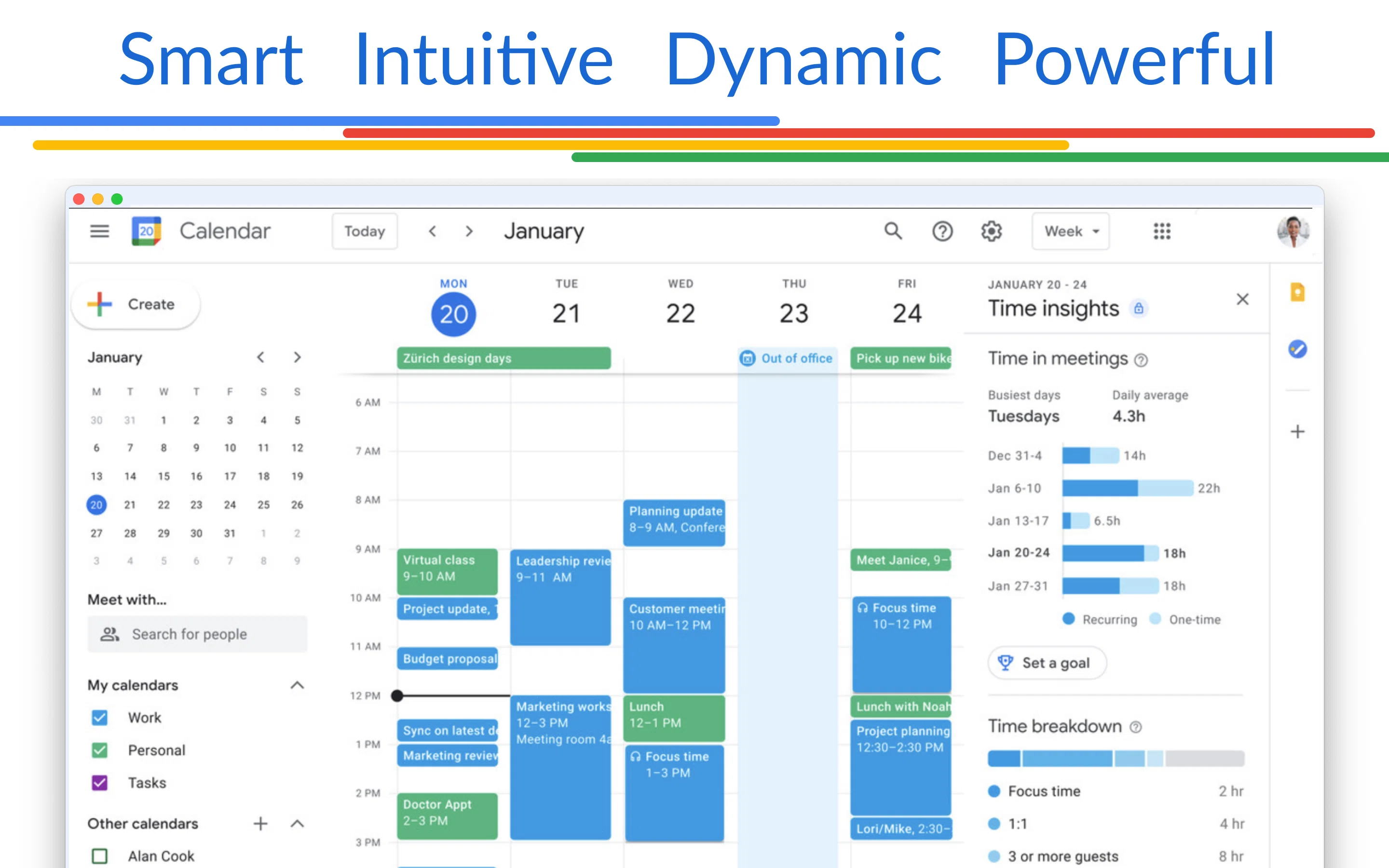
Calendar for Google Calendar
Calendar for Google Calendar, from the developer Fokusek, is a Mac-only app that gives Google Calendar its own window and Dock icon. On the Mac App Store it costs $14.99 as a one-time purchase, or there's a yearly subscription from $9.99.
It suits you if you like Google's own layout and just want it in a dedicated app. Two cautions apply to this and any other app with Google Calendar in its name. Google doesn't make it, so you're trusting an independent developer with your Google sign-in, and reviews on its App Store page report sign-in problems, so read the recent ones before you buy. Check too whether you're paying once or subscribing, since the listing offers both.
All four are calendars first. They show your events well, and BusyCal and Fantastical add useful extras on top, but none of them is built around deciding when your tasks get done. For a wider comparison of Mac calendars judged on planning, see the best calendar app for time blocking on Mac.
What should you use to plan your day, not just see it?
A calendar tells you what's on today. Planning answers a harder question: when will you do the work that isn't a meeting? If your Google Calendar is full of calls, that work has to fit in the gaps between them. An app that only shows your calendar leaves you to sort that out in your head.
Time-blocking fixes this. You give each task its own slot on the calendar, so your to-do list and your meetings share one timeline. You can see a day is overbooked before it starts, not at 4pm. Our guide to time-blocking with Google Calendar explains the method. This section is about the app.
Chunk
Chunk syncs with Google Calendar both ways. Connect one or more Google accounts and your events appear on a day timeline next to your task lists. Drag a task into a free gap and it becomes a block. If you move, resize or rename a Google event in Chunk, the change goes back to Google Calendar, so it shows up on your phone and for anyone you share the calendar with.
It also syncs Outlook and Apple Calendar, opens from the menu bar with a keyboard shortcut, floats over fullscreen apps and detaches into a normal window when you want more room. You get a 7-day free trial, then a one-time licence. It suits you if your Google Calendar is busy and the hard part is protecting time for focused work
How does time-blocking around Google events work on a Mac?
Here's what planning a day in Chunk looks like with a Google account connected:
Connect your Google account in Settings, under Calendars, then tick the calendars you want to see. Add a second Google account, an Outlook account or Apple Calendar the same way.
Open today's timeline. Your Google meetings are already in place and show the colour they have in Google Calendar.
Drag tasks from your lists into the gaps. Make deep work an Indigo block and admin an Amber one, so you can read the day at a glance.
When a meeting moves, drag it in Chunk or let the change sync in from Google, then move your blocks around it.
Check the live countdown in the menu bar to see how long is left in your current block without opening anything.
Changes go both ways, so Google stays the source of truth for your events while Chunk holds your plan. You place the blocks yourself. If you use Claude, you can also ask it, through Chunk's local MCP server, to make specific changes such as moving your afternoon meetings later, and Claude does what it's asked.
The benefit is that you plan in one place. Your Google events, your tasks and your blocks all sit on the same timeline, so you don't need to check a browser tab to see whether 2pm is free. To see how Chunk keeps Google, Outlook and Apple calendars in step, read two-way calendar sync for time-blocking on a Mac.
Can you see work and personal Google accounts together on a Mac?
Yes, with most of the options here. Apple Calendar accepts more than one Google account: add each one from Accounts and tick the calendars you want. The browser route is clumsier, because each Google account usually sits in its own tab or browser profile, so you end up switching between them to see your whole week.
Chunk connects several Google accounts and several Outlook accounts side by side, each with its own calendar choices, plus Apple Calendar. Events from your work and personal accounts land on the same timeline. That matters when you're time-blocking: a dentist appointment in your personal calendar takes up your afternoon just as much as a meeting in your work one. If your life is split across accounts, our guide to time-blocking across multiple calendars on a Mac walks through a set-up.
Chunk stores your tasks and plan in a local database on your Mac, and you don't need a Chunk account. Your Google events still live in Google, which is where your phone and shared calendars read them from.
Which Google Calendar option should you choose?
Choose based on what you need it to do:
To check your week for free, use the Chrome or Safari shortcut.
For a proper Mac window that shows Google and iCloud calendars together for free, use Apple Calendar.
For a full calendar you pay for once, choose BusyCal.
For the same calendar on every device with a subscription, choose Fantastical.
To keep work mail and calendar together, use Microsoft Outlook.
For Google's own layout in a dedicated app, try Calendar for Google Calendar.
To plan your day around your Google events, use Chunk.
You can start with a free option and change later without losing anything, because every app here reads the same events from Google. Try the browser shortcut or Apple Calendar for a week first. If you notice that your real plan for the day still lives in your head or on a sticky note, the problem isn't how your calendar looks. You need somewhere to put the work between meetings.
If that sounds like you, connect your Google account to Chunk during the free trial and plan tomorrow before you finish today: put your two most important tasks into the longest gaps between meetings, then check at the end of the day how much of the plan held. Your Google Calendar stays exactly where it is, so you can see how it works for you without changing anything.
Chunk vs the field.
A quick side-by-side. We kept it honest — Chunk isn't the right fit for everyone, and that's fine.
Chunk
This is usPricing reflects each tool's lowest-tier individual plan at time of writing. Check the source for current numbers.