Apple Calendar time blocking on Mac
Published on 6/4/2026

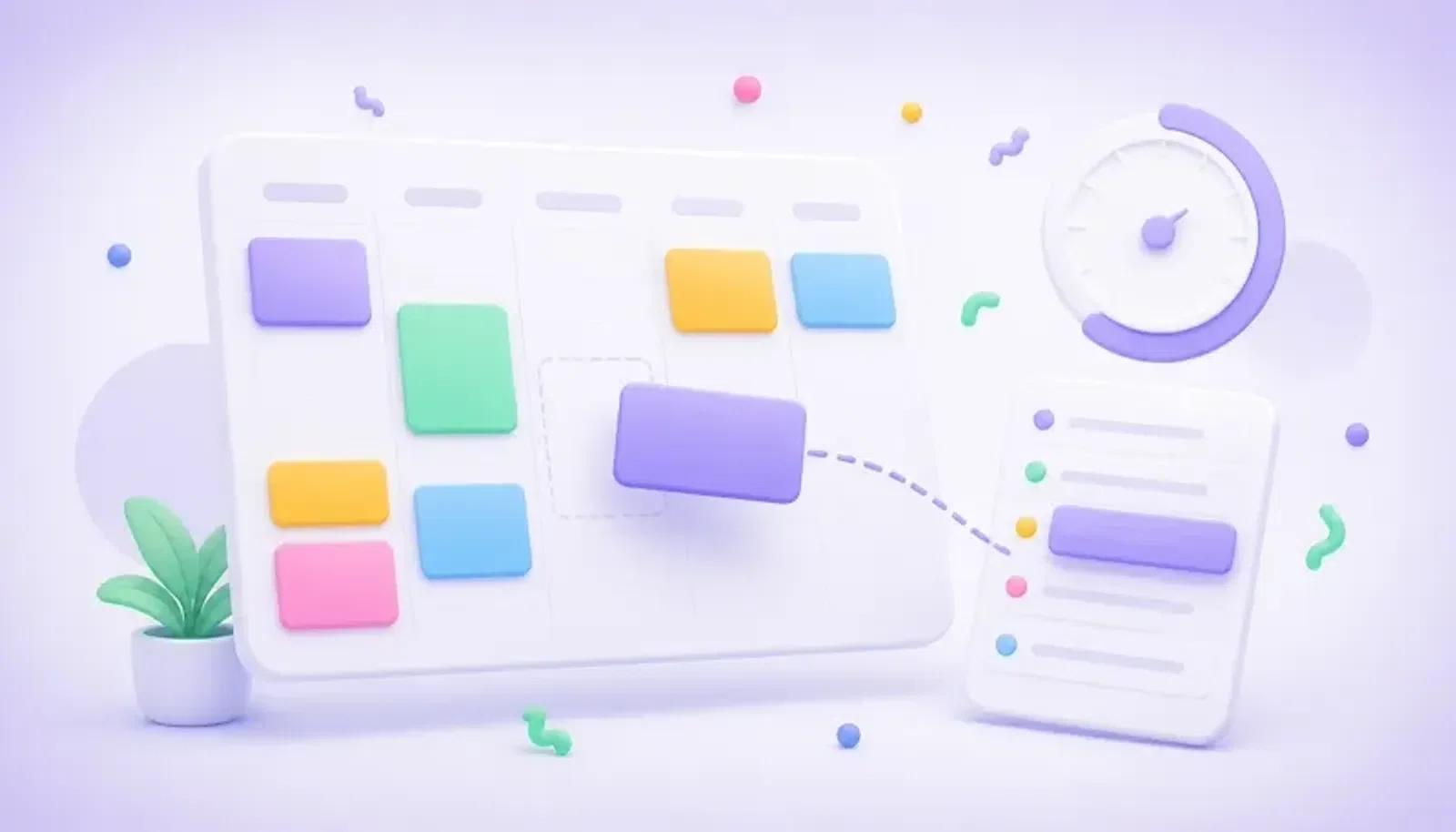
Apple Calendar time blocking works best when you treat your calendar as the plan for your day, not just a place for meetings. Create events for focused work, admin, breaks, errands, study, and recovery, then protect those blocks the same way you would protect a call.
On a Mac, the main choice is whether you want to build every block inside Apple Calendar, or use a dedicated time-blocking layer that syncs with Apple Calendar. Apple Calendar is reliable for storing events. A planner such as Chunk is better for fast reshuffling, task-to-calendar planning, templates, and keeping the current block visible while you work.
The simplest workflow is this: keep Apple Calendar as your source of truth, use colour-coded time blocks to plan the day, and edit the schedule from a menu-bar panel when the day changes. That gives you the visibility of a calendar without forcing you to live inside a full calendar window.
How do you time block with Apple Calendar?
To time block with Apple Calendar, create calendar events for the work you intend to do, not only for appointments. A block might be “Write proposal”, “Email and admin”, “Lunch”, “Gym”, or “Plan tomorrow”. Each event needs a start time, an end time, and enough detail that you know what to do when it begins.
Start by opening Apple Calendar and choosing the calendar where your planned work should live. If you already separate personal, work, and family calendars, keep that structure. Add a new event, name it with the task or focus area, set the duration, and repeat until your day has a visible shape. Leave buffer time between blocks if your day often runs late.
The weakness is speed. Apple Calendar is good at storing events, but it can feel slow when you are moving ten blocks around, turning a task list into a schedule, or rebuilding a day after a meeting moves. That is where a Mac-native time-blocking app can sit on top of Apple Calendar and make planning less fiddly. If you are new to the method, start with what is time blocking before you build a complex system.
What should you put on an Apple Calendar time-blocked day?
Your Apple Calendar time-blocked day should include anything that competes for your time. Meetings are obvious, but your real plan also needs focused work, shallow work, breaks, transitions, meals, school runs, exercise, and personal admin. If it takes time and affects what you can commit to, it belongs somewhere on the timeline.
A useful daily layout usually starts with fixed commitments. Put meetings, appointments, commute windows, and deadlines in first. Then add the work that needs your best attention. Many tasks do not need equal energy, so place demanding work where you usually think clearly and leave lighter work for lower-energy periods.
Do not fill every minute. Apple Calendar will let you pack the day tightly, but a packed calendar is fragile. If a call runs over or a task takes longer than expected, the rest of the plan collapses. A better schedule has honest block lengths and small buffers. If you need help choosing durations, the same principle applies whether you are planning general work or time blocking with attention challenges: shorter blocks are easier to start, while longer blocks need clearer outcomes.
Why use Chunk instead of Apple Calendar alone?
Use Chunk with Apple Calendar when you want faster planning on macOS without replacing Apple Calendar. Chunk is a macOS menu-bar time-blocking app. You open it with a shortcut, drag blocks on a 24-hour timeline, and see the current block countdown in the system tray. It is built for shaping the day, while Apple Calendar remains the calendar layer.
Chunk syncs both ways with Apple Calendar through native macOS integration. External Apple Calendar events appear on the Chunk timeline beside your own blocks. You can drag, resize, rename, or delete synced events in Chunk, and those changes push back to Apple Calendar. If you want to avoid accidental edits, a lock toggle can freeze external events as read-only.
The bigger difference is workflow. Chunk gives you saved day templates, routines that apply templates on selected weekdays, a task sidebar, Apple Reminders lists inside task mode, a week view, an instant block creator, and notifications. Your data is stored locally in SQLite on your Mac, with calendar traffic only where sync requires it. For a wider view of the Mac app landscape, read best time-blocking app for Mac.
How does two-way Apple Calendar sync change the workflow?
Two-way Apple Calendar sync means your calendar is not trapped in one interface. If you move a block in Chunk, the event updates in Apple Calendar. If an event changes in Apple Calendar, it can appear back on your Chunk timeline. That matters because your plan and your actual calendar stay aligned.
Without two-way sync, a time-blocking app can become a second copy of your day. You might plan in one place, accept meetings in another, and then spend extra time reconciling the difference. With two-way sync, you can use the best surface for each job: Apple Calendar for broad calendar management and Chunk for fast daily scheduling.
Chunk also supports Google Calendar and Outlook Calendar with the same bidirectional model, so mixed-calendar setups can still live on one timeline. This post is focused on Apple Calendar time blocking, but the underlying method is similar if you also use Google Calendar. For that setup, see Google Calendar time blocking.
How do you turn tasks into Apple Calendar blocks?
The practical way to turn tasks into Apple Calendar blocks is to stop asking “What should I do today?” and start asking “When will I do this?” A task list is a holding area. A time block is a commitment of time. The calendar only becomes useful when the most important tasks have actual space reserved.
In Apple Calendar alone, you can create an event manually for each task. That works for a small list. If you plan from many tasks, it gets repetitive. In Chunk, you can use task mode instead: keep named task lists, including Apple Reminders lists, then drag a task onto the timeline to schedule it as a block. You can also set a default task duration so new blocks do not need constant adjustment.
Keep the block title action-focused. “Draft budget email” is clearer than “Budget”. “Read chapter 4 notes” is clearer than “Study”. If a task is too vague to schedule, split it before it reaches the calendar. The method is the same reason time blocking beats to-do lists: a block forces you to face capacity.
How should you colour-code Apple Calendar time blocks?
Colour-coding works when each colour has a job. If every block gets a random colour, the calendar becomes decoration. If each colour maps to a category, you can scan the day quickly and spot imbalance. You might separate focused work, meetings, admin, personal time, and recovery.
Chunk uses five fixed block colours: Indigo, Sky, Emerald, Amber, and Rose. Keeping the palette small is intentional. Too many colours make the schedule harder to read, especially when you are glancing at the day between tasks. A limited set also helps you build a repeatable mental model for the week.
Try assigning colours by energy rather than by project if your days vary. For example, use one colour for deep work, one for communication, one for maintenance, one for personal commitments, and one for breaks or recovery. This makes it easier to notice when your day has six hours of meetings but no space for the work those meetings created.
What is the best Apple Calendar time-blocking routine?
The best routine is a short daily planning loop you can actually repeat. Start by reviewing fixed Apple Calendar events. Add your top one to three outcomes for the day. Block those outcomes first, then place smaller tasks around them. Finish by checking whether the day still has breathing room.
Templates help when your days have a familiar rhythm. In Chunk, you can save a day template with named blocks, times, and colours. You can apply the full template in one click or drag individual template items onto the timeline. If a pattern repeats every Monday or Friday, a routine can auto-apply that template on selected weekdays without duplicating it again and again.
Review the plan once during the day, not every five minutes. Time blocking is not about obeying a perfect schedule. It is about making better trade-offs when reality changes. If the afternoon slips, move the remaining blocks instead of abandoning the whole plan. For focus-heavy schedules, deep work time blocking gives you a stricter version of the same routine.
Can Apple Calendar time blocking help if your day changes often?
Apple Calendar time blocking can help a changing day, as long as you treat the schedule as editable. The goal is not to predict the day perfectly. The goal is to keep making visible decisions about what still fits. When a new meeting appears, you can see what it displaces instead of pretending your task list is unchanged.
This is where drag-and-resize planning matters. In Chunk, external Apple Calendar events and Chunk blocks sit on the same timeline. You can move blocks, resize them, create a block starting now, and shift a group of selected blocks when the afternoon needs to move. The menu-bar panel also floats above fullscreen apps, so you do not need to leave your current workspace just to adjust the plan.
If your time awareness slips during the day, the countdown helps. Chunk shows the active block timer in the toolbar and the system tray, so the current commitment stays visible without opening the calendar. That small cue is useful when a full Apple Calendar window feels like too much context switching. If attention and time blindness are part of the problem, read time blocking for ADHD for a more specific workflow.
How do you start today without overbuilding the system?
Start with one calendar, one day, and three important blocks. Open Apple Calendar or Chunk, add your fixed commitments, then block time for the work that would make the day feel successful. Add meals and breaks so the plan reflects your real capacity.
Do not spend the first session building a perfect colour system, a dozen templates, or a full weekly routine. Those are useful later. Today, the goal is to prove that seeing your time changes your decisions. At the end of the day, look at which blocks were too long, which were too short, and where you needed more buffer.
If you want the Mac-native version of this workflow, use Chunk as the planning surface and Apple Calendar as the synced calendar underneath. Open the menu-bar panel, connect Apple Calendar, block your next real work session, and keep the countdown visible while you do it. A good time-blocking system should feel lighter than the day it helps you organise.