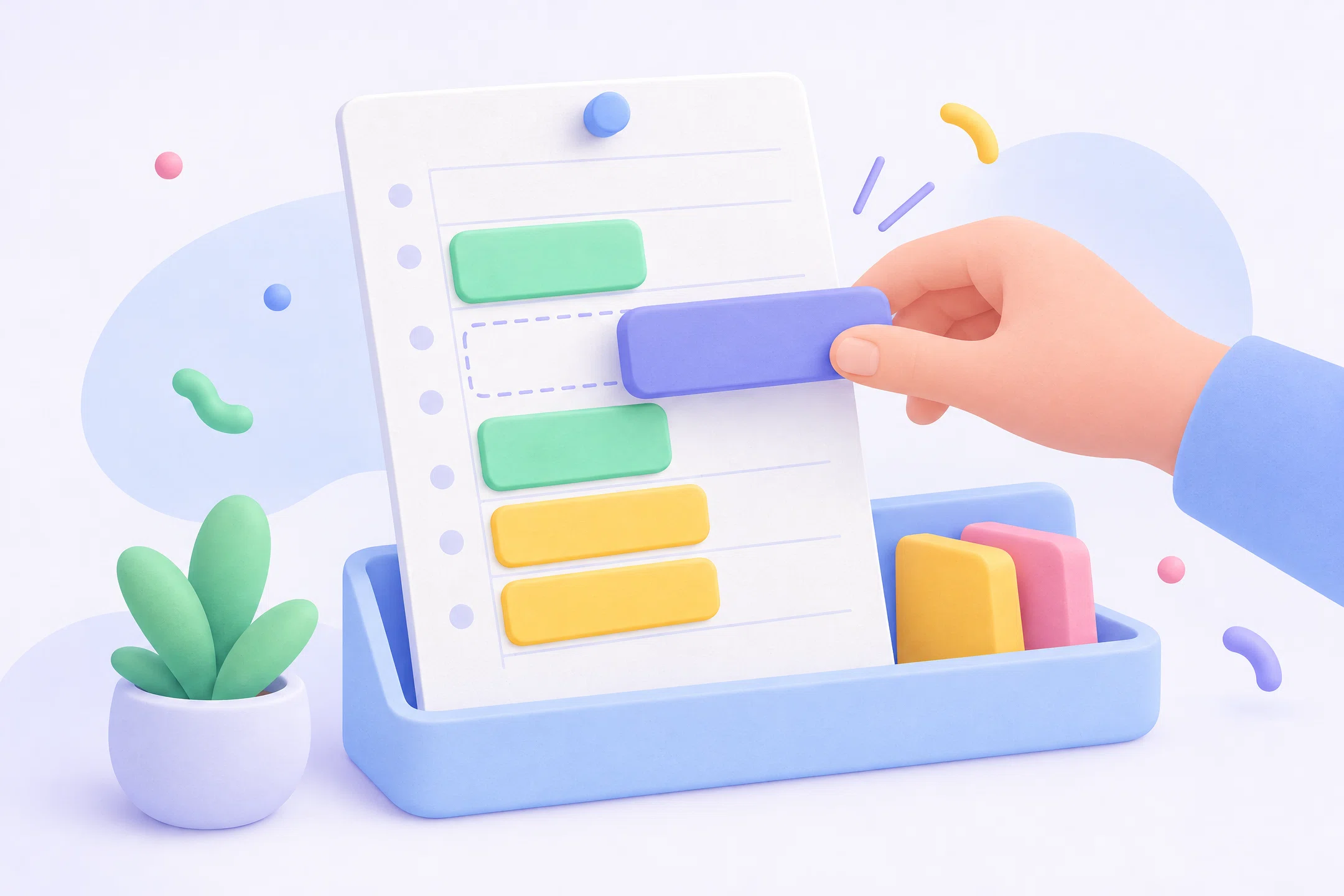
Planner app for Mac: plan your day in a timeline
Published on 8/4/2026


A good planner app for Mac should answer one practical question: what are you doing next, and where does it fit in today? If your calendar shows meetings but your task app holds the work, you still have to translate both into a real plan. A timeline planner closes that gap by giving each task a start, an end, and a place in the day.
Chunk is built for that daily planning job on macOS. It opens from the menu bar, shows your day as a vertical timeline, lets you drag tasks into time blocks, and can show Apple, Google and Outlook Calendar events alongside your own blocks. That means your plan lives where you work, not in a browser tab you have to remember to check.
This guide is not a directory of every planner app. It is a way to choose the right shape of Mac planner when your reader problem is simple: you want tasks and calendar events to become a clear plan for today.
What should a planner app for Mac actually do?
A planner app for Mac should help you decide what fits into the day, not just collect more things to do. A task list is good for capture. A calendar is good for commitments. A daily planner should sit between them and turn both into a believable schedule.
The most useful test is whether the app can show time. If a task has no place on the clock, it can stay vague all day. Once you drag it onto a timeline, you see the trade-off: a 90-minute writing block has to live somewhere, and it may push admin, email, or errands into a different part of the day.
That is why a timeline matters. It gives your plan a physical shape. You can spot an overfilled afternoon, protect a focus block, and leave gaps around calls before the day has already gone wrong. If you are comparing Mac planner apps, start with that question: does this app help you plan time, or does it only store intentions?
Why is a timeline better than a plain to-do list?
A plain to-do list hides the cost of the work. Ten tasks can look reasonable until you ask how long each one takes and where it fits around meetings. A timeline forces the missing calculation into view. You can still change the plan, but at least you are changing something concrete.
Time blocking works because it pairs intention with available time. Instead of asking, “What should I do today?”, you ask, “What belongs between 10:00 and 11:30?” That smaller question is easier to answer, especially when the rest of your calendar is visible.
Chunk uses a vertical 24-hour timeline for this reason. You can create a block by dragging on empty space, move it by dragging the block, and resize it from the top or bottom edge. Tasks can become scheduled blocks, and the current-time indicator shows how the plan is holding up. If you want the method behind that workflow, read what time blocking is before choosing your app.
How do you plan today without switching apps all morning?
The best daily plan is the one you can check without breaking your focus. If your planner only works as a full window, you may avoid opening it when you are in another app. That is a small friction point, but it repeats all day. A Mac calendar widget fixes the glance, but you still cannot move anything from it.
A menu-bar planner solves that by staying one click or shortcut away. Chunk opens as a macOS panel from the system tray, with a default global shortcut of Cmd+/. The panel can float above other windows, including fullscreen apps, so you can check the next block without leaving the document, browser, or design tool you are using.
This is the main difference between a Mac-native planner and a planner that merely has a Mac download. The workflow should feel close to the operating system: quick open, quick edit, back to work. If menu-bar access is the part you care about most, compare the details in how a menu-bar calendar helps you see your day faster.
How should tasks and calendar events work together?
Your calendar already contains the hard edges of the day: meetings, appointments, calls, school runs, travel, and anything else that other commitments can claim. Your tasks are the flexible work. A planner app earns its place when it lets you plan the flexible work around the fixed events.
Chunk can connect Apple Calendar, Google Calendar and Outlook Calendar with two-way sync. External events appear on the same timeline as your Chunk blocks, and you can move or resize synced events from Chunk when editing is allowed for that account. A lock toggle can freeze external events as read-only when you only want to plan around them.
This matters because your planner should not make you rebuild your day in a separate copy. If a meeting moves, your focus blocks need to move with it. If you add a block for a project, you may want that commitment to show on the calendar other parts of your life already use. For more detail on that workflow, see two-way calendar sync for Mac time blocking.
What should you look for before choosing a Mac planner?
Choose a Mac planner by matching the app to the planning problem, not by counting features. If your main problem is capture, a task manager may be enough. If your main problem is appointments, a calendar may be enough. If your main problem is turning both into a realistic day, look for a timeline planner. If you are leaving Todoist for exactly that reason, compare the Todoist alternatives built for time blocking on Mac.
There are a few practical checks. The app should make it quick to create and edit time blocks. It should show calendar events where you are planning. It should let you keep reusable structures for common days. It should be fast to open from wherever you are working. It should also be honest about its platform fit: a Mac planner should not feel like a web app wrapped in a desktop shell.
Chunk focuses on that Mac-native planning layer. It has day and week views, task lists, reusable day templates, routines that can auto-apply on selected weekdays, and a live countdown in the menu bar for the current block. If you want a broader buyer’s guide, start with the best time blocking apps for Mac.
How do you turn a task list into a real plan?
Start by capturing tasks without judging them. Then choose the tasks that genuinely belong today. A planner becomes useful when you stop treating that selection as a second list and start placing it into time.
In Chunk, task mode gives you lists, smart lists such as Inbox, Today, Upcoming, Overdue and Completed, and a day view beside the task panel. You can drag a task onto the timeline to schedule it. If a task needs a known length, you can set a duration on the task card, then use that duration when dropping it onto the day.
That makes the plan visible. “Write proposal” is no longer a floating task. It becomes 09:30 to 11:00, perhaps in Indigo or Amber, sitting between a call and lunch. If the block is too short, you resize it. If the morning gets interrupted, you move it. For a more focused walkthrough of this exact pattern, read how to plan from the Mac menu bar with a time-block planner.
When is a planner app better than your calendar?
Your calendar is still the right place for shared commitments, appointments, and events that need to exist across accounts. A planner app is better when you are deciding how to spend your own working time. That difference matters because personal planning is more fluid than appointment scheduling. If you are still choosing that calendar, see the best calendar app for Mac, compared for time blocking.
If you put every possible task directly into a traditional calendar, the day can become noisy fast. If you keep everything in a task list, the day can stay too abstract. A dedicated time-blocking planner gives you a middle layer: tasks can become blocks, blocks can sit beside real calendar events, and the plan can change without turning your calendar into a dumping ground.
Chunk also lets you create reusable day templates. That is useful when your best plan is not built from scratch every morning. You might keep a writing day, an admin day, or a meeting-heavy day as a shape you can apply, then adjust. For calendar-specific planning, see how to plan your day with a time-blocking calendar on Mac.
Is Chunk the right planner app for your Mac?
Chunk is the right fit if you want a Mac planner that turns tasks and calendar events into a timeline for today. It is built for personal planning, not team project management. It is macOS only, local-first, and designed to be opened from the menu bar whenever you need to check or adjust the plan.
It is not an AI auto-scheduler, a mobile planner, or a collaboration tool. It does include a local Claude MCP server if you want Claude Desktop to read and write your local schedule through approved tools, but the core workflow stays manual and visible: you decide what belongs in the day, then shape it on the timeline.
If you want a planner that lives on your Mac, opens quickly, shows your calendars, and lets tasks become real time blocks, try Chunk. Start the 7-day trial, connect the calendars you actually plan around, then build tomorrow as a timeline instead of another loose list.