Best calendar widget for Mac: 5 options compared in 2026
Published on 8/20/2026


If you have gone looking for a calendar widget for Mac, the job is usually simple. You want to know what is next without opening a full calendar app, switching desktops, or losing the thread of whatever you were doing.
macOS ships a built-in widget for exactly that, and a handful of third-party apps take the idea further. This post covers the five options worth your time in 2026, each with an honest verdict: Chunk, the built-in macOS Calendar widget, Itsycal, Dato and Fantastical. The table at the end lines up platforms, price and whether the tool shows tasks as well as events.
One thing up front, because it shapes everything below. Chunk is not a widget. It is a Mac menu-bar time-blocking app, and it earns a place here for one reason: if your real problem is planning the day rather than glancing at it, no widget will be enough. So Chunk goes first here rather than buried at the bottom as a pitch.
What should a calendar widget for Mac actually do?
A good calendar widget answers one question fast: what is happening now, and what is coming next? If you have to open a full calendar window to find out, the widget has not solved anything. The bar is that checking your day should feel lighter than switching apps.
Which is why looking for a calendar widget usually turns into looking for something slightly bigger: an agenda you can read at a glance, reachable from wherever you happen to be working, carrying enough context to actually decide something. A tiny month grid will tell you the date. It will not tell you whether your afternoon can absorb a 45-minute task.
There is a fourth question that splits this list in half, and most roundups skip it: does the tool show your tasks as well as your events? A calendar-only view shows what other people have booked. It says nothing about the work you still owe yourself. If you want that fuller picture, read how to plan your day with a time-blocking calendar on Mac.
The five best calendar widget options for Mac in 2026
These are the options that hold up in daily use. They are not interchangeable, so the verdicts below are about fit rather than ranking.
Chunk: best if you also want to plan the day, not just see it
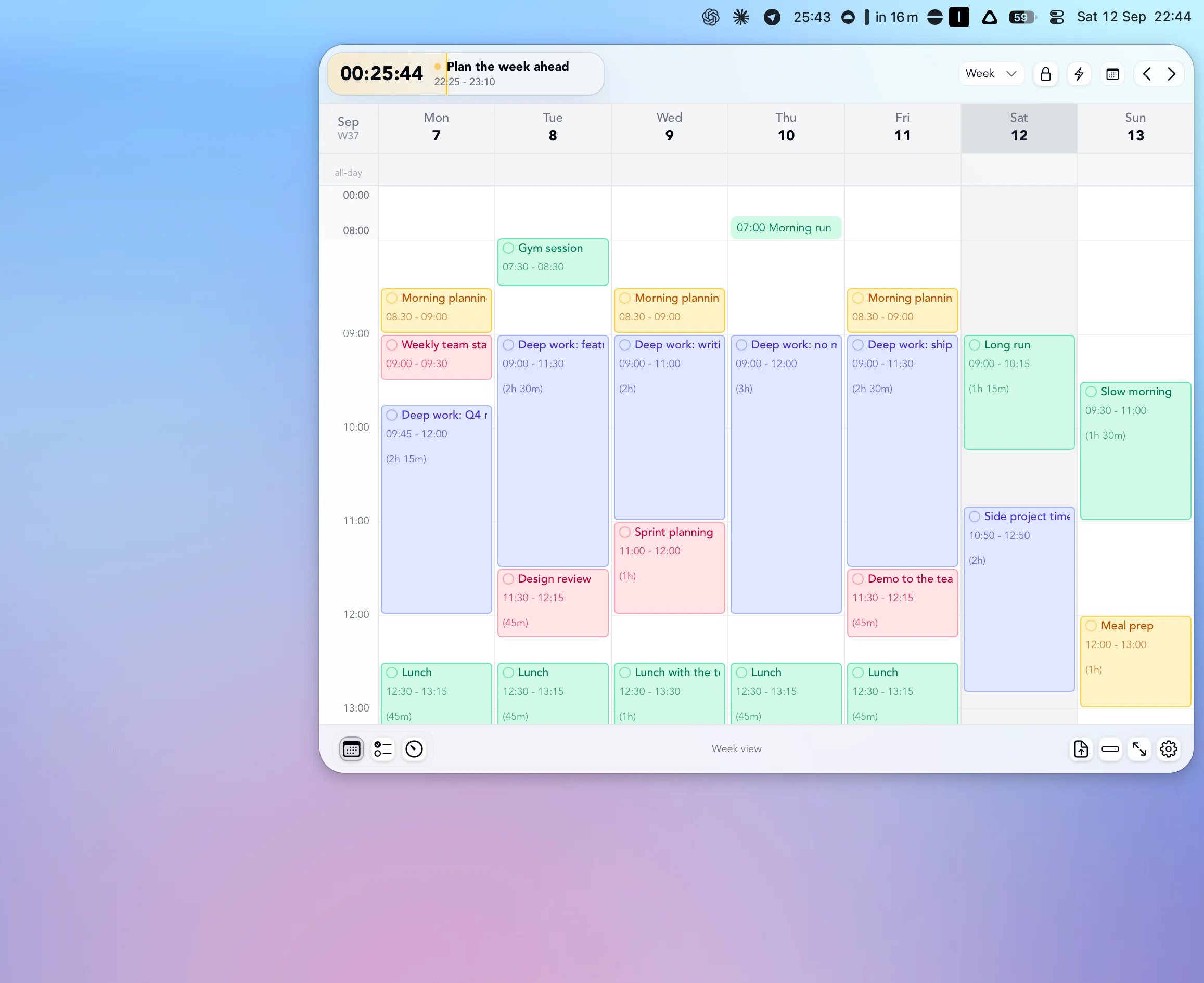
Chunk is a macOS time-blocking app that opens from the menu bar with Cmd+/ and floats above other windows, including fullscreen apps. It detaches into a normal resizable window when you want one. You get a day timeline with your tasks and your synced calendar events side by side, week and month views, and a live countdown in the menu bar for the block you are in.
Calendar sync is two-way across multiple Google and Outlook accounts plus Apple Calendar, and Apple Reminders syncs both ways too. Everything is stored locally in SQLite. It is macOS only, with no web, Windows or iPhone version, and a one-time licence rather than a subscription.
Verdict: the wrong choice if you only want a date on your desktop, and it is honest to say so. The right choice if your calendar visibility problem is really a day-planning problem, and you want to shape the day from the same panel you check it in.
The built-in macOS Calendar widget: best free, zero-setup glance
Apple's own widget is already on your Mac and costs nothing. You can add widgets to the desktop or Notification Centre, and Notification Centre opens by clicking the date and time in the menu bar or swiping left with two fingers from the right edge of the trackpad.
It reads from Apple Calendar, so any account you have added in System Settings shows up without extra configuration. Nothing else here asks less of you.
Verdict: genuinely good enough when the plan is already settled and you only need a reminder of it. The catch is stated in Apple's own documentation: if your desktop widgets are hidden by other windows, you click the wallpaper to move those windows away. On a busy day that is a real interruption, not a glance, and it disappears entirely in a fullscreen app.
Itsycal: best free menu-bar month grid
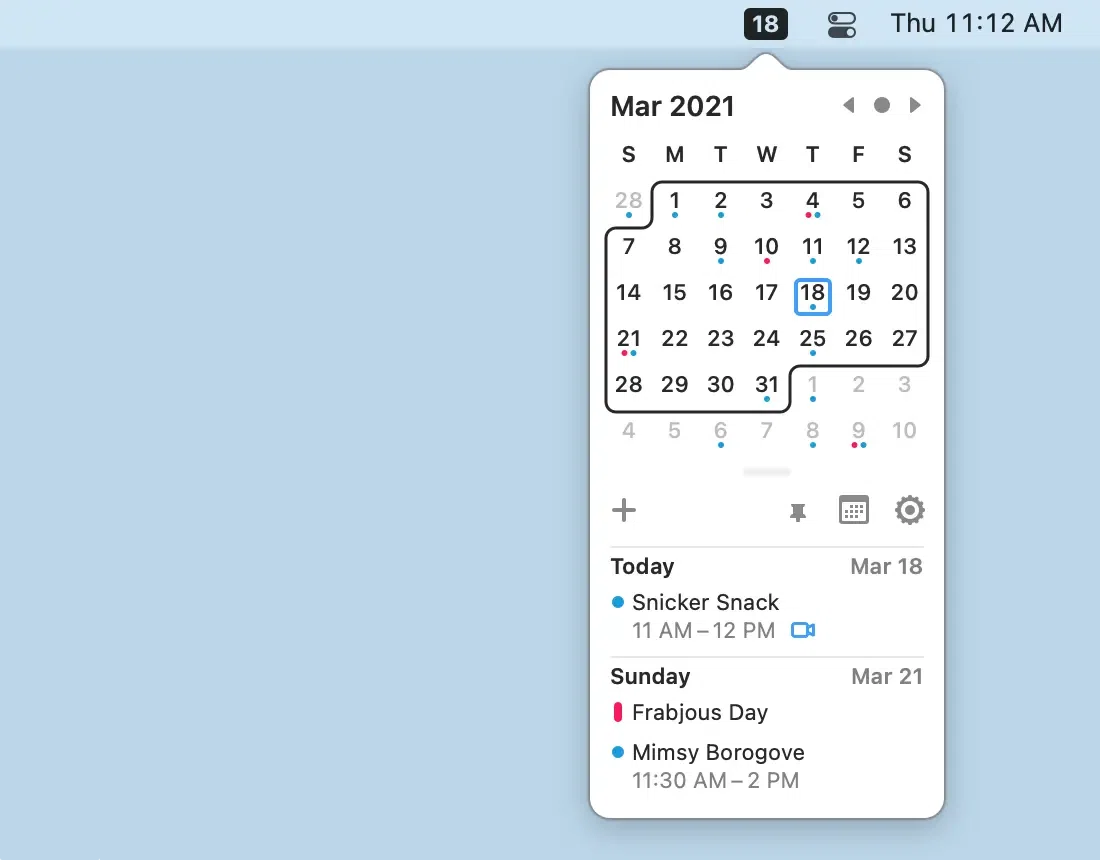
Itsycal describes itself as a tiny menu bar calendar, and that is precisely what it is. It runs on macOS 11 and later, drops a month grid down from the menu bar, and shows your agenda as a companion to the Mac Calendar app. You can create and delete events from it, though not edit them. It is released under the MIT licence, so it is free and open source.
Because it lives in the menu bar rather than on the desktop, it survives fullscreen apps in a way Apple's widget does not. It is also the lightest thing on this list by some margin.
Verdict: the best free upgrade over the built-in widget, and hard to argue with at the price. It is events only, with no tasks or Reminders, so it tells you what is booked and nothing about what you still have to do.
Dato: best paid menu-bar agenda
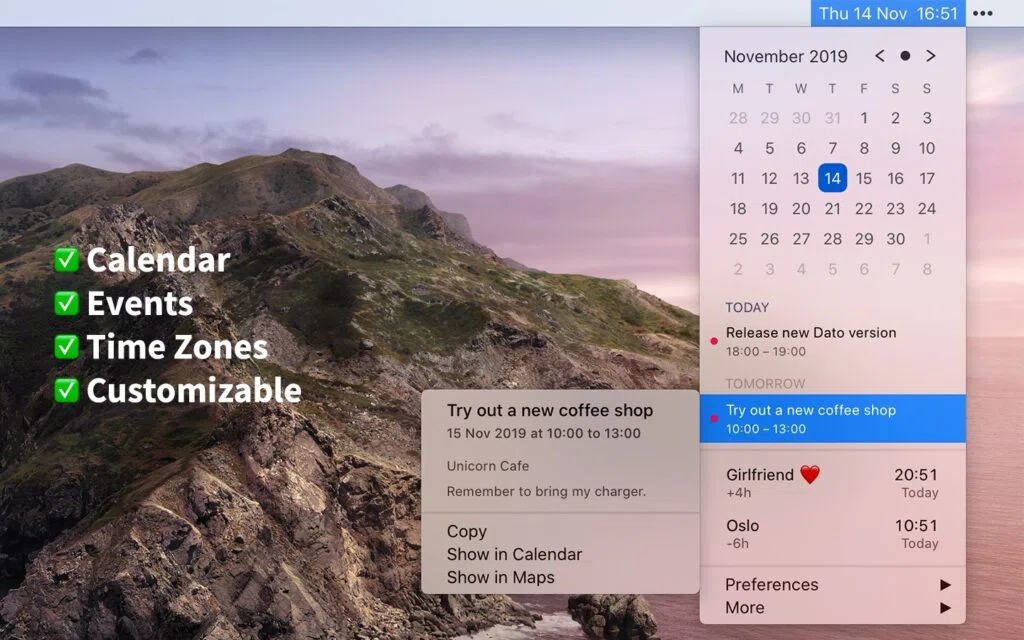
Dato is a menu bar calendar and clock that shows your upcoming events for the next week at a glance, with Reminders support, fullscreen meeting notifications, and time zones you can search by city from 15,000 cities held offline. It requires macOS 26 or later. There is a fully functional trial, with a reminder to purchase every 12 hours.
It costs $18 on the Mac App Store as a one-time purchase, and the developer states plainly that Dato will never be subscription-based.
Verdict: the strongest pure menu-bar agenda here, and the one to pick if you work across time zones. It shows Reminders alongside events, so it covers more ground than Itsycal, but it is still a reading surface rather than a place to build a day.
Fantastical: best if you want a full calendar app behind the widget
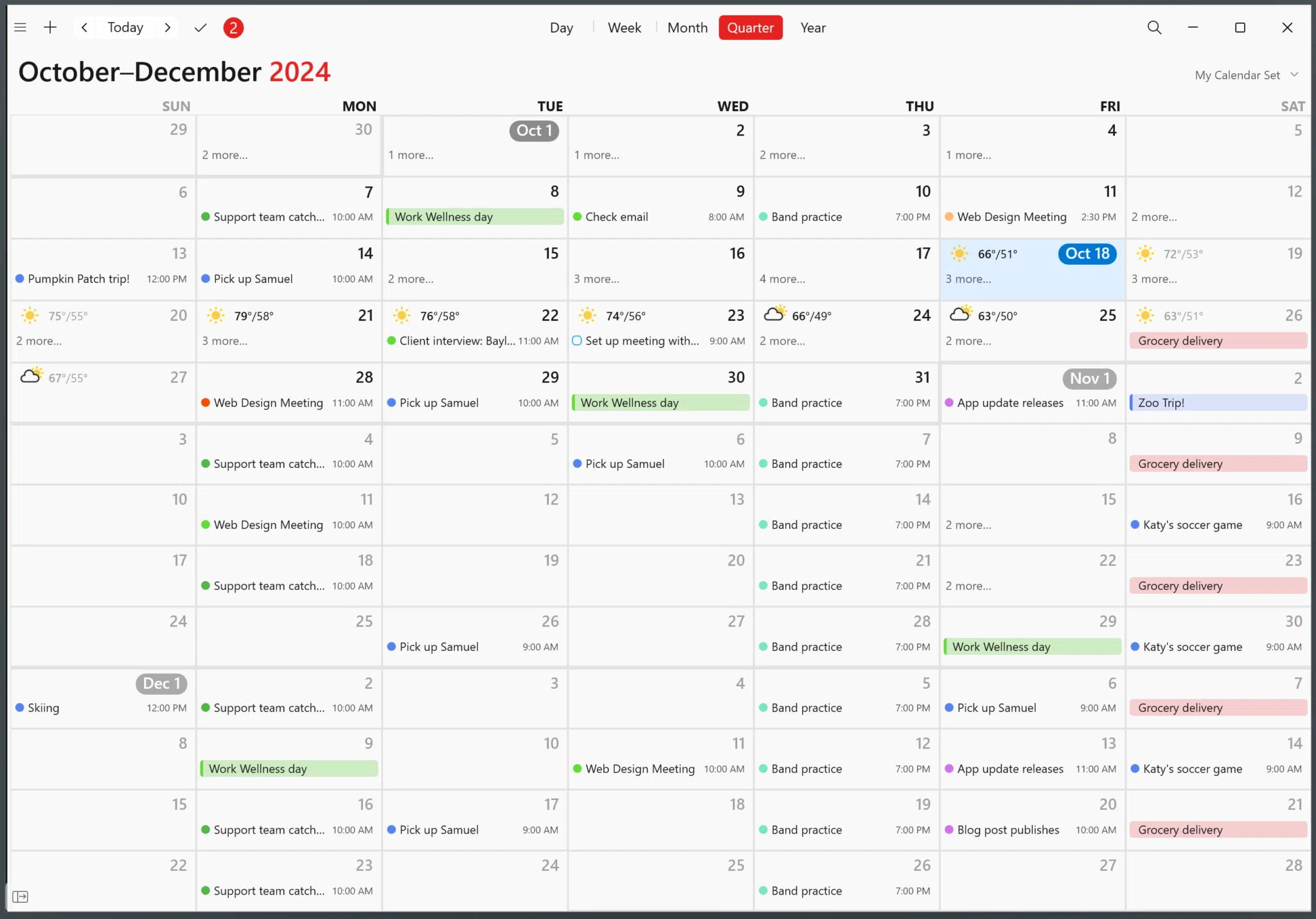
Fantastical is a complete calendar application with widgets and a menu bar window attached, rather than a widget on its own. It runs on Mac, iPhone, iPad, Apple Watch, Apple Vision Pro and Windows, and it lets you add tasks alongside calendar events and tick them off. It also works with Todoist.
It is free to download with a free tier, and Premium is a subscription. On the Mac App Store, Flexibits Premium is listed at $6.99 monthly or $56.99 yearly, with Premium for Families at $10.49 monthly or $89.99 yearly, and there is a 14-day free trial.
Verdict: the right answer if you want one calendar app across every device you own and are happy to pay monthly for it. Overkill if all you wanted was a faster way to see today, and the only option here that will keep billing you.
Which Mac calendar widgets show tasks as well as events?
This is the column most people skip and then regret. Apple's built-in widget and Itsycal are calendar-only: they show events, and that is the whole scope. Dato adds Reminders, so your Apple Reminders list appears next to your meetings. Fantastical supports tasks alongside events, including Todoist. Chunk treats tasks and blocks as the same object, so a task you schedule simply becomes a block on the day.
The difference matters more than it sounds. A calendar-only view shows what other people have put in your day. It cannot tell you whether the two hours between meetings are already spoken for, because the work you owe yourself was never on the calendar in the first place.
If you only ever need to see booked commitments, events-only is fine and the free options win easily. If the gaps are where your actual work happens, you want a tool that puts tasks in the same view, and at that point you have left widget territory. For the broader menu-bar angle, see why a menu-bar calendar helps you see your day faster.
What if you work in fullscreen apps?
Fullscreen is where desktop widgets quietly stop earning their place. If your work lives in a fullscreen editor, design tool, spreadsheet or browser, a widget sitting on the wallpaper is not visible at all. The usual workaround is to switch spaces, check the next event, then switch back. Small friction, repeated all day.
Menu-bar tools dodge this. Itsycal, Dato and Chunk all open from the menu bar, which is present whatever is on screen, so none of them depend on your desktop being visible. That single difference is why a menu-bar dropdown often beats a prettier desktop widget in practice.
Chunk goes one step further by keeping the current block's countdown in the menu bar itself, so you can tell whether you have ten minutes left or an hour without opening anything. For more on that specific constraint, see how a Mac time blocker can work in fullscreen.
How should you choose a calendar widget for Mac?
Start with what is already installed. If Apple's widget covers you, stop there and keep the money. If it does not survive your fullscreen habit, Itsycal is the free menu-bar fix, and Dato is the paid one worth $18 if you want Reminders and time zones in the same dropdown. Fantastical makes sense when you want one calendar app on every device and do not mind a subscription.
Pick Chunk when the honest answer is that you are not really shopping for a widget. You want to see the meetings, shape the tasks into blocks around them, protect focus time, and keep the current block visible while you work. That is a planning tool, and no amount of glanceability turns a widget into one.
If you are comparing full calendar applications rather than glance surfaces, start with the best calendar app for time blocking on Mac. If you already know you want to plan from the menu bar, the menu-bar time-block planner guide goes deeper. And if Chunk sounds like the right shape, there is a 7-day free trial before any one-time licence.
Frequently asked questions
Can I add a calendar widget to my Mac?
Yes. macOS lets you add widgets to the desktop or to Notification Centre, and Apple's Calendar widget is included. Open Notification Centre by clicking the date and time in the menu bar, or by swiping left with two fingers from the right edge of the trackpad, then choose Edit Widgets at the bottom.
What is the best calendar widget for Mac?
It depends on what you need it for. Apple's built-in widget is the best free starting point. Itsycal is the best free menu-bar alternative, Dato the best paid one at $18 one-time, and Fantastical the best option if you want a full calendar app across several devices. Chunk is the pick if you want to plan the day rather than only look at it.
Is there a calendar widget available on the desktop?
Yes. macOS supports desktop widgets as well as Notification Centre widgets, so the Calendar widget can sit on your wallpaper. Be aware that desktop widgets are hidden behind open windows, and you have to click the wallpaper to move those windows out of the way, which makes them unhelpful in a fullscreen app.
Do Mac calendar widgets show tasks as well as events?
Most do not. Apple's built-in widget and Itsycal show calendar events only. Dato adds Apple Reminders, and Fantastical supports tasks alongside events, including Todoist. Chunk treats tasks and calendar blocks as the same thing, so a scheduled task appears on the day timeline next to your synced meetings.
Chunk vs the field.
A quick side-by-side. We kept it honest — Chunk isn't the right fit for everyone, and that's fine.
Chunk
This is usPricing reflects each tool's lowest-tier individual plan at time of writing. Check the source for current numbers.
Related articles

How to choose a calendar app for time blocking on Mac
How to choose a calendar app for time blocking on Mac

Best time blocking app with recurring tasks for Mac
Best time blocking app with recurring tasks for Mac