A Mac time-blocker that works in fullscreen
Published on 7/16/2026

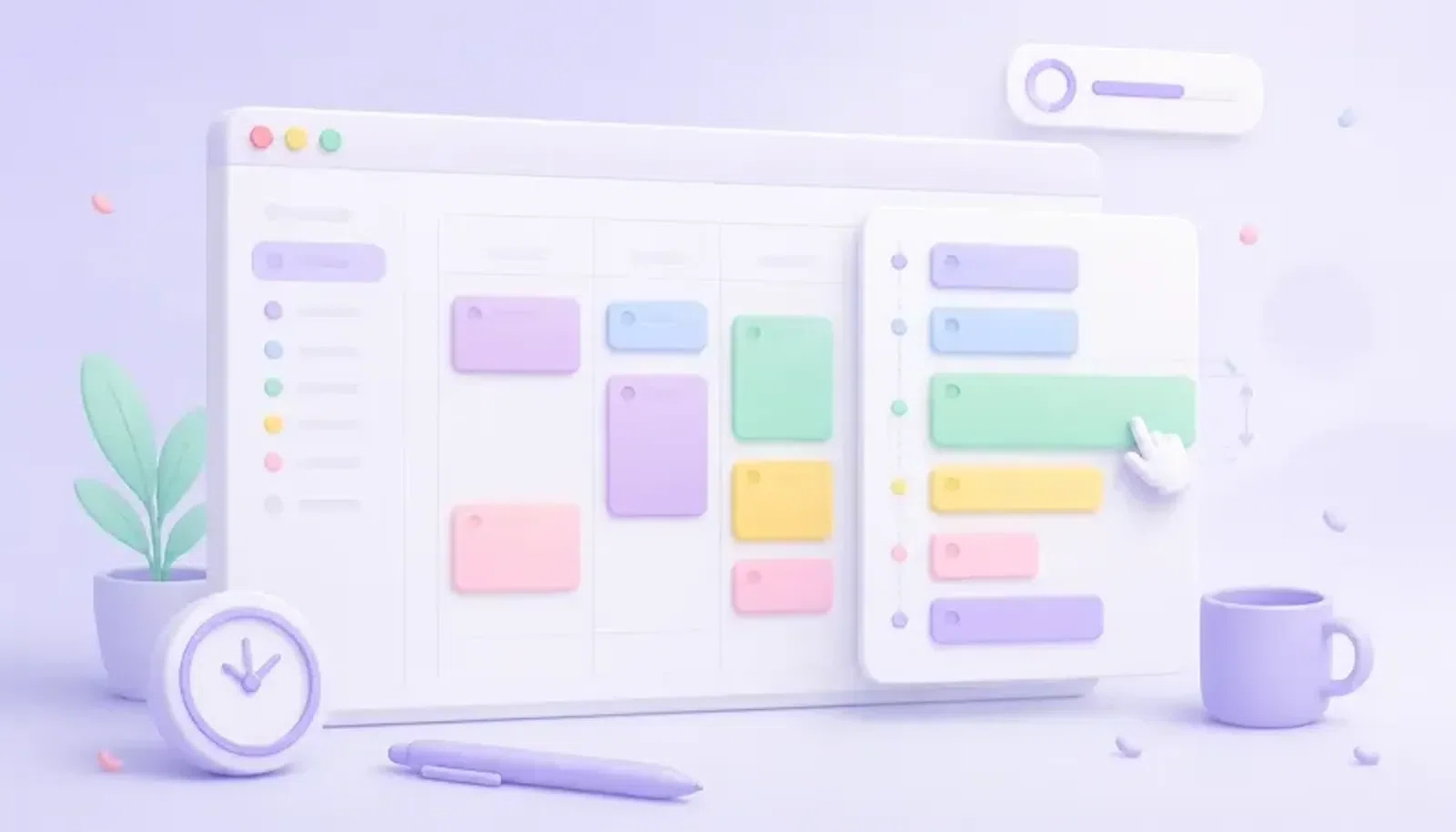
If you work in fullscreen Mac apps, your time-blocker should not make you leave the space you are already in. Chunk is a macOS menu-bar time-blocking app that opens a native floating panel above fullscreen windows, so you can check your plan, adjust a block, or create the next one without switching to a separate calendar app.
That matters because fullscreen work is supposed to reduce context switching, not create a new kind of friction. If your schedule only lives in a full calendar window, every quick check becomes a desktop swap, a lost train of thought, and often a detour into email or chat.
Chunk keeps the plan where your attention already is. Open it from the menu bar or with the default Cmd+/ shortcut, edit your day on a vertical timeline, then return to the work in front of you. The tray countdown keeps the current block visible even when the panel is closed.
Why does fullscreen break so many time-blocking workflows?
Fullscreen is great for focus, but it exposes a weakness in many planning tools: they assume your calendar is the place you want to go. On macOS, a fullscreen app lives in its own Space. If your time blocks sit in Calendar, Google Calendar, or another full-window planner, checking the plan often means moving to another Space, finding the right window, and then getting back.
That sounds small until it happens all day. You look up the next block, notice an unread message, correct an event, then forget why you opened the calendar in the first place. The issue is not that time blocking is too rigid. The issue is that the planner is too far away from the moment where you need it.
A fullscreen-friendly time-blocker should answer three questions without pulling you out of the current app: what am I doing now, what comes next, and do I need to move anything? Chunk is built around that job. Its menu-bar panel floats above fullscreen apps, and its tray icon shows the live countdown for the current block.
How does Chunk open above fullscreen Mac apps?
Chunk uses a native macOS panel rather than behaving like a normal app window. You open it from the system tray or with the default Cmd+/ shortcut, and the panel slides down over the current workspace, including fullscreen apps. You do not need to leave the Space, reveal the Dock, or hunt for a calendar window.
Inside that panel, your day appears as a 24-hour vertical timeline. You can drag empty space to create a block, drag an existing block to move it, or resize its top and bottom edges when the plan changes. Clicking a block opens a compact editor for the name, time, notes, list, and colour.
This is the key difference from a menu-bar calendar that only shows appointments. Chunk is not just a viewer. It is a working time-blocking surface designed to stay available while you are inside a fullscreen writing app, design tool, code editor, browser, or meeting window. For a broader look at the menu-bar angle, see how a menu-bar calendar helps you see your day faster.
What can you change without leaving fullscreen?
You can make the everyday edits that keep a time-blocked plan realistic. If a task takes longer than expected, resize the block. If a call shifts your morning, drag the next block later. If you need to protect a focus session, create a new block directly on the timeline and give it one of Chunk’s five colours: Indigo, Sky, Emerald, Amber, or Rose.
Chunk also supports week view when you need more context, plus templates and routines when your days have repeated shapes. A template can hold a saved set of blocks, and a routine can auto-apply that template on chosen weekdays. That means you can keep your default structure ready, then make small changes from the same floating panel when the day stops matching the plan.
If you are new to the method, start with a simple day rather than a perfect one. Block the work already on your calendar, add one or two focus blocks, and leave breathing room around transitions. The guide to planning your day with a time-blocking calendar on Mac covers that foundation in more detail.
How does the tray countdown help while the panel is closed?
The floating panel solves the “where is my plan?” problem. The tray countdown solves the “what am I meant to be doing right now?” problem. Chunk shows the current block’s remaining time in the system tray, so your active plan stays visible without keeping the panel open.
That is useful in fullscreen because the menu bar is still the quickest place to glance when you are working. You can see whether you have 12 minutes left in a writing block, 3 minutes before a transition, or no active block at all. When you need detail, open the panel. When you do not, the countdown is enough.
Chunk can also use notifications for block starts, completions, transitions, and optional calendar events. Standard macOS banners are available, and there is also a fullscreen notification style when you need a harder stop between blocks. The aim is not to nag you. It is to make the plan visible at the moment you are most likely to drift.
Can synced calendar events appear in the same fullscreen panel?
Yes. Chunk can connect Apple Calendar, Google Calendar, and Outlook Calendar, then show those events on the same timeline as your Chunk blocks. Its calendar sync is bidirectional for those providers, so creating, moving, resizing, editing, or deleting a synced event in Chunk can push back to the source calendar when editing is enabled.
That keeps your time-blocking workflow grounded in the real day. Meetings, appointments, and fixed commitments sit beside the flexible blocks you create for focused work. You can also freeze external events with a lock toggle when you want to see them but avoid accidental edits.
This is especially helpful if your work calendar and personal calendar live in different places. Chunk can connect multiple Google and Outlook accounts, plus Apple Calendar through the native macOS integration. If the cross-calendar part is your main problem, read how two-way calendar sync fits Mac time blocking.
What is the simplest fullscreen time-blocking routine?
Start by planning only the next half day. Open Chunk, look at the fixed events already on your timeline, then drag blocks into the open spaces. Give each block a plain name, such as “Write draft”, “Review inbox”, or “Admin”. Keep the blocks short enough that you can recover when one runs over.
Once the day starts, leave the panel closed unless you need to adjust something. Use the tray countdown as your lightweight guide. When the work changes, open Chunk over the fullscreen app, move the block, and close it again. The goal is to keep planning close to the work, not to spend the day grooming the plan.
A useful starter pattern is one focus block, one admin block, and one catch-up block. The focus block protects the work that matters most. The admin block gives messages and small tasks a home. The catch-up block absorbs spillover, so a single delay does not ruin the rest of the day. For a bigger comparison of Mac options, see the best time-blocking apps for Mac.
When is a fullscreen Mac time-blocker better than a normal calendar?
A normal calendar is still the right place for shared events, invites, and long-range scheduling. A fullscreen Mac time-blocker is better for the live version of today: the plan you keep changing as tasks take more or less time than expected. That live plan needs to be fast, visible, and easy to edit from wherever you are working.
Chunk sits between a calendar and a task list. You can use task lists, Apple Reminders lists, templates, routines, and synced calendar events, then arrange the day as blocks of time. Because it lives in the menu bar, the plan is closer than a separate calendar window. Because it works above fullscreen apps, it stays close even when you have deliberately hidden everything else.
If you want the broader product overview, this macOS time-blocking app overview explains how the menu-bar panel, task lists, calendar sync, and countdown fit together.
What should you check before choosing a fullscreen time-blocking app?
First, check whether the app actually works above fullscreen windows on macOS. A standard window, browser tab, or web calendar may be excellent in normal desktop use but still require a Space switch once you enter fullscreen. If fullscreen focus is your daily setup, that detail matters more than a long feature list.
Second, check whether you can edit the plan from the same surface. Viewing today’s events is helpful, but time blocking depends on quick changes. You should be able to create, move, resize, and rename blocks without opening a separate calendar editor.
Third, check how the app handles the current block. A visible countdown is often more useful than a beautiful weekly plan you never look at again. Chunk combines all three: a native fullscreen-floating menu-bar panel, direct timeline editing, and a tray countdown. It is Mac-only, local-first for your schedule data, and available with a 7-day trial followed by a one-time licence from chunkapp.net.
If you want a time-blocker that stays with you inside fullscreen work, download Chunk, open it with Cmd+/, and build your next focus block without leaving the app you are already using.