Cách chặn thời gian trên nhiều lịch trên Mac
Xuất bản ngày 16/8/2026

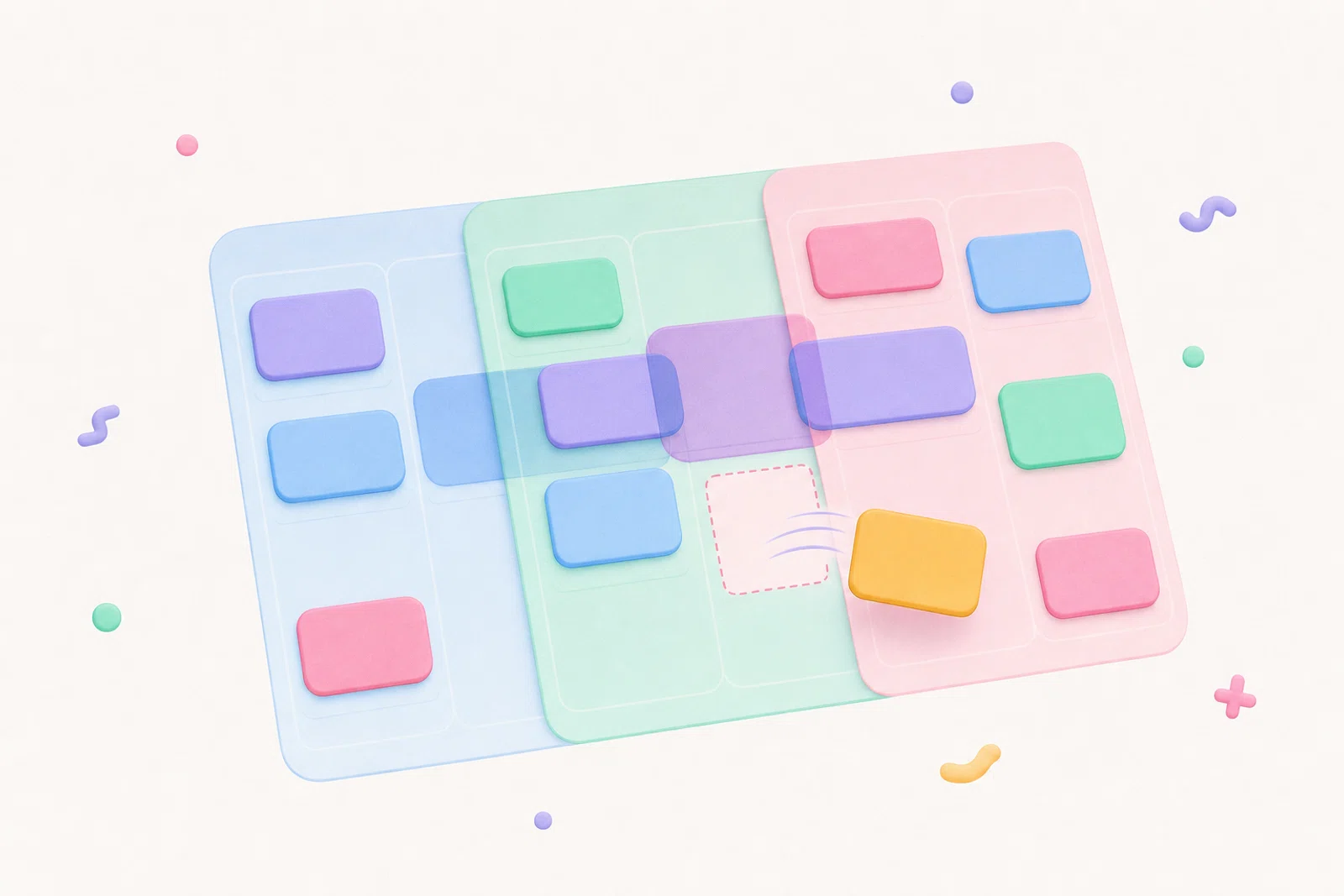
Nếu bạn cần chặn thời gian trên nhiều lịch trên Mac, quy trình an toàn nhất là lập kế hoạch trên một dòng thời gian hiển thị mọi sự kiện đã cam kết trước khi bạn thêm khối mới. Điều đó có nghĩa là lịch Google công việc, lịch Outlook cá nhân, sự kiện Apple Calendar và bất kỳ lịch nào khác đã chọn nên xuất hiện bên cạnh thời gian tập trung đã lên kế hoạch trước khi bạn quyết định giờ tiếp theo sẽ dành cho việc gì.
Chunk được xây dựng cho chính công việc đó. Nó nằm trên thanh menu macOS, hiển thị nhiều lịch Google, Outlook và Apple trong một dòng thời gian trong ngày, đồng thời cho phép bạn tạo, di chuyển, thay đổi kích thước và chỉnh sửa khối thời gian mà không cần mở ứng dụng lịch đầy đủ. Khi được phép chỉnh sửa cho một lịch đã kết nối, các thay đổi bạn thực hiện trong Chunk có thể đồng bộ trở lại lịch nguồn.
Hướng dẫn này không nói về việc nhập lịch này vào lịch khác hay sửa cài đặt tài khoản. Nó nói về việc xây dựng một quy trình lập kế hoạch hàng ngày đáng tin cậy khi các cam kết thực sự của bạn nằm ở nhiều nơi.
Tại sao chặn thời gian lại hỏng khi lịch của bạn bị chia tách?
Chặn thời gian hoạt động tốt nhất khi kế hoạch và các ràng buộc của bạn nằm trong cùng một chế độ xem. Lịch bị chia tách phá vỡ liên kết đó. Bạn có thể có cuộc gọi khách hàng trong Google Calendar, cuộc hẹn cá nhân trong Outlook, sự kiện gia đình trong Apple Calendar và lịch nhà cung cấp cho lớp học, chăm sóc sức khỏe hoặc tài nguyên dùng chung. Nếu bạn lên kế hoạch khối tập trung trong khi chỉ nhìn vào một trong số đó, bạn đang đoán mò.
Cách xử lý phổ biến là nhảy qua lại giữa các lịch: kiểm tra công việc, kiểm tra cá nhân, kiểm tra tài khoản khác, rồi quay lại trình lập kế hoạch. Vấn đề không chỉ là thao tác nhấp thêm. Mỗi lần chuyển đổi khiến bạn dễ bỏ lỡ một sự kiện ngắn, quên khoảng thời gian di chuyển hoặc chặn giờ làm việc sâu vào một cuộc họp nằm ở tài khoản khác.
Một quy trình Mac tốt hơn bắt đầu với một bề mặt lập kế hoạch duy nhất. Bạn không cần mọi lịch trở thành lịch chính của mình. Bạn cần mọi sự kiện liên quan hiển thị tại thời điểm lập kế hoạch, sau đó có cách nhanh để đặt khối của riêng bạn xung quanh chúng.
Một dòng thời gian đa lịch đáng tin cậy nên hiển thị điều gì?
Dòng thời gian lập kế hoạch của bạn nên trả lời ba câu hỏi trước khi bạn thêm bất cứ điều gì mới: điều gì đã cố định, điều gì có thể di chuyển và đâu là khoảng trống thực sự? Sự kiện cố định là cuộc họp, cuộc hẹn, việc đưa đón con, cuộc gọi và đặt chỗ nhà cung cấp. Công việc linh hoạt là thời gian tập trung bạn muốn bảo vệ nhưng có thể di chuyển nếu ngày thay đổi.
Chunk tách biệt rõ ràng các công việc đó. Sự kiện đồng bộ từ Google, Outlook và Apple Calendar xuất hiện trên cùng chế độ xem ngày dọc với khối Chunk của riêng bạn. Bạn có thể thêm nhiều tài khoản Google và nhiều tài khoản Outlook cạnh nhau, trong khi Apple Calendar kết nối qua lịch hệ thống Mac. Mỗi tài khoản đã kết nối có lựa chọn lịch riêng, vì vậy bạn có thể hiển thị các lịch quan trọng mà không biến dòng thời gian thành nhiễu.
Khi mọi thứ đã hiển thị, chặn thời gian trở thành một
placement decision instead of detective work. If your morning already contains a stand-up, a dentist appointment, and a school calendar event, you can see the gap that is actually usable and block it with a realistic duration.If you are still deciding what a Mac-first planner should include, the broader guide to the best calendar app for time blocking on Mac covers the buying criteria in more detail.
How do you connect multiple calendars without making a mess?
Start by deciding which calendars need to influence your daily plan. You do not have to show every shared calendar, holiday feed, or archived project. The goal is enough context to avoid double-booking, not a wall of events you ignore.
In Chunk, the calendar settings use an account manager built around connected accounts and their calendar lists. You can add multiple Google accounts, multiple Outlook accounts, and the Mac’s Apple Calendar connection. For each account, choose which calendars appear in the day view. That lets you keep a work account, a personal account, and provider calendars visible without merging them into one provider.
Use editing permissions deliberately. Chunk lets you allow editing per connected account, and there is a global confirm-before-edits preference if you want an extra checkpoint before changes are pushed back. If a calendar is only there for context, keep it visible but read-only. If it is where your actual work blocks should live, allow editing so moves and resizes can sync back.
For a more provider-specific setup, you can pair this workflow with Google Calendar time blocking or time blocking Outlook Calendar on Mac.
How should you plan your day once every calendar is visible?
Open the day timeline first, before your task list or inbox pulls you into details. Look for the immovable anchors: meetings, appointments, calls, travel, pickups, and hard deadlines. These events define the shape of the day.
Next, place your most important focus block in the best available gap. In Chunk, you can drag on empty space to create a block, drag the block body to move it, or resize the top and bottom edges when the duration is wrong. This is the moment where a menu-bar planner helps: you can open Chunk with the global shortcut, adjust the day, and return to your work without a full app switch.
Then add smaller blocks around the anchors. Admin, email, errands, review time, and shallow work should fit into the remaining spaces rather than stealing thecleanest stretch. If you already use a daily plan, the key change is that the plan now respects every connected calendar instead of just the one you remembered to check.
If you want the menu-bar version of this routine, read how to plan your day from the Mac menu bar.
When should a block sync back to Google, Outlook, or Apple Calendar?
Not every block needs to become an external calendar event. Some blocks are private planning scaffolding: read notes, draft proposal, sort files, reset desk. Keeping those as local Chunk blocks can be enough if they are only for you.
Other blocks should live on a calendar other apps can see. If a focus block affects availability, if you want it visible on your work calendar, or if another device depends on that calendar feed, put it on the right external calendar. Chunk’s block actions let you swap an event onto an external Google, Outlook, or Apple calendar when that account is connected and editing is allowed.
The useful rule is simple: local blocks are for personal execution, synced calendar events are for shared availability or provider continuity. That keeps your calendar clean while still making sure important protected time shows up where it needs to.
For the broader sync concept behind this, see two-way calendar sync for Mac time blocking.
How do you avoid accidental edits across accounts?
Multi-calendar planning is useful because everything is visible. It can also be risky if you treat every event as equally editable. A client calendar, shared family calendar, or provider booking may be important context but not something you want to move from your planner.
Chunk gives you two safeguards. First, editing can be allowed per account, so a calendar can appear in the day view without becoming an easy drag target for writes. Second, a global lock toggle freezes external events as read-only when you want to plan around them without changing them. That is useful during a quick morning review when you are arranging your own blocks, not rearranging meetings.
Use a simple policy: edit the calendars you own, view the calendars you depend on. If you do need to move an external event, do it intentionally, with the right account selected and the right calendar as the destination.
What if your day changes after you have planned it?
A multi-calendar plan needs to stay editable because the day will move. A meeting overruns, a provider booking shifts, or a personal appointment appearsat short notice. The planning system fails if adjusting the day feels harder than ignoring it.
In Chunk, external calendar events render on the same timeline as your blocks, and editable events can be moved or resized from the timeline. Your own blocks are just as flexible. You can slide a focus block later, shorten an admin block, or resize a writing session without rebuilding the whole day from scratch.
This is where the menu bar matters. If the panel is one shortcut away and can float above fullscreen apps, replanning becomes a small correction rather than a context switch. The plan stays close enough to maintain, which is what makes it useful after the first interruption.
If fullscreen work is part of your day, a Mac time blocker that works in fullscreen explains why that detail changes the habit.
What is the simplest daily routine for multiple calendars?
Use a short routine you can repeat without thinking. First, open your combined timeline and scan the fixed events across every visible calendar. Second, choose the one outcome that most needs protected time today. Third, create a block for that outcome in the best open gap. Fourth, add smaller blocks for admin and recovery around the fixed events.
After that, check whether any protected block should be synced back to a calendar. If the block affects availability, put it on the relevant Google, Outlook, or Apple calendar. If it is only a private execution cue, leave it as a local block. Finally, use the lock toggle when you only want to adjust your own plan.
Chunk fits this routine because it keeps the job small: open the menu-bar panel, see the calendars, place the blocks, and get back to work. You can try it with the 7-day trial, then keep it with a one-time lifetime licence if it becomes the planning layer your Mac was missing.
Bài viết liên quan
Cách chọn ứng dụng lịch để chặn thời gian trên Mac
Cách chọn ứng dụng lịch để chặn thời gian trên Mac
Apple Calendar MCP: lên kế hoạch ngày của bạn với Claude
Apple Calendar MCP: lên kế hoạch ngày của bạn với Claude
Ứng dụng chặn thời gian tốt nhất với tác vụ lặp lại cho Mac
Ứng dụng chặn thời gian tốt nhất với tác vụ lặp lại cho Mac