Mac에서 여러 캘린더에 걸쳐 시간 블록을 지정하는 방법
Published on 2026. 8. 16.

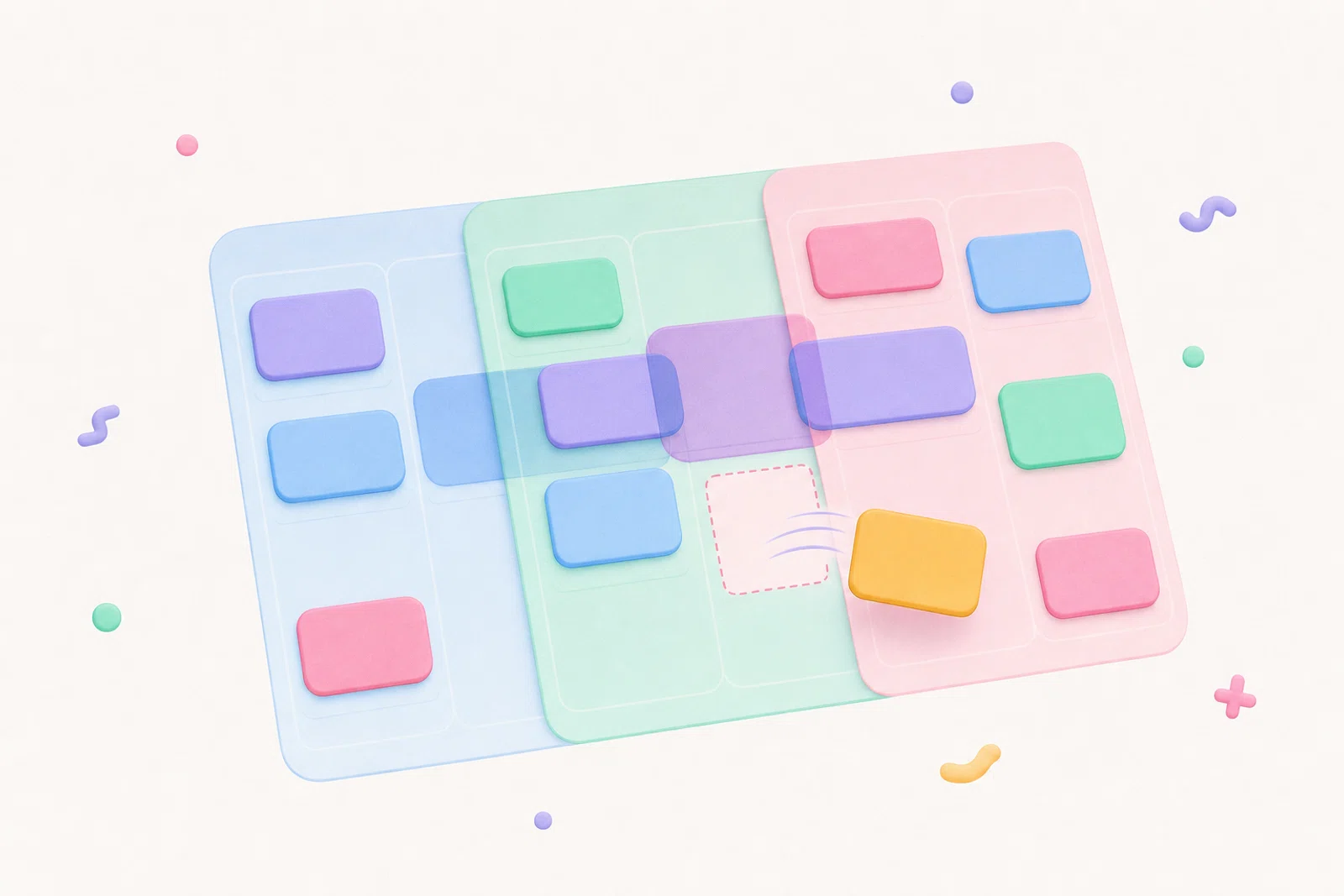
Mac에서 여러 캘린더에 걸쳐 시간 블록을 계획해야 한다면, 새 블록을 추가하기 전에 모든 확정된 일정이 표시되는 하나의 타임라인에서 계획하는 것이 가장 안전한 워크플로입니다. 즉, 업무용 Google 캘린더, 개인 Outlook 캘린더, Apple 캘린더 일정, 그리고 선택한 다른 캘린더들이 다음 한 시간을 어디에 배치할지 결정하기 전에 계획된 집중 시간 옆에 표시되어야 합니다.
Chunk는 바로 그 작업을 위해 만들어졌습니다. macOS 메뉴 바에 위치하며, 여러 Google, Outlook, Apple 캘린더를 하나의 일일 타임라인에 표시하고, 전체 캘린더 앱을 열지 않고도 시간 블록을 만들고, 이동하고, 크기를 조정하고, 편집할 수 있습니다. 연결된 캘린더에서 편집이 허용되면 Chunk에서 변경한 내용이 원본 캘린더에 동기화될 수 있습니다.
이 가이드는 한 캘린더를 다른 캘린더로 가져오거나 계정 설정을 수정하는 방법에 관한 것이 아닙니다. 실제 일정이 여러 곳에 분산되어 있을 때 신뢰할 수 있는 일일 계획 루틴을 구축하는 방법에 관한 것입니다.
캘린더가 분리되어 있으면 시간 블록 계획이 왜 깨질까요?
시간 블록 계획은 계획과 제약 조건이 같은 화면에 있을 때 가장 효과적입니다. 분리된 캘린더는 그 연결을 끊습니다. Google 캘린더에는 고객 통화가, Outlook에는 개인 약속이, Apple 캘린더에는 가족 행사가, 그리고 클래스, 의료, 공유 리소스를 위한 제공자 캘린더가 있을 수 있습니다. 그중 하나만 보면서 집중 블록을 계획한다면, 그것은 추측에 불과합니다.
흔한 해결 방법은 캘린더를 오가는 것입니다. 업무 확인, 개인 확인, 다른 계정 확인, 그리고 다시 플래너로 돌아오기. 문제는 단지 클릭이 많다는 것만이 아닙니다. 전환할 때마다 짧은 일정을 놓치거나, 이동 시간 버퍼를 잊거나, 다른 계정에 있는 회의 위에 딥 워크를 배치하기 쉬워집니다.
더 나은 Mac 워크플로는 단일 계획 화면에서 시작됩니다. 모든 캘린더가 메인 캘린더가 될 필요는 없습니다. 계획 시간에 모든 관련 일정이 보이고, 그 주변에 자신의 블록을 빠르게 배치할 수 있으면 됩니다.
신뢰할 수 있는 다중 캘린더 타임라인은 무엇을 보여줘야 할까요?
계획 타임라인은 새 항목을 추가하기 전에 세 가지 질문에 답해야 합니다. 이미 고정된 것은 무엇인지, 이동할 수 있는 것은 무엇인지, 실제로 열린 공간은 어디인지. 고정된 일정은 회의, 약속, 학교 등하교, 통화, 제공자 예약입니다. 유연한 작업은 보호하고 싶지만 하루가 바뀌면 이동할 수 있는 집중 시간입니다.
Chunk는 이러한 작업을 깔끔하게 분리합니다. 동기화된 Google, Outlook, Apple 캘린더 일정은 자신의 Chunk 블록과 동일한 세로형 일일 보기에 표시됩니다. 여러 Google 계정과 여러 Outlook 계정을 나란히 추가할 수 있으며, Apple 캘린더는 Mac 시스템 캘린더를 통해 연결됩니다. 각 연결된 계정에는 자체 캘린더 선택 기능이 있어 타임라인을 복잡하게 만들지 않고 중요한 캘린더만 표시할 수 있습니다.
모든 것이 표시되면 시간 블록 계획은
If you are still deciding what a Mac-first planner should include, the broader guide to the best calendar app for time blocking on Mac covers the buying criteria in more detail.
How do you connect multiple calendars without making a mess?
Start by deciding which calendars need to influence your daily plan. You do not have to show every shared calendar, holiday feed, or archived project. The goal is enough context to avoid double-booking, not a wall of events you ignore.
In Chunk, the calendar settings use an account manager built around connected accounts and their calendar lists. You can add multiple Google accounts, multiple Outlook accounts, and the Mac’s Apple Calendar connection. For each account, choose which calendars appear in the day view. That lets you keep a work account, a personal account, and provider calendars visible without merging them into one provider.
Use editing permissions deliberately. Chunk lets you allow editing per connected account, and there is a global confirm-before-edits preference if you want an extra checkpoint before changes are pushed back. If a calendar is only there for context, keep it visible but read-only. If it is where your actual work blocks should live, allow editing so moves and resizes can sync back.
For a more provider-specific setup, you can pair this workflow with Google Calendar time blocking or time blocking Outlook Calendar on Mac.
How should you plan your day once every calendar is visible?
Open the day timeline first, before your task list or inbox pulls you into details. Look for the immovable anchors: meetings, appointments, calls, travel, pickups, and hard deadlines. These events define the shape of the day.
Next, place your most important focus block in the best available gap. In Chunk, you can drag on empty space to create a block, drag the block body to move it, or resize the top and bottom edges when the duration is wrong. This is the moment where a menu-bar planner helps: you can open Chunk with the global shortcut, adjust the day, and return to your work without a full app switch.
Then add smaller blocks around the anchors. Admin, email, errands, review time, and shallow work should fit into the remaining spaces rather than stealing the가장 깔끔한 구간입니다. 이미 일일 계획을 사용하고 있다면, 핵심적인 변화는 이제 그 계획이 여러분이 확인하기로 기억한 달력 하나만이 아니라 연결된 모든 달력을 반영한다는 점입니다.
이 루틴을 메뉴 막대 버전으로 원한다면, Mac 메뉴 막대에서 하루를 계획하는 방법을 읽어보세요.
블록은 언제 Google, Outlook, Apple 캘린더로 다시 동기화해야 할까요?
모든 블록이 외부 캘린더 이벤트가 될 필요는 없습니다. 어떤 블록은 개인적인 계획용 발판입니다: 메모 읽기, 제안서 초안 작성, 파일 정리, 책상 정돈. 이런 것들은 오직 나만을 위한 것이라면 로컬 Chunk 블록으로 유지하는 것으로 충분할 수 있습니다.
다른 블록은 다른 앱이 볼 수 있는 캘린더에 있어야 합니다. 집중 블록이 가용성에 영향을 주거나, 업무 캘린더에 표시되기를 원하거나, 다른 기기가 그 캘린더 피드에 의존한다면, 올바른 외부 캘린더에 넣으세요. Chunk의 블록 액션을 사용하면 해당 계정이 연결되어 있고 편집이 허용된 경우 이벤트를 외부 Google, Outlook, Apple 캘린더로 옮길 수 있습니다.
유용한 규칙은 간단합니다: 로컬 블록은 개인적 실행을 위한 것이고, 동기화된 캘린더 이벤트는 공유된 가용성이나 제공자 연속성을 위한 것입니다. 이렇게 하면 캘린더를 깔끔하게 유지하면서도 중요한 보호된 시간이 필요한 곳에 표시되도록 할 수 있습니다.
이면에 있는 더 넓은 동기화 개념에 대해서는 Mac 시간 차단을 위한 양방향 캘린더 동기화를 참조하세요.
계정 간 실수로 인한 편집을 어떻게 피할 수 있을까요?
다중 캘린더 계획은 모든 것이 보이기 때문에 유용합니다. 하지만 모든 이벤트를 똑같이 편집 가능한 것으로 취급하면 위험할 수도 있습니다. 고객 캘린더, 공유 가족 캘린더, 제공자 예약은 중요한 맥락일 수 있지만 플래너에서 옮기고 싶은 것은 아닐 수 있습니다.
Chunk는 두 가지 보호 장치를 제공합니다. 첫째, 계정별로 편집을 허용할 수 있어서 캘린더가 쓰기 작업의 쉬운 드래그 대상이 되지 않고도 일간 보기에 나타날 수 있습니다. 둘째, 전역 잠금 토글이 외부 이벤트를 읽기 전용으로 고정하여, 이벤트를 변경하지 않고 그 주변으로 계획하고 싶을 때 사용할 수 있습니다. 이는 아침에 빠르게 검토하면서 회의를 재배치하는 것이 아니라 자신의 블록을 정리할 때 유용합니다.
간단한 정책을 사용하세요: 소유한 캘린더는 편집하고, 의존하는 캘린더는 봅니다. 외부 이벤트를 옮겨야 한다면, 올바른 계정을 선택하고 올바른 캘린더를 목적지로 하여 의도적으로 수행하세요.
하루를 계획한 후에 일정이 바뀌면 어떻게 하나요?
다중 캘린더 계획은 편집 가능한 상태를 유지해야 합니다. 하루는 움직일 것이기 때문입니다. 회의가 길어지거나, 제공자 예약이 변경되거나, 개인 약속이 나타납니다.at short notice. The planning system fails if adjusting the day feels harder than ignoring it.
In Chunk, external calendar events render on the same timeline as your blocks, and editable events can be moved or resized from the timeline. Your own blocks are just as flexible. You can slide a focus block later, shorten an admin block, or resize a writing session without rebuilding the whole day from scratch.
This is where the menu bar matters. If the panel is one shortcut away and can float above fullscreen apps, replanning becomes a small correction rather than a context switch. The plan stays close enough to maintain, which is what makes it useful after the first interruption.
If fullscreen work is part of your day, a Mac time blocker that works in fullscreen explains why that detail changes the habit.
What is the simplest daily routine for multiple calendars?
Use a short routine you can repeat without thinking. First, open your combined timeline and scan the fixed events across every visible calendar. Second, choose the one outcome that most needs protected time today. Third, create a block for that outcome in the best open gap. Fourth, add smaller blocks for admin and recovery around the fixed events.
After that, check whether any protected block should be synced back to a calendar. If the block affects availability, put it on the relevant Google, Outlook, or Apple calendar. If it is only a private execution cue, leave it as a local block. Finally, use the lock toggle when you only want to adjust your own plan.
Chunk fits this routine because it keeps the job small: open the menu-bar panel, see the calendars, place the blocks, and get back to work. You can try it with the 7-day trial, then keep it with a one-time lifetime licence if it becomes the planning layer your Mac was missing.