Best Mac apps for ADHD adults in 2026
Published on 5/28/2026


If you have ADHD and you work on a Mac, the apps you install matter more than the ones you uninstall. The wrong stack adds friction. The right stack does the opposite: it shortens the path between an idea and a captured task, makes the hour on your screen visible, and stops you from drifting at 2pm.
This post is the Mac-specific cut of our cross-platform ADHD apps list. Every pick here runs natively on macOS, behaves like a Mac citizen (keyboard shortcuts, menu-bar presence, iCloud sync where appropriate), and earns its slot for a reason an ADHD brain actually cares about. We've left off the big web-app names that feel like browser tabs pretending to be software.
Five apps, plus one honest answer about the iOS-only app a lot of ADHD readers come looking for.
What does an ADHD brain need from a Mac app stack?
Three things, in this order. First, a capture inbox that takes a thought in under two seconds, because if you have to think about where to put it, you won't put it anywhere. Second, a visible plan for the day. Calendar blocks beat checklists for ADHD because they answer the question your brain actually asks at 10:42am, which is not "what's next" but "what now, for how long, and is the meeting in 18 minutes going to ambush me". Third, a brake. A way to stop yourself opening the same five sites in the same five tabs when a focus session needs protecting.
You'll notice the canonical iOS ADHD app, Tiimo, is not in the list below. Tiimo is iOS-first and has no native Mac app at the time of writing. If you specifically want Tiimo's visual day-strip, the realistic setup is to run Tiimo on your iPhone and pair it with a menu-bar time-blocker on your Mac. We cover that pairing in time-blocking for ADHD.
One more constraint worth saying out loud: ADHD brains tend to relapse on app-switching, so the goal isn't to find the five best apps. It's to find the smallest stack that survives your worst week.
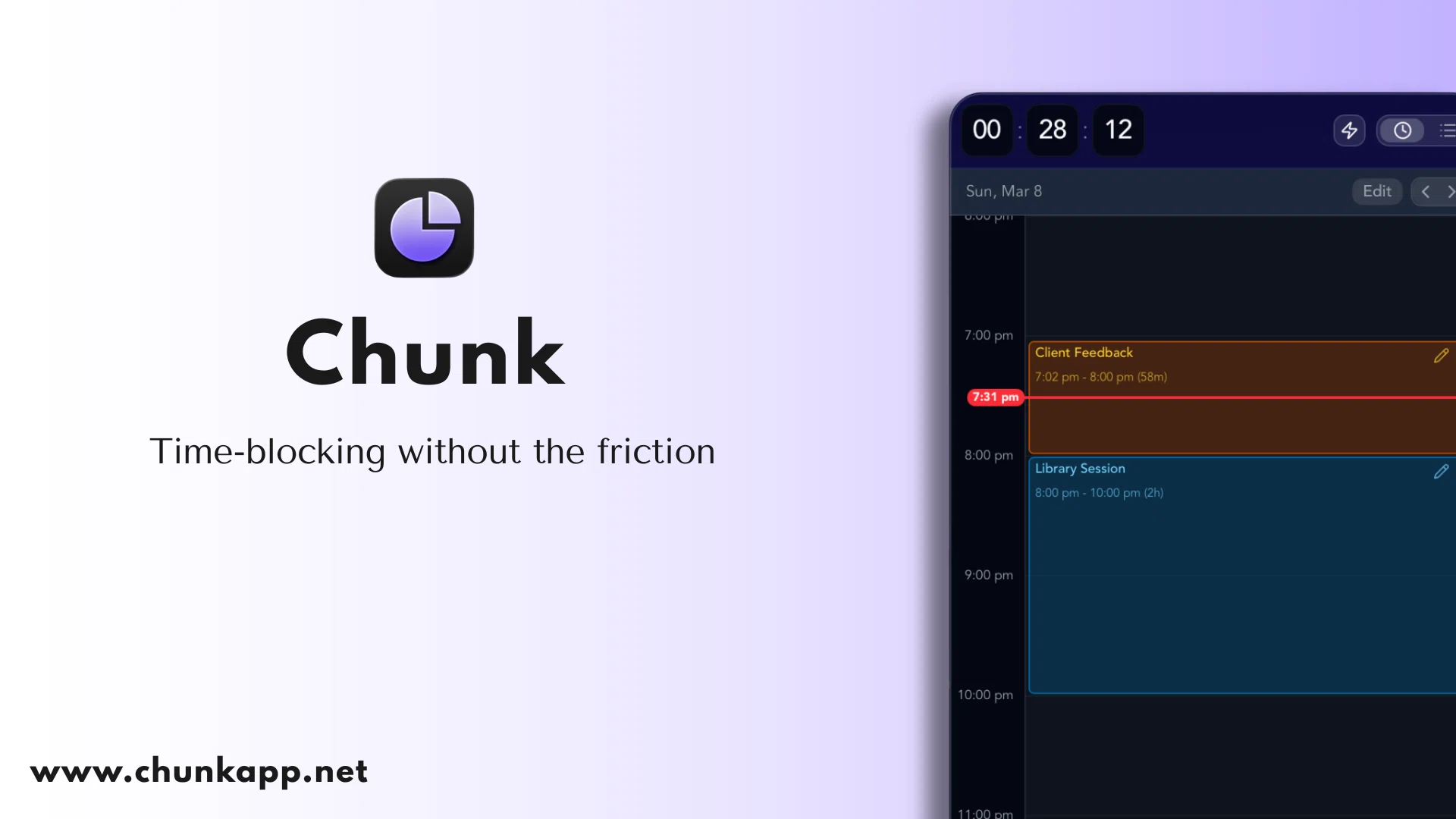
Chunk: menu-bar time-blocking that lives where you do
Chunk is a menu-bar time-blocker for macOS. Click the icon, your day opens as a vertical timeline of coloured blocks (Indigo, Sky, Emerald, Amber, Rose), and you drag tasks onto the hours you actually want to spend on them. Two-way sync runs in the background to Google Calendar, Outlook, and Apple Calendar, so the meeting your colleague just put on your calendar shows up in your time-block view without you having to refresh anything.
What makes it ADHD-shaped: the day is visible by default. You don't have to open a window to remember what you committed to at 11. The menu bar shows the current block, so glancing up at your battery icon also tells you what you're meant to be doing. For block sizing, we usually recommend starting at 25 to 45 minutes; the long version is in ADHD time-blocking block duration.
Chunk is single-user, runs natively on macOS, and ships with a 7-day free trial then a one-time licence. It isn't an AI auto-scheduler in the Reclaim or Motion sense. It does include a local Claude MCP server, which means your own Claude instance can edit your schedule on request, but the scheduling decisions stay yours. The full feature tour lives in your new favourite macOS time-blocking app.
Things 3: the Mac-native task manager built for low-friction capture
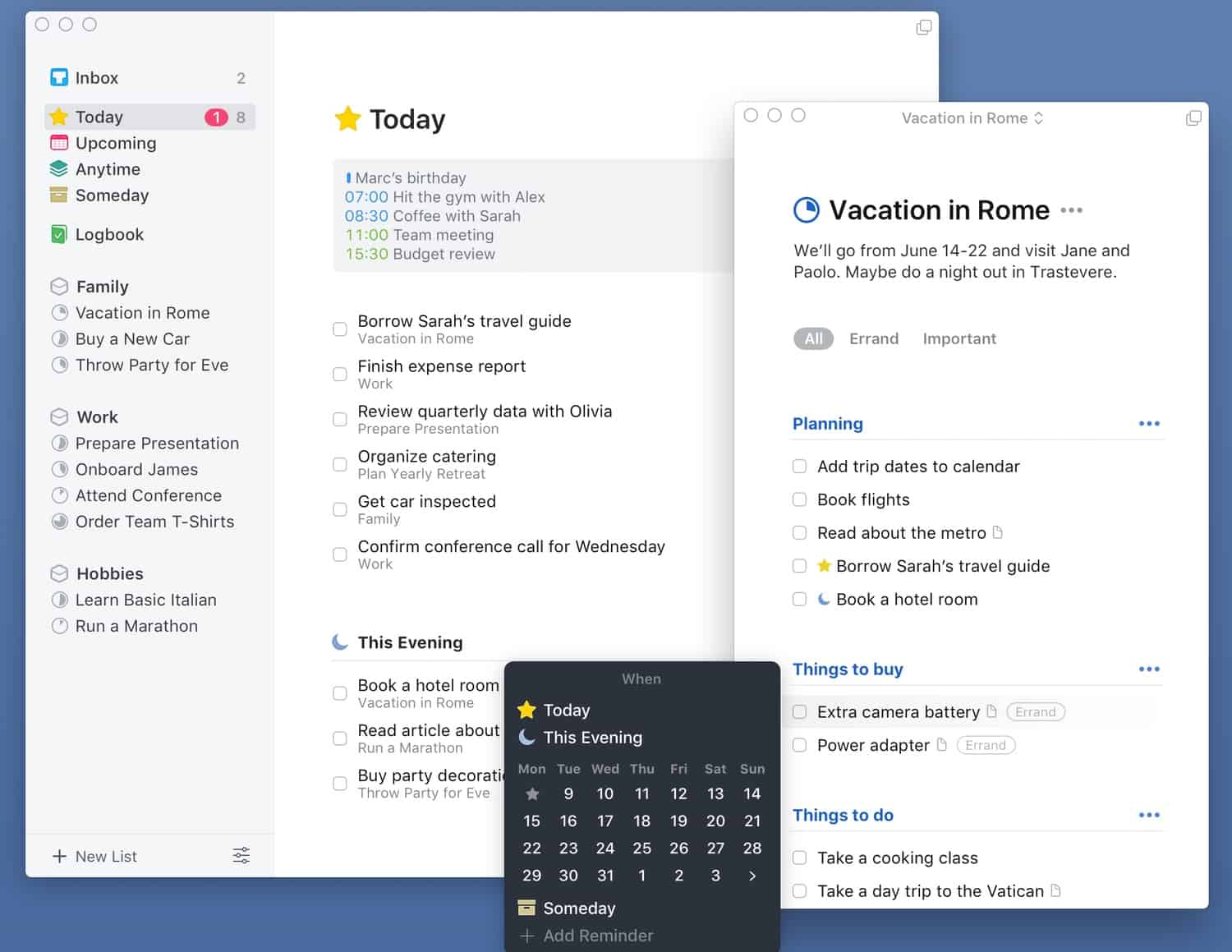
Things 3 is the task manager most ADHD Mac users converge on, and the reason is the quick-entry shortcut. Hit Ctrl+Option+Space from anywhere on your Mac and a small capture window appears, typed task lands in your inbox, window vanishes. Total time to capture a thought: about a second. That number matters more than any productivity philosophy, because if capture is hard you stop capturing, and then your brain becomes the to-do list.
The Today, Upcoming, Anytime and Someday lists map cleanly onto the four time-horizons an ADHD brain can actually hold. iCloud sync to iPhone, iPad and Apple Watch is built in. There is no web version and no two-way sync with Google Tasks or Outlook, which is the trade-off you accept for the speed.
Pricing is a one-off $49.99 on the Mac App Store, separate from the iPhone and iPad apps. No subscription. That sticker price puts a lot of people off, and it shouldn't: a one-time licence in the £30 to £50 range usually beats a £10/month subscription for ADHD users, because the subscription is one more recurring decision your brain will eventually opt out of.
Apple Reminders: the inbox you already pay nothing for
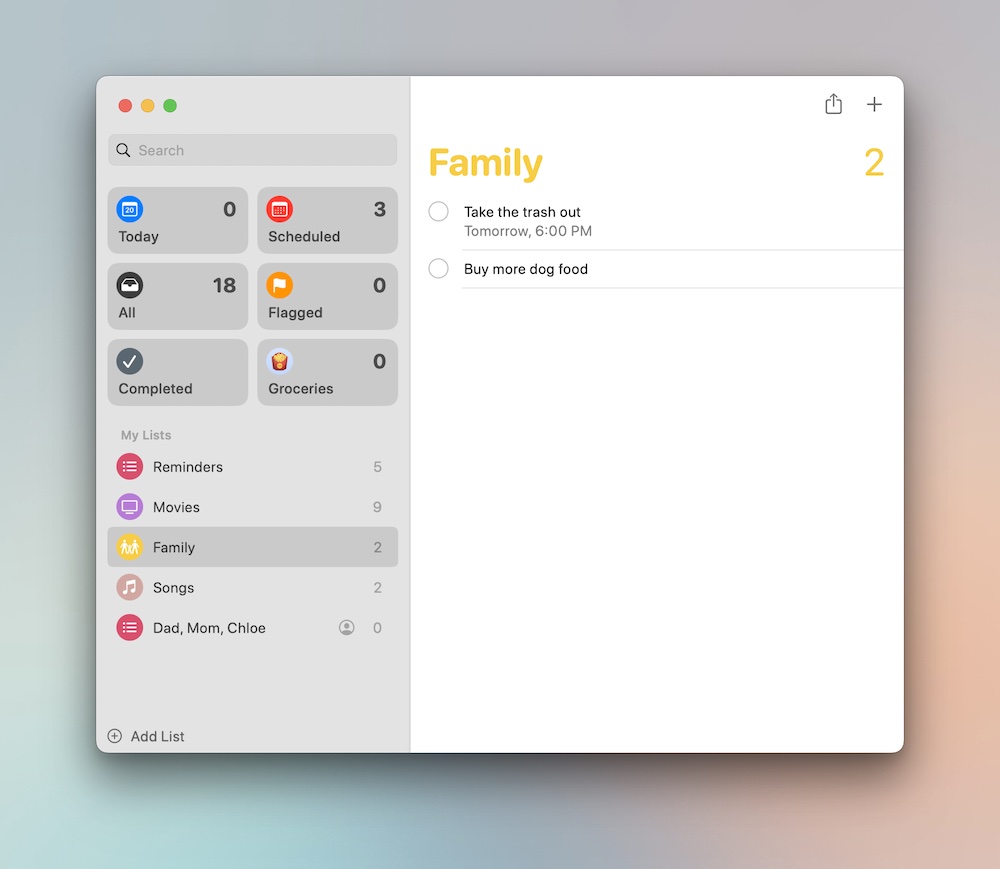
Apple Reminders is the most underrated ADHD app on macOS, partly because it's free and partly because it's been on your machine the whole time. Modern Reminders (since Big Sur) does smart lists, tags, subtasks, location reminders, and Siri capture from any device. The Siri bit is the killer feature for ADHD: "hey Siri, remind me to email Dan at 3" while your hands are full of coffee is the lowest-friction capture anywhere on a Mac.
If you're starting from zero, start here before paying for anything. Reminders covers 80% of what most ADHD adults need from a task app, and the only reason to graduate to Things 3 is if you specifically miss the keyboard-driven quick-entry or the Today view design. Don't subscribe to a third-party task app on a free trial without trying Reminders first for two weeks.
The honest limit: Reminders is iCloud-only, has no native two-way Google or Outlook sync, and its calendar integration is one-directional. For an ADHD adult who lives in Google Calendar at work, Reminders is a personal-life inbox, not an everything-store.
Fantastical: the calendar you reach for when an event has eight fields
Apple Calendar is fine for looking at your week. Fantastical is what you open when you have to create an event with a Zoom link, three attendees, a custom alert, a travel-time field, and a recurring rule that skips bank holidays. The natural-language parser does most of that work in a single sentence: typing "lunch with Sam at Dishoom every other Wednesday from 12.30" creates the event correctly, attendees and all.
For ADHD users, the value is the proposal feature for back-and-forth scheduling, the open week view that doesn't force you to commit, and the menu-bar mini-window. Two-way sync to Apple, Google and Outlook calendars is native, so this is the calendar layer to reach for if you live in Google Calendar specifically: see Google Calendar time-blocking for the deeper setup.
The catch is the pricing model. Fantastical is subscription-only at the Premium tier, which is where the natural-language parsing and the proposal feature live. The free tier exists and is useful, but the features ADHD users actually buy it for sit behind the paywall. If you only need to look at your calendar, Apple Calendar is enough.

RescueTime: Best ADHD app for understanding time usage
RescueTime runs quietly in the background and tracks where your time actually goes, sorting apps and websites into categories and scoring each one from very distracting to very productive. The free version gives you the automatic tracking and weekly reports. The $12/month premium tier adds the FocusTime blocker, detailed historical data, and alerts that fire when you've spent, say, more than an hour on social media. For ADHD adults, the tracking itself is the feature. The whole point is that the version of you who thinks you spent twenty minutes on Reddit gets confronted by the version of the day that says it was actually two hours.
Pair this with a time-blocked focus session. RescueTime won't slam the door shut the way a hard blocker does, but it gives you the honest mirror most ADHD brains never get: an after-the-fact record of whether the block you scheduled actually held. That feedback loop, from intention to evidence, is what makes the next block more realistic. We unpack it in the best time-blocking app for Mac.
It runs on macOS, Windows, Linux, Android, and as a browser extension, so the tracking follows you across devices. The iOS app is limited to manual logging and reports rather than automatic tracking, thanks to Apple's restrictions, but the desktop picture is usually the one that matters.
How do you pick the smallest Mac app stack that actually sticks?
Start with the bare minimum: Apple Reminders for capture, Apple Calendar for looking at the week, and one focus mechanism. That's a free stack, and for a meaningful share of ADHD adults, it's enough. Run it for two weeks before adding anything.
Add Chunk when the calendar view stops being enough and you need to see your day as time-blocks you can drag and resize. Add Things 3 when Reminders' organisation starts breaking down (usually around 40-plus active tasks across more than three projects). Add Fantastical when you're creating five-plus events a week and the Apple Calendar event editor is becoming the slow part of your day. Add Cold Turkey when willpower has stopped being a reliable backstop for your focus sessions.
If you want a longer version of the selection logic, apps for ADHD adults: how to pick one walks through it.
Install the smallest possible stack today. Add the next app only when a real friction point shows up on a real workday. The ADHD adults who keep their stack going are the ones who resist the urge to add a sixth tool because they read about it on a Tuesday.
Chunk vs the field.
A quick side-by-side. We kept it honest — Chunk isn't the right fit for everyone, and that's fine.
Chunk
This is usPricing reflects each tool's lowest-tier individual plan at time of writing. Check the source for current numbers.