如何在Mac上跨多个日历进行时间分块
Published on 2026/8/16

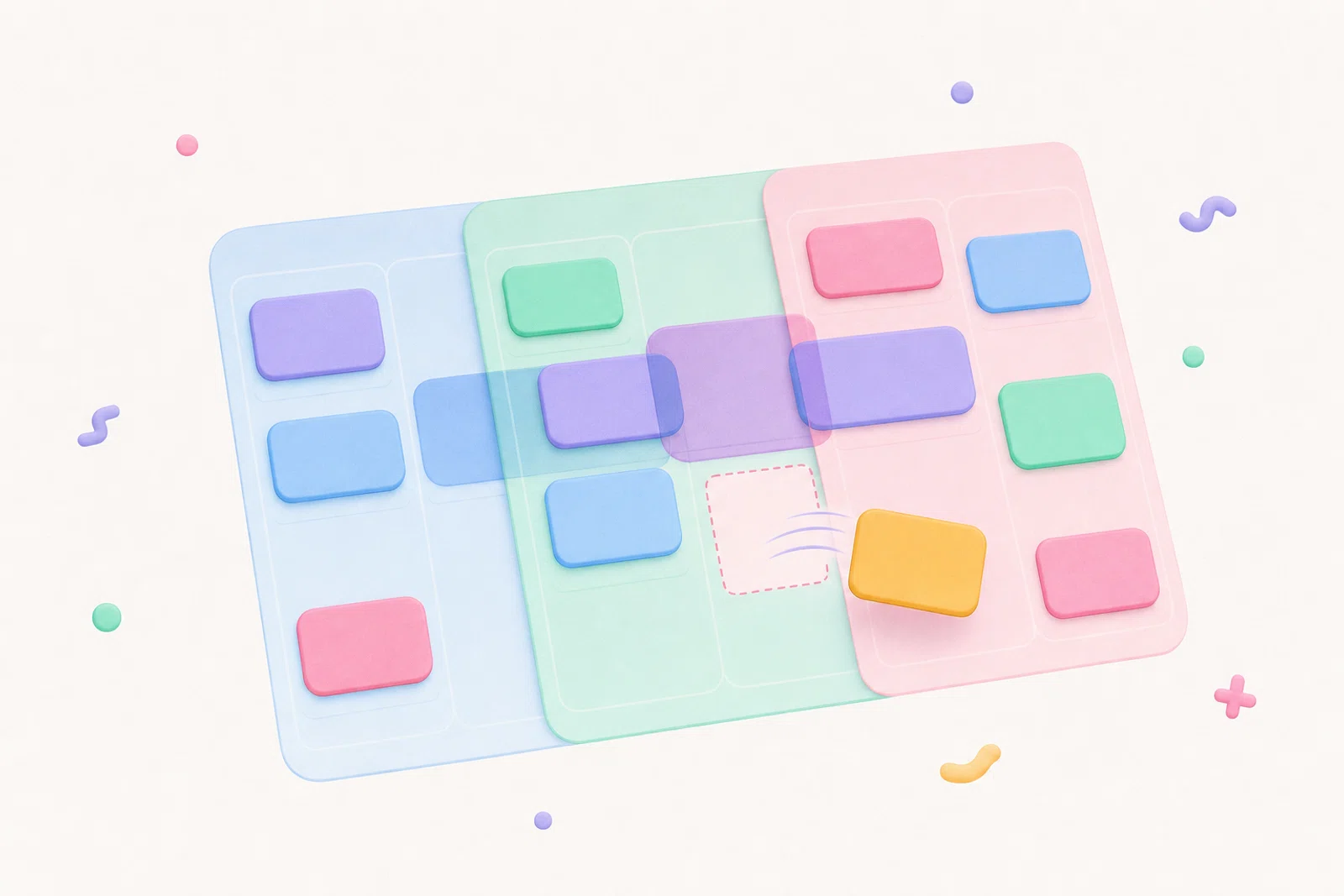
如果你需要在 Mac 上跨多个日历进行时间分块,最安全的工作流程是:在添加新的时间块之前,先在一个时间线中规划,并显示所有已确定的事件。这意味着你的工作 Google 日历、个人 Outlook 日历、Apple 日历事件,以及任何其他选定的日历,都应该在你决定下一个小时安排在哪里之前,与你的计划专注时间并排显示。
Chunk 正是为此而设计的。它驻留在 macOS 菜单栏中,在一天的时间线中显示多个 Google、Outlook 和 Apple 日历,并让你无需打开完整的日历应用即可创建、移动、调整大小和编辑时间块。当允许编辑已连接的日历时,你在 Chunk 中所做的更改可以同步回源日历。
本指南不是关于将一个日历导入另一个日历,或修复账户设置。而是关于在你的真实承诺分散在多个地方时,建立一个可靠的每日规划习惯。
为什么日历分散时时间分块会失效?
时间分块在计划和约束处于同一视图时效果最佳。分散的日历打破了这种联系。你可能在 Google 日历中有客户通话,在 Outlook 中有个人约会,在 Apple 日历中有家庭活动,还有用于课程、医疗或共享资源的提供者日历。如果你只查看其中一个日历就规划专注时间块,那是在猜测。
常见的变通方法是日历切换:查看工作、查看个人、查看另一个账户,然后返回你的规划器。问题不仅仅是额外的点击。每次切换都更容易错过一个短事件、忘记出行缓冲时间,或将深度工作安排在另一个账户中的会议之上。
更好的 Mac 工作流程始于一个单一的规划界面。你不需要让每个日历都成为你的主日历。你需要在规划时看到所有相关事件,然后快速在它们周围放置你自己的时间块。
一个可靠的多日历时间线应该显示什么?
你的规划时间线应该在添加任何新内容之前回答三个问题:什么已经固定,什么可以移动,以及哪里有真正的空白空间?固定事件包括会议、约会、接送孩子、通话和提供者预订。灵活的工作是你想要保护但可以根据当天变化而移动的专注时间。
Chunk 清晰地分离了这些任务。同步的 Google、Outlook 和 Apple 日历事件与你自己在 Chunk 中的时间块显示在同一个垂直日视图中。你可以并排添加多个 Google 账户和多个 Outlook 账户,而 Apple 日历则通过 Mac 系统日历连接。每个连接的账户都有自己的日历选择,因此你可以显示重要的日历,而不会让时间线变得杂乱。
一旦所有内容可见,时间分块就变成了一个
placement decision instead of detective work. If your morning already contains a stand-up, a dentist appointment, and a school calendar event, you can see the gap that is actually usable and block it with a realistic duration.If you are still deciding what a Mac-first planner should include, the broader guide to the best calendar app for time blocking on Mac covers the buying criteria in more detail.
How do you connect multiple calendars without making a mess?
Start by deciding which calendars need to influence your daily plan. You do not have to show every shared calendar, holiday feed, or archived project. The goal is enough context to avoid double-booking, not a wall of events you ignore.
In Chunk, the calendar settings use an account manager built around connected accounts and their calendar lists. You can add multiple Google accounts, multiple Outlook accounts, and the Mac’s Apple Calendar connection. For each account, choose which calendars appear in the day view. That lets you keep a work account, a personal account, and provider calendars visible without merging them into one provider.
Use editing permissions deliberately. Chunk lets you allow editing per connected account, and there is a global confirm-before-edits preference if you want an extra checkpoint before changes are pushed back. If a calendar is only there for context, keep it visible but read-only. If it is where your actual work blocks should live, allow editing so moves and resizes can sync back.
For a more provider-specific setup, you can pair this workflow with Google Calendar time blocking or time blocking Outlook Calendar on Mac.
How should you plan your day once every calendar is visible?
Open the day timeline first, before your task list or inbox pulls you into details. Look for the immovable anchors: meetings, appointments, calls, travel, pickups, and hard deadlines. These events define the shape of the day.
Next, place your most important focus block in the best available gap. In Chunk, you can drag on empty space to create a block, drag the block body to move it, or resize the top and bottom edges when the duration is wrong. This is the moment where a menu-bar planner helps: you can open Chunk with the global shortcut, adjust the day, and return to your work without a full app switch.
Then add smaller blocks around the anchors. Admin, email, errands, review time, and shallow work should fit into the remaining spaces rather than stealing the最干净的时间段。如果你已经在使用每日计划,关键变化在于,这个计划现在会尊重每一个已连接的日历,而不仅仅是你记得查看的那一个。
如果你想要菜单栏版本的这种日常安排,请阅读如何从Mac菜单栏规划你的一天。
什么时候应该将时间块同步回Google、Outlook或Apple日历?
并非每个时间块都需要变成外部日历事件。有些时间块是私人的规划脚手架:阅读笔记、起草提案、整理文件、清理桌面。如果这些只属于你自己,将它们保留为本地Chunk时间块就足够了。
其他时间块则应放在其他应用可以看到的日历上。如果一个专注时间块会影响可用性,如果你希望它在工作日历上可见,或者如果另一个设备依赖该日历源,就应将其放到正确的外部日历上。Chunk的时间块操作允许你在账户已连接且允许编辑时,将事件交换到外部Google、Outlook或Apple日历上。
一个有用的简单规则是:本地时间块用于个人执行,同步的日历事件用于共享可用性或提供方连续性。这样既能保持日历整洁,又能确保重要的受保护时间出现在需要的地方。
关于这背后更广泛的同步概念,请参阅Mac时间阻塞的双向日历同步。
如何避免跨账户的意外编辑?
多日历规划之所以有用,是因为一切可见。但如果你把每个事件都视为同等可编辑,也可能带来风险。客户日历、共享家庭日历或提供方预订可能是重要的上下文,但你不一定想从规划器中移动它们。
Chunk为你提供了两道保障。首先,编辑权限可以按账户设置,因此日历可以出现在日视图中,而不会成为容易拖拽写入的目标。其次,一个全局锁定开关可以将外部事件冻结为只读,当你想围绕它们进行规划而不修改它们时,这非常有用。这在快速晨间回顾时尤其方便,那时你是在安排自己的时间块,而不是重新安排会议。
使用一个简单的策略:编辑你拥有的日历,查看你依赖的日历。如果你确实需要移动外部事件,请有意识地操作,选择正确的账户和正确的目标日历。
如果你计划好之后,当天发生了变化怎么办?
多日历计划需要保持可编辑性,因为一天总会变动。会议超时、提供方预订时间调整,或个人约会出现at short notice. The planning system fails if adjusting the day feels harder than ignoring it.
In Chunk, external calendar events render on the same timeline as your blocks, and editable events can be moved or resized from the timeline. Your own blocks are just as flexible. You can slide a focus block later, shorten an admin block, or resize a writing session without rebuilding the whole day from scratch.
This is where the menu bar matters. If the panel is one shortcut away and can float above fullscreen apps, replanning becomes a small correction rather than a context switch. The plan stays close enough to maintain, which is what makes it useful after the first interruption.
If fullscreen work is part of your day, a Mac time blocker that works in fullscreen explains why that detail changes the habit.
What is the simplest daily routine for multiple calendars?
Use a short routine you can repeat without thinking. First, open your combined timeline and scan the fixed events across every visible calendar. Second, choose the one outcome that most needs protected time today. Third, create a block for that outcome in the best open gap. Fourth, add smaller blocks for admin and recovery around the fixed events.
After that, check whether any protected block should be synced back to a calendar. If the block affects availability, put it on the relevant Google, Outlook, or Apple calendar. If it is only a private execution cue, leave it as a local block. Finally, use the lock toggle when you only want to adjust your own plan.
Chunk fits this routine because it keeps the job small: open the menu-bar panel, see the calendars, place the blocks, and get back to work. You can try it with the 7-day trial, then keep it with a one-time lifetime licence if it becomes the planning layer your Mac was missing.