Mac पर कई कैलेंडरों में समय-ब्लॉक कैसे करें
प्रकाशित 16/8/2026

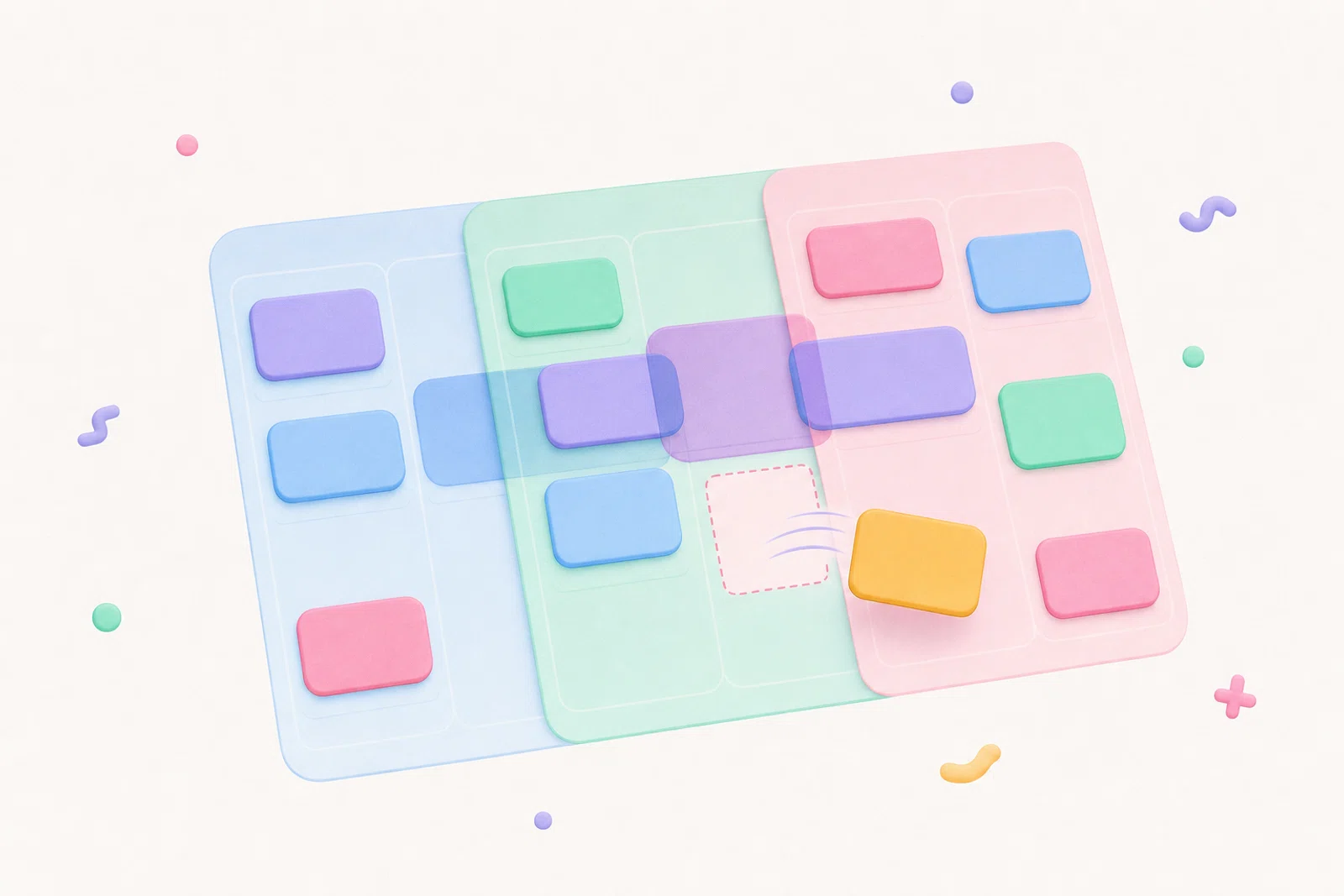
यदि आपको Mac पर कई कैलेंडरों में समय-ब्लॉक करने की आवश्यकता है, तो सबसे सुरक्षित तरीका यह है कि नए ब्लॉक जोड़ने से पहले एक ऐसी टाइमलाइन में योजना बनाएं जो हर प्रतिबद्ध इवेंट दिखाए। इसका मतलब है कि आपका काम का Google Calendar, व्यक्तिगत Outlook Calendar, Apple Calendar इवेंट, और कोई भी अन्य चयनित कैलेंडर आपके नियोजित फोकस समय के बगल में दिखना चाहिए, इससे पहले कि आप तय करें कि अगला घंटा कहाँ जाएगा।
Chunk ठीक इसी काम के लिए बनाया गया है। यह macOS मेनू बार में रहता है, एक दिन की टाइमलाइन में कई Google, Outlook, और Apple कैलेंडर दिखाता है, और आपको पूरा कैलेंडर ऐप खोले बिना समय ब्लॉक बनाने, स्थानांतरित करने, आकार बदलने और संपादित करने देता है। जब किसी कनेक्टेड कैलेंडर के लिए संपादन की अनुमति होती है, तो Chunk में किए गए बदलाव स्रोत कैलेंडर में वापस सिंक हो सकते हैं।
यह गाइड एक कैलेंडर को दूसरे में आयात करने या खाता सेटिंग्स ठीक करने के बारे में नहीं है। यह एक विश्वसनीय दैनिक योजना दिनचर्या बनाने के बारे में है जब आपकी वास्तविक प्रतिबद्धताएँ एक से अधिक स्थानों पर हों।
जब आपके कैलेंडर विभाजित होते हैं तो समय-ब्लॉकिंग क्यों टूट जाती है?
समय-ब्लॉकिंग सबसे अच्छा तब काम करती है जब आपकी योजना और आपकी सीमाएँ एक ही दृश्य में हों। विभाजित कैलेंडर उस संबंध को तोड़ देते हैं। आपके पास Google Calendar में क्लाइंट कॉल, Outlook में व्यक्तिगत नियुक्तियाँ, Apple Calendar में पारिवारिक इवेंट, और कक्षाओं, स्वास्थ्य सेवा, या साझा संसाधनों के लिए प्रदाता कैलेंडर हो सकते हैं। यदि आप उनमें से केवल एक को देखते हुए फोकस ब्लॉक की योजना बनाते हैं, तो आप अनुमान लगा रहे हैं।
सामान्य समाधान कैलेंडर-हॉपिंग है: काम जाँचें, व्यक्तिगत जाँचें, दूसरा खाता जाँचें, फिर अपने प्लानर पर लौटें। समस्या केवल अतिरिक्त क्लिकिंग नहीं है। हर स्विच से छोटे इवेंट को मिस करना, यात्रा बफर भूलना, या किसी दूसरे खाते में बैठी मीटिंग पर गहरे काम को ब्लॉक करना आसान हो जाता है।
एक बेहतर Mac वर्कफ़्लो एक ही योजना सतह से शुरू होता है। आपको हर कैलेंडर को अपना मुख्य कैलेंडर बनाने की आवश्यकता नहीं है। आपको योजना के समय हर प्रासंगिक इवेंट दिखाई देना चाहिए, फिर उनके आसपास अपने ब्लॉक रखने का एक तेज़ तरीका चाहिए।
एक विश्वसनीय मल्टी-कैलेंडर टाइमलाइन को क्या दिखाना चाहिए?
आपकी योजना टाइमलाइन को कुछ भी नया जोड़ने से पहले तीन प्रश्नों का उत्तर देना चाहिए: क्या पहले से तय है, क्या स्थानांतरित हो सकता है, और वास्तविक खुली जगह कहाँ है? तय इवेंट मीटिंग, नियुक्तियाँ, स्कूल रन, कॉल और प्रदाता बुकिंग हैं। लचीला काम वह फोकस समय है जिसे आप सुरक्षित रखना चाहते हैं लेकिन दिन बदलने पर स्थानांतरित कर सकते हैं।
Chunk उन कार्यों को साफ-साफ अलग करता है। सिंक किए गए Google, Outlook, और Apple Calendar इवेंट आपके अपने Chunk ब्लॉक के समान ऊर्ध्वाधर दिन दृश्य पर दिखाई देते हैं। आप कई Google खाते और कई Outlook खाते साथ-साथ जोड़ सकते हैं, जबकि Apple Calendar Mac सिस्टम कैलेंडर के माध्यम से जुड़ता है। प्रत्येक कनेक्टेड खाते का अपना कैलेंडर चयन होता है, इसलिए आप उन कैलेंडरों को दिखा सकते हैं जो मायने रखते हैं बिना टाइमलाइन को शोर में बदले।
एक बार सब कुछ दिखाई देने पर, समय-ब्लॉकिंग एक
placement decision instead of detective work. If your morning already contains a stand-up, a dentist appointment, and a school calendar event, you can see the gap that is actually usable and block it with a realistic duration.If you are still deciding what a Mac-first planner should include, the broader guide to the best calendar app for time blocking on Mac covers the buying criteria in more detail.
How do you connect multiple calendars without making a mess?
Start by deciding which calendars need to influence your daily plan. You do not have to show every shared calendar, holiday feed, or archived project. The goal is enough context to avoid double-booking, not a wall of events you ignore.
In Chunk, the calendar settings use an account manager built around connected accounts and their calendar lists. You can add multiple Google accounts, multiple Outlook accounts, and the Mac’s Apple Calendar connection. For each account, choose which calendars appear in the day view. That lets you keep a work account, a personal account, and provider calendars visible without merging them into one provider.
Use editing permissions deliberately. Chunk lets you allow editing per connected account, and there is a global confirm-before-edits preference if you want an extra checkpoint before changes are pushed back. If a calendar is only there for context, keep it visible but read-only. If it is where your actual work blocks should live, allow editing so moves and resizes can sync back.
For a more provider-specific setup, you can pair this workflow with Google Calendar time blocking or time blocking Outlook Calendar on Mac.
How should you plan your day once every calendar is visible?
Open the day timeline first, before your task list or inbox pulls you into details. Look for the immovable anchors: meetings, appointments, calls, travel, pickups, and hard deadlines. These events define the shape of the day.
Next, place your most important focus block in the best available gap. In Chunk, you can drag on empty space to create a block, drag the block body to move it, or resize the top and bottom edges when the duration is wrong. This is the moment where a menu-bar planner helps: you can open Chunk with the global shortcut, adjust the day, and return to your work without a full app switch.
Then add smaller blocks around the anchors. Admin, email, errands, review time, and shallow work should fit into the remaining spaces rather than stealing theसबसे साफ़ हिस्सा। अगर आप पहले से दैनिक योजना इस्तेमाल करते हैं, तो मुख्य बदलाव यह है कि योजना अब हर जुड़े कैलेंडर का सम्मान करती है, न कि सिर्फ उसी का जिसे आपने जाँचना याद रखा था।
अगर आप इस दिनचर्या का मेनू-बार संस्करण चाहते हैं, तो पढ़ें Mac मेनू बार से अपने दिन की योजना कैसे बनाएं।
किसी ब्लॉक को Google, Outlook, या Apple Calendar पर वापस सिंक कब करना चाहिए?
हर ब्लॉक को बाहरी कैलेंडर इवेंट बनने की ज़रूरत नहीं है। कुछ ब्लॉक निजी योजना के ढाँचे होते हैं: नोट्स पढ़ना, प्रस्ताव का मसौदा, फ़ाइलें छाँटना, डेस्क साफ़ करना। अगर वे सिर्फ आपके लिए हैं, तो उन्हें स्थानीय Chunk ब्लॉक के रूप में रखना काफी हो सकता है।
अन्य ब्लॉक ऐसे कैलेंडर पर रहने चाहिए जिन्हें दूसरे ऐप देख सकें। अगर कोई फोकस ब्लॉक उपलब्धता को प्रभावित करता है, अगर आप चाहते हैं कि यह आपके काम के कैलेंडर पर दिखे, या अगर कोई अन्य डिवाइस उस कैलेंडर फ़ीड पर निर्भर है, तो उसे सही बाहरी कैलेंडर पर रखें। Chunk के ब्लॉक एक्शन आपको किसी इवेंट को बाहरी Google, Outlook, या Apple कैलेंडर पर ले जाने की सुविधा देते हैं, जब वह खाता जुड़ा हो और संपादन की अनुमति हो।
उपयोगी नियम सरल है: स्थानीय ब्लॉक व्यक्तिगत निष्पादन के लिए हैं, सिंक किए गए कैलेंडर इवेंट साझा उपलब्धता या प्रदाता निरंतरता के लिए हैं। इससे आपका कैलेंडर साफ़ रहता है, जबकि महत्वपूर्ण सुरक्षित समय वहाँ दिखता है जहाँ उसे दिखना चाहिए।
इसके पीछे के व्यापक सिंक अवधारणा के लिए, देखें Mac टाइम ब्लॉकिंग के लिए दो-तरफ़ा कैलेंडर सिंक।
खातों के बीच आकस्मिक संपादन से कैसे बचें?
मल्टी-कैलेंडर योजना उपयोगी है क्योंकि सब कुछ दिखाई देता है। यह जोखिम भरा भी हो सकता है अगर आप हर इवेंट को समान रूप से संपादन योग्य मानते हैं। क्लाइंट कैलेंडर, साझा पारिवारिक कैलेंडर, या प्रदाता बुकिंग महत्वपूर्ण संदर्भ हो सकते हैं, लेकिन ऐसी चीज़ नहीं जिसे आप अपने प्लानर से हिलाना चाहें।
Chunk आपको दो सुरक्षा उपाय देता है। पहला, संपादन प्रति खाता अनुमत किया जा सकता है, ताकि कोई कैलेंडर दिन के दृश्य में दिख सके बिना लेखन के लिए आसान ड्रैग लक्ष्य बने। दूसरा, एक वैश्विक लॉक टॉगल बाहरी इवेंट को केवल-पढ़ने के रूप में स्थिर कर देता है जब आप उनके आसपास योजना बनाना चाहते हैं बिना उन्हें बदले। यह त्वरित सुबह की समीक्षा के दौरान उपयोगी है जब आप अपने ब्लॉक व्यवस्थित कर रहे हैं, बैठकों को पुनर्व्यवस्थित नहीं कर रहे।
एक सरल नीति अपनाएं: उन कैलेंडर को संपादित करें जिनके मालिक आप हैं, उन कैलेंडर को देखें जिन पर आप निर्भर हैं। अगर आपको किसी बाहरी इवेंट को हिलाना है, तो इसे जानबूझकर करें, सही खाता चुना हुआ और सही कैलेंडर गंतव्य के रूप में।
योजना बनाने के बाद अगर आपका दिन बदल जाए तो क्या होगा?
मल्टी-कैलेंडर योजना संपादन योग्य रहनी चाहिए क्योंकि दिन आगे बढ़ेगा। कोई बैठक लंबी हो जाती है, कोई प्रदाता बुकिंग बदल जाती है, या कोई व्यक्तिगत नियुक्ति आ जाती हैat short notice. The planning system fails if adjusting the day feels harder than ignoring it.
In Chunk, external calendar events render on the same timeline as your blocks, and editable events can be moved or resized from the timeline. Your own blocks are just as flexible. You can slide a focus block later, shorten an admin block, or resize a writing session without rebuilding the whole day from scratch.
This is where the menu bar matters. If the panel is one shortcut away and can float above fullscreen apps, replanning becomes a small correction rather than a context switch. The plan stays close enough to maintain, which is what makes it useful after the first interruption.
If fullscreen work is part of your day, a Mac time blocker that works in fullscreen explains why that detail changes the habit.
What is the simplest daily routine for multiple calendars?
Use a short routine you can repeat without thinking. First, open your combined timeline and scan the fixed events across every visible calendar. Second, choose the one outcome that most needs protected time today. Third, create a block for that outcome in the best open gap. Fourth, add smaller blocks for admin and recovery around the fixed events.
After that, check whether any protected block should be synced back to a calendar. If the block affects availability, put it on the relevant Google, Outlook, or Apple calendar. If it is only a private execution cue, leave it as a local block. Finally, use the lock toggle when you only want to adjust your own plan.
Chunk fits this routine because it keeps the job small: open the menu-bar panel, see the calendars, place the blocks, and get back to work. You can try it with the 7-day trial, then keep it with a one-time lifetime licence if it becomes the planning layer your Mac was missing.
संबंधित लेख
Apple Calendar MCP: Claude के साथ अपने दिन की योजना बनाएं
Apple Calendar MCP: Claude के साथ अपने दिन की योजना बनाएं
मैक के लिए आवर्ती कार्यों वाला सर्वश्रेष्ठ समय-ब्लॉकिंग ऐप
मैक के लिए आवर्ती कार्यों वाला सर्वश्रेष्ठ समय-ब्लॉकिंग ऐप